

It will protect your Mac from all kinds of threats that can harm the device and data, transferring via the internet.
You can go to McAfee.com/activate and install McAfee Internet Security on Mac.
Steps to Install McAfee Internet Security on Mac
McAfee Internet Security is supported by MacOS 10.12 or later.
Here are the steps that you can follow to install it on your Mac:
After checking the internet connection, launch a web browser of your choice (Safari is preferred).




McAfee provides features that help you stay protected.
If you want to install McAfee mobile security on Android device, you need to follow the instructions given below.
After that, you should open the Google Play Store.
Later, tap on McAfee Mobile Security from the results.
You have to select two questions and give their answers.
After that, tap on “Activate uninstall protection.”
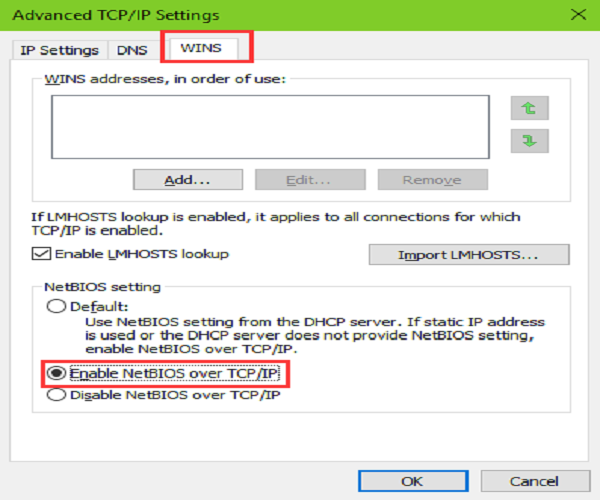
The error notification “Your PC isn’t connected to the Internet” appears on your screen, especially when you are using Microsoft Store.
This issue occurs on your device due to an unreliable Internet connection.
In this article, we will show you how you can fix this issue.Clear Microsoft Store Application CacheHere are the steps to follow:Tap the Windows + R button on your keyboard to open the Run command prompt.In the Run search tab type “WSReset.exe” and then click “OK.”After the above process “Reset tools” run and clear current settings.Your Windows Store application will clear now, and you can work as you wish.Update Time and Date settingsHere are the steps to follow:Right-tap on the “date/time” button in the settings.Select “adjust time/date.”You need to switch the option “set time automatically” to off.Select “Change” in the “Change time and date.”Here you need to adjust time and date with the time zone.Tap on the “Change” button again.Now close the windows.Runs Windows applications in-built TroubleshooterHere are the steps to follow:Tap “Start.”Select “Settings.”Click “Application.”Click “Apps and Features.”Click the “Store” application.Click “Advanced.”On the next screen, click “Repair.”Now you need to wait for the repair process to be finished.Repair Network SettingsHere are the steps to follow:Right-tap on the “network” logo display in the system tray.Select “troubleshooter problems.”Allow the process to get over.For Windows 8:Here are the steps to follow:Tap the Windows +C to launch the Charms tab.In the charms search bar, type “Troubleshooting.”Now find the “Troubleshooting” option in the “settings” and then tap on it.In the following search field, your need to type “Network Troubleshooter.”Select “Network troubleshooter” to start the troubleshooting process.Now follow on-screen instruction and then check the issue resolved.For Windows 8.1Here are the steps to follow:Select the “Start” button and then type “Network problem” in the search field.Here you can see several choices on your screen, select “Identify and repair network problems.” to open Troubleshooter.You need to wait until the troubleshooting is over.For Windows 10Here are the steps to follow:Select the “Start” buttonIn the search field, you need to type “cmd.”Right-tap on the cmd.exe and then select run as administrator and then you need to enter the given command in the search field and tap the “Enter” button every time:netsh winsock resetnetsh int ip resetipconfig/release.ipconfig/renew.ipconfig/flushdns.After that, restart your device and then check for improvement.Restart Your ComputerIt is one of the easiest and simple solutions to fix several issues.
So to fix this issue, you need to restart your system and then check if the issue has been resolved.Turn off the Proxy ServerHere are the steps to follow:Tap the Windows + R button on your keyboard to launch the Run command prompt.In the Run command-line, you need to type “inetcpl.cpl” and then tap “OK.”Select the “Connection” button.Then you need to click “LAN Settings.”Select the “Automatically detect settings” button.Deselect “Use a proxy server ….” in the “Proxy server.”Tap “OK”Turn off Antivirus and FirewallSometimes you need to disable third-party antivirus programs temporarily to fix several issues from your operating system.Windows 7Here are the steps to follow:Tap on the ‘Start” button.Select “Control panel.”In the search field, you need to type “Windows Firewall.”Tap on the “check firewall status.”Select “turn windows firewall on/off.”Select “turn off the firewall.”Click “OK.”For Windows 10Here are the steps to follow:Tap on the “start” buttonIn the search field, you need to type “firewall.”Select “check firewall status.”Select “turn windows firewall on/off.”Select “turn off the firewall.”Click “OK.”For Windows 8.1Here are the steps to follow;Tap on the “Start” button and then select “Control Panel” to launch the Windows Firewall.Select “Windows Firewall.”Tao on “Turn Windows Firewall on/off.”Select disable the firewall.Click ‘OK.”Disable AntivirusHere are the steps to follow:Select the “Start” button on your device.Click “Settings.”Select “Updates and Security.”Tap “Windows defender.”Here you need to set real-time protection.Remember to enable antivirus when you have fixed your issue.Reset Internet ExplorerHere are the steps to follow:Launch Internet Explorer.Select “Tools” and then tap on the “gear” symbol.Select “Internet Option.”Select the “Advanced” button.Select “Reset.”Here you need to wait until the process is finished.Now restart your device.Reset Edge BrowserHere are the steps to follow:Tap on the “Start” button.Select “all applications.”Open “Microsoft edge” by tapping on it.Click the tab button to access settings.Bottom down and then click “Choose what to clear.”Select “Clear browsing data.” You can also tap “Show more.”Now select entire things and then tap the “Clear” button.
Perform SFCHere are the steps to follow:Tap on the “Start:” button.In the search field, you need to type “cmd.”Right-tap on the “cmd.exe” and then select “run as administrator.”In the Run search field you need to type “sfc /scannow” This will scan your operating system and fix the issue automatically.Tweak Microsoft ServiceHere are the steps to follow:Tap on the “Start” button on your device.In the search field, you need to type “msconfig” and then tap “OK”Select “system configuration.”Tap the “service” button.Select “Enable all” to reactivate the entire Microsoft service.Ava Williams is a self-professed security expert; he has been making the people aware of the security threats.
His passion is to write about Cybersecurity, cryptography, malware, social engineering, internet and new media.