


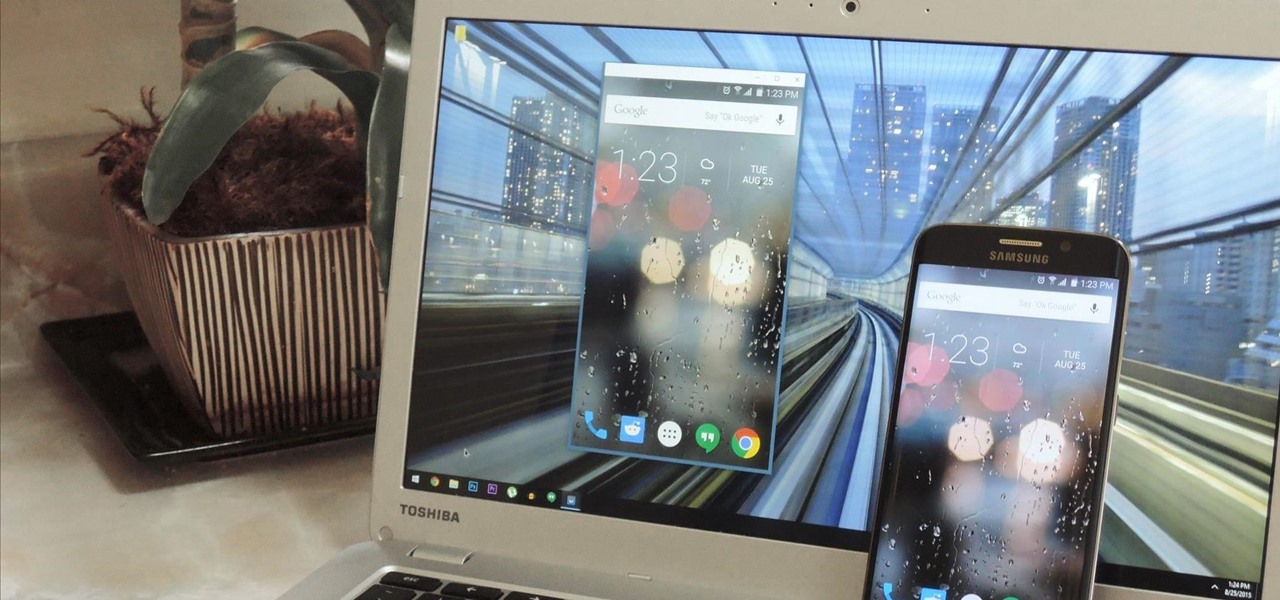
Also, typing a long text is easy and fast on the computer as compared to the Smartphone.
Even, it is possible to send messages through using it.
* Open your phone app on both devices and keep following the instructions that you see on display for connecting.
You might find the setup process a bit complex, but once it is done you need to worry about nothing.
Now, launch a web browser on your PC and visit web.airdroid.com.
You will see the QR Code on the web page.
Backing up your phone data regularly is crucial to ensure that you do not lose anything in case of a sudden crash.
While uploading on the Cloud is the safest way, you can always connect your smartphone to the PC to create backups without an internet connection.
But what happens when your Windows 10 PC is unable to recognize your Android device in the first place?
Here are a few solutions that you can try:Check the USB System Connection SettingsYou can check the USB system in the following ways:Navigate to the Settings of your Android device.After that, select the Storage option.You should select the More button on the upper right-hand side of the screen.Then select the ‘USB computer connection’ option.Go to the options list and choose the ‘Media device (MTP)’ option.Now, try connecting the Android device to the system.Installing the MTP USB Device DriverInstall the MTP USB device driver on your Windows 10 PC using the following steps:Invoke the Win + X menu.Then choose the Device Manager option.After that, select the ‘Browse my computer for driver software’ option.You should choose the ‘Let me pick from a list of device drivers on my computer’ option.Go to the list and select the ‘MTP USB Device’ option then select the Next button.Once installed, the driver, the Android device can be detected.Uninstalling Android DriversRemove the corrupt drivers on your Windows 10 device using the following steps:You should connect the Android device to the system and launch the Device Manager.Once you reach the Device Manager, find the Android Device.
Normally, it is situated in the “Portable devices or Other Devices” section.
But it may vary depending on your system.You should choose the device and right-click on it then select the Uninstall button.Once you have successfully uninstalled the driver, disconnect the Android device.Now, connect it once again, and you have to wait to finish the automatic driver installation process.Finally, check whether the Android device is detected.Connect the Android Device as a USB Mass Storage DeviceHere is how to connect the Android device as a USB mass storage device:Go to the Settings option and then choose the More Settings option.After that, select the ‘USB utilities’ option then choose the ‘Connect Storage to PC’ option.You might be asked to disconnect and connect the Android device to install the required drivers.Once you finish all the instructions, check whether the Android phone is detected.’Restart the Mobile into ODIN ModeHere is how you can run your mobile in the ODIN mode:Press the Volume down + Home + Power button altogether to switch on the mobile.Then hold the Volume key.After that, link the mobile to the system and allow it to install the needed drivers.You should remove the phone’s battery and boot the device as usual.Now, check whether the Android device is detected by Windows 10.Using the above solutions, you will be successful in connecting your Android phone to a Windows 10 device.
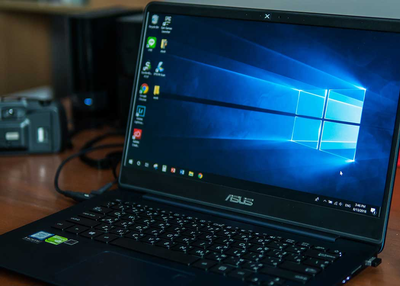
Reports about computer freezing issues never stopped & since October 2017, these problems have been on the rise.
However, it also brought a major hitch with Windows freezing randomly.
Some Common Reasons Why Windows 10 Freezes Randomly:
Excessive Startup Items Running in Background
Fix All The Common Issues In One-Go!
Remove Problematic Programs to avoid Computer Freezes