





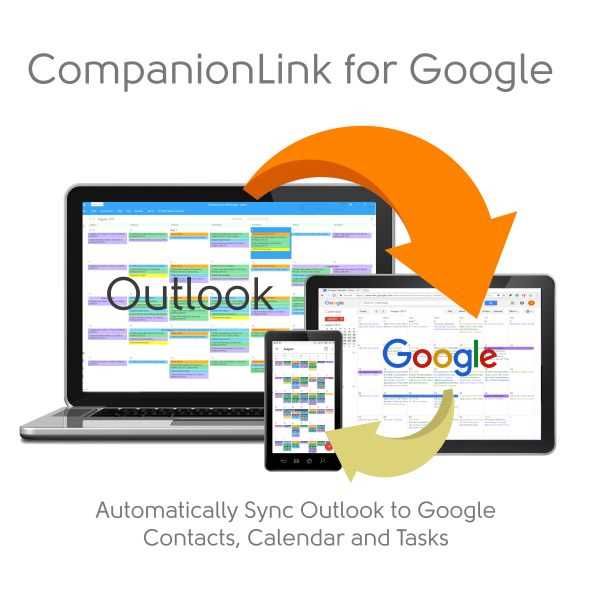
With CompanionLink for Google, it is easy and fast to automatically sync from Microsoft Outlook to Google Calendar, Contacts and Tasks.
1. Install CompanionLink on your PC or Mac
2. Set Google Credentials.
3. Set your Outlook Folder
From this point, sync is fully automatic. Every change you make in Outlook Calendar goes to Google Calendar, and every change you make in Google Calendar goes to Outlook's Calendar.
Setup Guides:
-For Windows: Sync Google Calendar with Outlook
-For Mac: Google Outlook Sync
-G Suite Sync for Microsoft Outlook Transition guide
-Share Outlook Calendars using Google
-Sync multiple Google Calendars to Outlook Folders9*
Microsoft Outlook calendar is a calendar Scheduling program on mails and it helps in fixing various multiple appointments for meetings, organizing programs and events, cluster scheduling, etc.
Google and Microsoft both provides an open standard “iCal” feature that could be used for exchanging calendar schedules between systems and its users.
It provides a trustable and organized form of calendar scheduling feature with syncing both calendars.Here in this blog, we will talk about how to use Google Calendar with Outlook.Exchanging Outlook Calendar’s Schedules on Google CalendarPreviously “Outlook Client” facilitated the feature and now with the launch of “Office 365,” MS only enables the users to share Calendar’s schedule with the outside individuals of the institution via the “Outlook Web application.”If you wish to share your Outlook schedules with Google calendars, then follow these mentioned steps:First of all, you have to sign in to the “Office 365 account,” and then go to MS Outlook by hitting the particular application launcher.
It is indicated as the box of nine grouped dots.Then, choose the icon of “Outlook.”After that, tap on “Settings.”Next, hit the option “View all Outlook.”Now, you have to launch the “Calendar’ option.Then, tap on the “Shared Calendars” tab.Now, navigate to the section “Publish a calendar” and hit it.After that, select your desired Calendar for sharing.Note: In case you have only one setup of a particular Calendar, then it will be simply known as “Calendar.”Now, hit the option ” Can View All Details” from the provided second most pull-drop box.Then, you have to hit the “Publish” tab there.Now, two different links will be created.
One is “HTML,” which enables the users to see their Calendar in a particular web browser.
The second one is the “ICS” link that allows the user to import their particular schedule in their scheduling program.After that, hit the “ICS” link, then a menu will display on your screen.
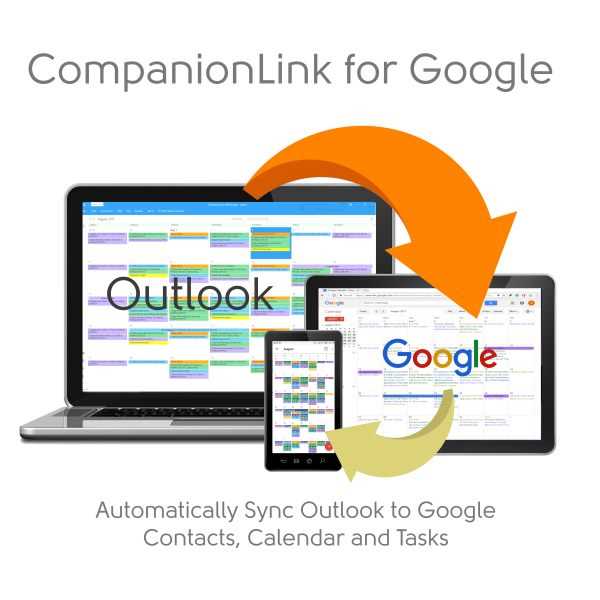
When it comes down to syncing Outlook with Google calendar, contacts or tasks, you should choose a software that is fast and reliable.
An ideal tool will have the ability to offer you a two-way Google Outlook Sync and will be compatible with Office 365, Outlook 2019, 2016, 2013, 2010 and 2007.
In addition to being fast, the software must be agile enough to recognize and sending any changes made in Google to Outlook and vice versa.
Hello Orangescrum’ers, we’re back with another product update!
Over the years, Orangescrum has helped users to organize their tasks, deliver projects in time and collaborate from a single platform.
However, it is difficult to keep track of all important assignments & deadlines through email notifications & many users have asked for the ability to sync their tasks and deadlines with Google Calendar.
The wait is over! Now, you can see all your important appointments, deadlines, tasks on your Google calendar with a real-time, 2-way integration with Orangescrum –#1 Task Management Software .
Why Google Calendar?
Google Calendar lets you organize your schedule and share events with team members and friends. With Google’s free online calendar, it’s easy to keep track of your daily schedule.
Also, Google Calendar is pre-installed on many mobiles and being widely used by businesses via G-Suite. It displays meetings, appointments, activities, and events in a single place.