




If you want to know how to fix a Printer driver error? Then Printer Customer Support is the right platform for you. We have a team of online support in order to download and install the latest driver for your printer online. Get an expert to advise a call +1-844-824-0864

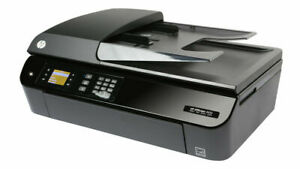
HP printers are well known for their efficiency and high-quality prints.
Printers may have many unexpected issues while using, Paper Jam problem is one of them.
Many facts trigger Paper Jam issue in HP Printers- Using bad quality printer paper.Paper not installed properly in a paper tray.Paper tray has been dislocated.Installed large amount of paper in the tray.Paper not positioned well in the line.Use of low-quality ink-cartridges/toner.Printer roller not working well.
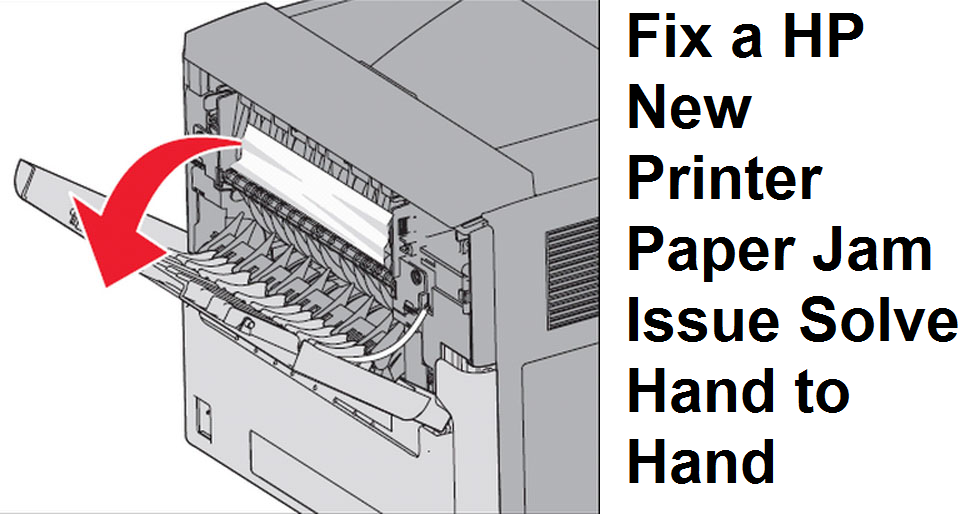
To solve the paper jam problem in your HP printer, you can follow some recommended steps: Unplug the power cable from the rear of a printer as well as wall, while the printer is ON.Now remove all the paper from the tray or eject the whole paper tray.Now check for a paper jam in your printer and take it out slowly, if found any.By using a flashlight, look for any remaining paper particle.Next install the paper tray and reload it with a supported amount of paper.You need to be sure the paper tray is properly inserted and paper is in line.Plug the power cable in the wall first, then the rear of the printer.Wait till HP printer turns ON, else manually press the power button.
By doing the above task probably results unjamming the paper in printer and making it work again hassle-free.
A large amount of dust on the print roller will possibly result in Paper Jam.