


If you are a photo editor or want to be one then you must think about learning Photoshop which is a king of editing of images. Now the best way to do this is to join a graphic design course in Delhi from a reputed training institute. Only a certified training institution can teach you how to become a master of this editing software. This blog is presented by ADMEC’s content planning on selection making using channels. So, let’s see the step.
Step 1. Create duplicate layer and start making selection of main subject. Create selection all around the main subject. Make sure to avoid see through areas like shown in the image.

Step 2. Click on Layer Mask button and soon after that you’ll see another layer thumbnail on right side as shown in the image below.

Step 3. Now put a solid adjustment layer and pick up any color you like.

Step 4. Now turn off the layer mask by holding shift key and click on the mask. This will show a red cross like shown in the image below and your mask will be disable for that moment.

Step 5. Go to channels panel (from Window menu). And find out which channel has the most contrast between hair and the background.

In this example, we can see the red channel has the most contrast between the hair and the background.
Step 6. Make a copy of this channel.

Step 7. Now our main job is to get hair completely white and the background completely black or do the opposite since it depends on the image you can working on.
For this, go to Image Menu -> Adjustment -> Levels
You can also try keyboard shortcut – CTRL + L
Now start using the first slider move to the right little bit and same goes for last slider. This increase the black and white presence and will give you nice contrast.

Step 8. Hold the CTRL key and click on channel thumbnail, you’ll find the selection of the hair as shown in the image.

Step 8. Hold the CTRL key and click on channel thumbnail, you’ll find the selection of the hair as shown in the image. Now go back to layer panel and click on the thumbnail of layer mask.
Now paint with the Brush Tool (B is the shortcut to select this tool). Make sure to paint with White color in the foreground swatch as shown in the brush.

Step 9. Now the image will show all the hair but when you put in on a contrast background, it will show edge fringes. Now use blending modes to remove edge fringe on contrasting backgrounds.
I’m using another example for this step. Look at the image given below. See the edge fringes. This is what we are going to fix.

Remember two things: Use Screen blending mode if you are taking out the subject from a dark background. On the other hand if you are taking out the subject from a light background then you need to use Multiply blending mode.
In this example, we have cat image which has black as its original color. So, it means we need to use Screen blending mode here.
So, select your subject layer and change its blending mode. In my case, Screen will work.
Now create few more copies to increase the intensity of the hair or furs.
You will get the result as shown in the image below.

Now make one more copy and change its blending mode to normal. This is for the middle part.
Step 11. Put the top layer with normal blending into a group and add a separate layer mask for this group. See the image.

Step 12. Now select the group layer mask, pick up Brush tool and start painting with black as foreground color. You can decrease the flow of the brush as I’m doing. Remember to paint only on the edges not in the middle. Do it slowly.
Here is the final look.

Our expert professionals under Photoshop course in Delhi will teach every editing step by step as mentioned in this blog. We follow practical examples to show things how really work. If you are interested then you must think about pursuing a diploma in graphic design in Delhi or check the list of best graphic design institute in Delhi on ADMEC.

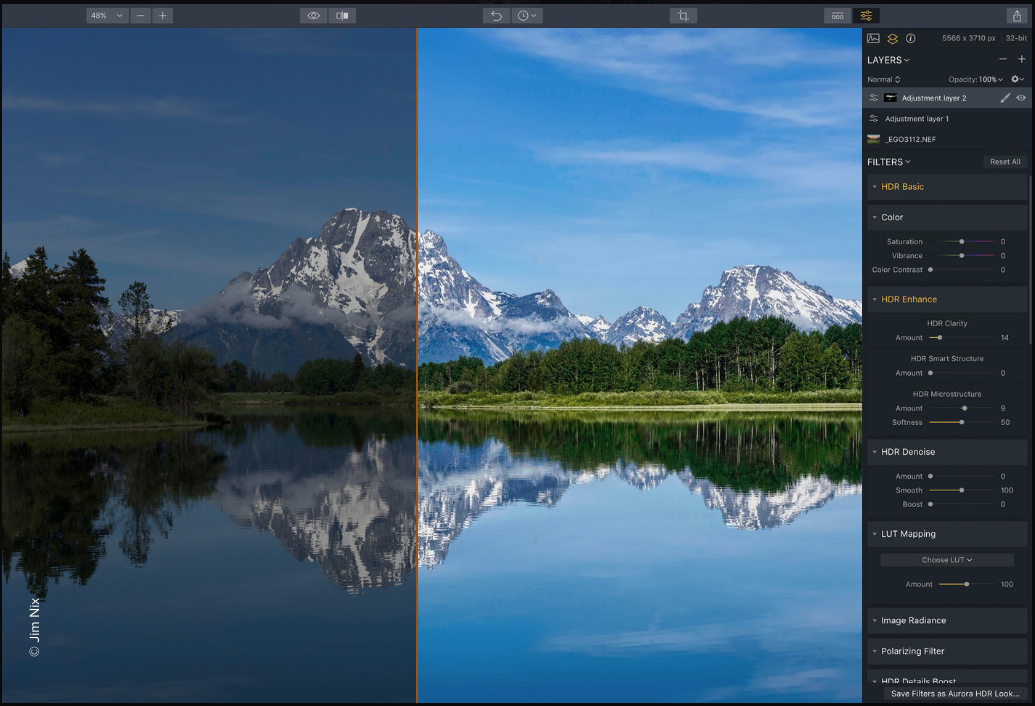
Photoshop has many filters that can be used for making creative images.
This can be useful for people looking for basic HDR Photoshop functionality because they use the photo merger option in the software and then use the various Photoshop filters to give their photos a unique and creative look.
But as stated before, this is not something that people looking for professional HDR images will be satisfied with as, ultimately, HDR in Photoshop is not very advanced by itself.We have gone over some basics of how plugins work in Photoshop, let’s go over some of the Best Photoshop Plugins for HDR Work you can use for making Photoshop a high dynamic range editor
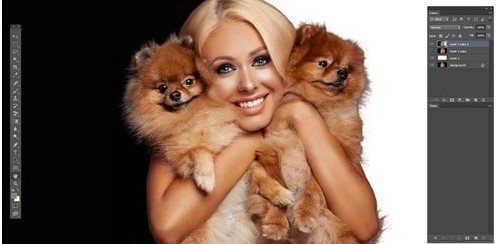

Unquestionably Photoshop has set the standards for image editing.
Nowadays it’s not about editing an image, but it is photoshopping an image.
But there are alternatives to Photoshop that are worth considering.
Here are the best Photoshop alternatives.
Moreover, this online image editing tool supports layers, masking, magnetic lasso tool, quick selection, and other advanced features.
GIMP has been around since 1995 and it stands for GNU Image Manipulation Program.