



Chrome is one of the most popular web browsers used around the world. It is known for its simplicity, speed, and reliability. However, sometimes users may encounter issues while accessing websites due to DNS (Domain Name System) cache problems. DNS is responsible for translating domain names into IP addresses, which is necessary for accessing websites. When there is an issue with the DNS cache, it can prevent users from accessing websites, and this can be frustrating. In this blog, we will discuss how to flush DNS cache on Chrome using chrome://net-internals/#dns.
What is DNS Cache?
DNS Cache is a temporary storage area where the DNS records of websites visited by a user are stored. When a user visits a website, the browser stores the DNS information of that website in the cache. This makes it easier and faster for the browser to access the website the next time the user visits it. However, if there is a change in the IP address or the DNS record of the website, the browser may not be able to access the updated information as it will still be referring to the outdated information stored in the cache.
What is Chrome://net-internals/#dns?
Chrome://net-internals/#dns is a built-in tool in the Chrome browser that allows users to view and manage the DNS cache. This tool can be used to flush the DNS cache, which will delete all the stored DNS records in the cache, and the browser will start afresh with the updated DNS records.
How to flush DNS cache on Chrome using Chrome://net-internals/#dns?
Step 1: Open the Chrome browser and type chrome://net-internals/#dns in the address bar.
Step 2: Press Enter to open the DNS page.
Step 3: Click on the "Clear host cache" button located at the top of the page.
Step 4: Once you click on the button, the DNS cache will be cleared.
Step 5: Close the Chrome browser and reopen it to complete the process.
Conclusion
Clearing the DNS cache can resolve issues related to website access and improve the performance of the Chrome browser. The chrome://net-internals/#dns tool provides an easy and effective way to clear the DNS cache. Users should clear the cache periodically or whenever they face issues related to website access. By following the steps mentioned in this blog, users can easily flush the DNS cache on Chrome and enjoy a better browsing experience.


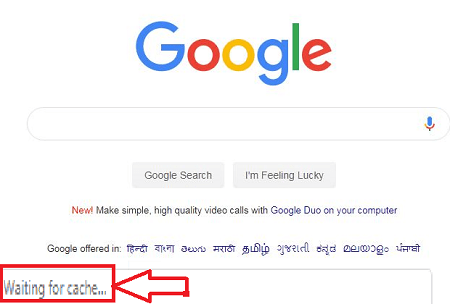
Many people have come across Waiting for Cache error on their Chrome.
But, there is no message shown on the screen.
At the bottom of their browser, a process of “Waiting for cache” goes on.Read this article and follow the instructions carefully.
Let’s fix the Waiting for Cache error in Chrome.Why Am I Getting ‘Waiting for Cache’ Error?Many of the user-reports show that two significant factors are causing your Chrome to show this message;Your SSD Write cache is getting full too early: Your solid-state drive may be full with the cache.
To disable the write cache, follow the tutorial below:Hit Start key and R key on your keyboard together.
After that enter “devmgmt.msc” and hit the Enter button on your keyboard.Now you can see that Device Manager has opened.