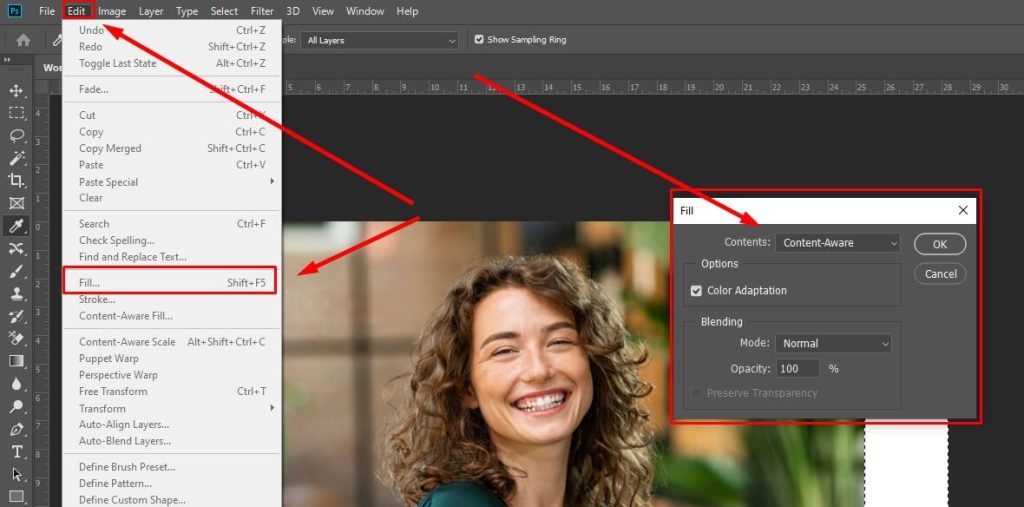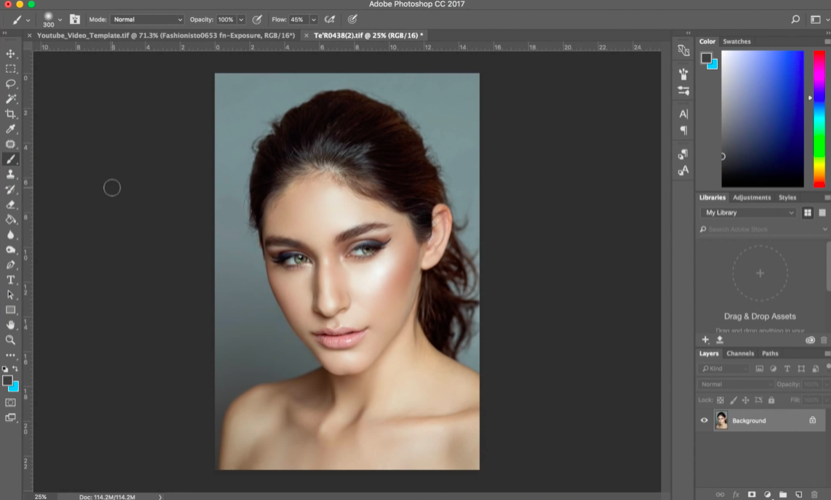
We cannot imagine the beauty of a photograph without a background colour. So many tools and software are available for doing the same Photoshop is the most amazing platform for enhancing the photo's look. Let me know how to change the background color in Photoshop. We can change the background color using the background layer and foreground workspace. Select the desired color to set as the background color.



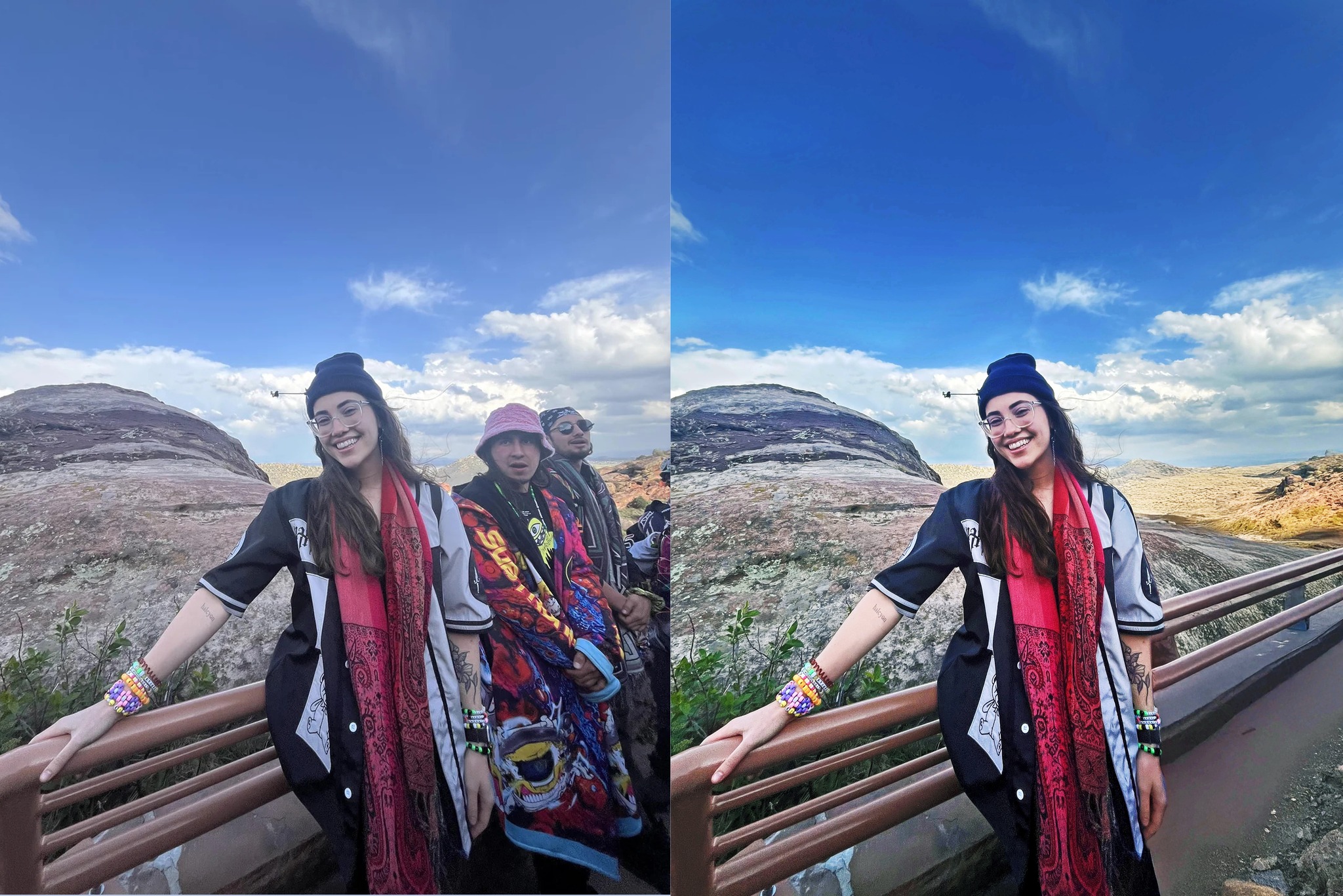
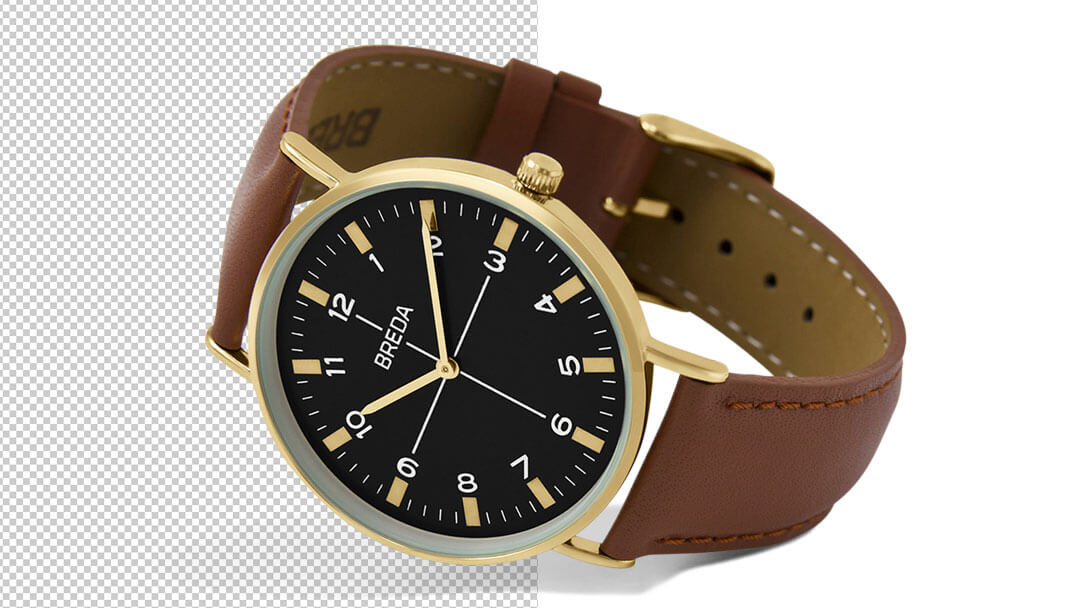
How To Create A Transparent Background In PhotoshopWith the Photoshop magic now you can curate transparent product and logo images to publish it across the internet.Most of the featured products on the websites look better without an image.
Like, with the Background removal, you can place your products with a transparent background against the background that changes the colors.
So, you can save your product image or logo in the web-ready format using Photoshop.Steps to Create Transparent Background for an Image in PhotoshopFollow the below steps to create a transparent background for your product image using Photoshop:Creating your Image into the Layered FileCreating your SelectionDelete the Image BackgroundSaving your Image in the Web-Ready FormatSaving the Image FileStep 1: Creating Your Image into the Layered FileFirstly, open your product image in Photoshop that is in JPG Format.
Like, use the image of the below wristwatch that is clicked against the white background.After this open the “Layers” panel that rests on the right side of your image window.
You can leave this New Layer as default “Layer 0,” and then click OK.With this step, you have unlocked your “Background Layer,” and now anything deleted from it will appear transparent.Step 2: Creating Your SelectionWhile doing image editing to create a transparent product or background, the second step involves choosing the ‘Magic Wand’ tool from the Toolbar that lies on the left-hand side of the Application Window.
You will see the selected area inside the ‘Marching Ants’ that is surrounding your image selection.In any case, if you think that the image selection you did is not perfect, then you can use the ‘Magic Wand’ tool to remove more of the background from the selected image.