MS Word is a widely used word processing software developed by Microsoft. It offers various features and functionalities that make it a preferred choice for creating, editing, and formatting documents. To fully utilize the potential of this software, users must have a clear understanding of its features and functions. This essay aims to provide objective questions and answers regarding MS Word to help users enhance their knowledge and proficiency in using this software.

MS word objective questions and answers
1. What is the purpose of the "Find and Replace" feature in MS Word?
The "Find and Replace" feature allows users to search for specific words, phrases, or characters within a document and replace them with desired text. It helps users to quickly locate and modify specific information in a large document, saving time and effort. This feature also offers options to search for entire word or partial matches, ignore or match case sensitivity, and search only within specific parts of the document.
2. How can you insert a table in MS Word?
To insert a table in MS Word, go to the "Insert" tab on the ribbon, and click on the "Table" icon. From the drop-down menu, select the desired number of rows and columns. Alternatively, users can also draw a table by selecting the "Draw Table" option. By clicking and dragging the mouse in the desired area, users can create a table of any shape and size.
3. What does the "Track Changes" feature in MS Word do?
The "Track Changes" feature in MS Word allows users to track and display any changes made to a document. It is especially useful when multiple users are collaborating on a project or when reviewing and editing documents. Whenever a change is made, MS Word highlights it, adds comments, and keeps a record of who made the change and when it was made. This feature enhances the transparency and accountability of document editing.
Read More Info :- Calculus questions and answers.
4. How can you add a watermark in MS Word?
To add a watermark in MS Word, go to the "Design" tab on the ribbon and click on the "Watermark" option. A drop-down menu will appear with various predefined watermark options. Users can select any watermark from the list, or they can create a custom watermark by clicking on the "Custom Watermark" option. This feature allows users to add watermarks like "Confidential," "Draft," or their organization's logo to the document.
5. What is the purpose of the "Mail Merge" feature in MS Word?
The "Mail Merge" feature in MS Word allows users to create personalized documents, such as letters or emails, by combining a common template with a data source. This feature is particularly useful when sending bulk letters or emails with customized information for each recipient, such as their names or addresses. MS Word pulls information from the data source, inserts it into the template, and generates individualized documents or emails, saving time and effort.
Visit Here For More Information About This :- Data structure mcq.
6. How can you change the page orientation in MS Word?
To change the page orientation in MS Word, go to the "Layout" tab on the ribbon and click on the "Orientation" option. Users can choose from two options: "Portrait" or "Landscape." The "Portrait" orientation is suitable for most documents, while the "Landscape" orientation is useful when the document requires a wider layout, such as spreadsheets or panoramic images. Additionally, users can also set different page orientations within the same document by inserting section breaks.
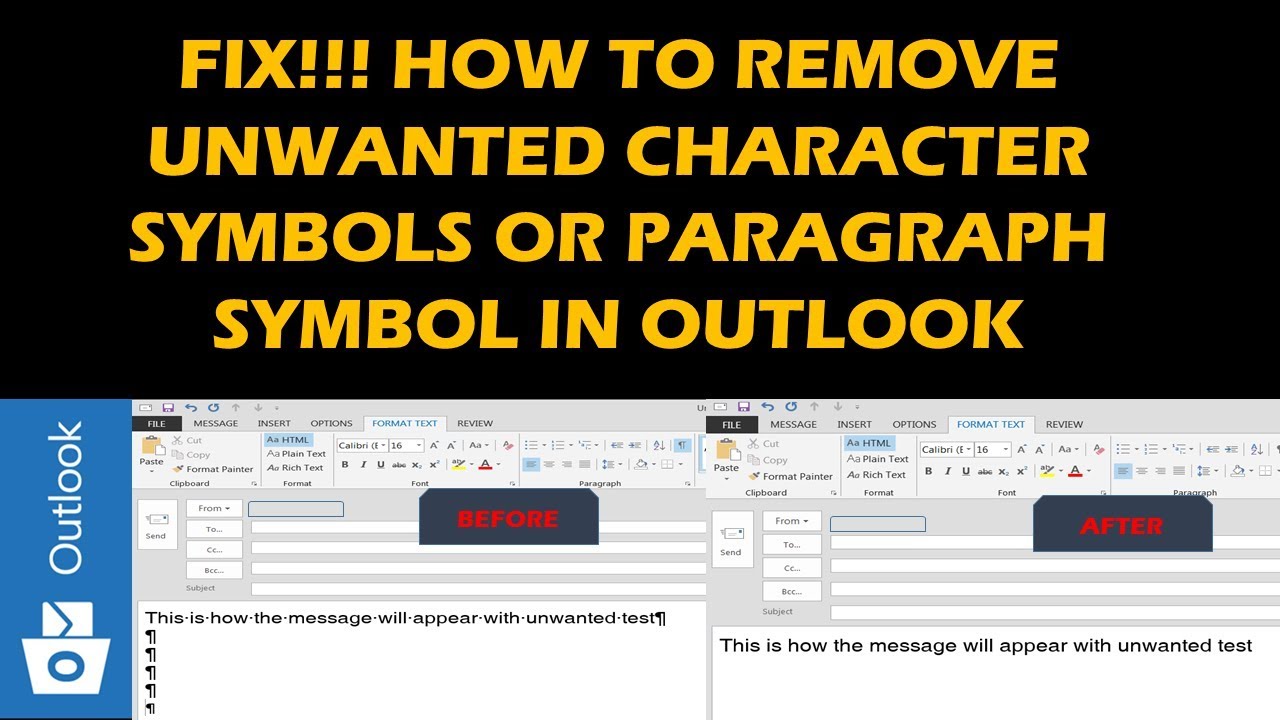
How to Turn Off the Paragraph Symbol in MS Word Microsoft is one of the popular programs that pack with various Office applications to its users.
This application also has a paragraph symbol, and it signifies where we are in the paragraph and might be helpful in some of the situations but sometimes seems annoying.
While typing a document, sometimes we face various issues such as paragraph symbols, and it distracts our mind, and if it gets repeatedly appearing, we get frustrated.
The same appears while printing a document as this symbol scattered throughout the document and restricts a clear document image to print.
In this case, we should remove or turn off this feature.Pursue these guidelines to turn Off the paragraph Symbol tab located in the toolbar:Using Hide/Show paragraph Symbol TabIn the beginning, go to the primary toolbar or home tab.After that, search for the show or hide formatting symbol option.
This symbol always resembles a mark for the beginning and the finishing of the particular paragraph.Hit the Formatting Marks tab for removing such symbols.In case you wish to make it appear, you have to tap on it once more.Using OptionsFirstly, hit the File tab and then choose the option “Options.”After that, press the Display button there.

If yes, then we can help you.
Today we are going over five things that you can do to increase the speed of a slow mobile data connection.
So, let’s get started.Sources :- Speed of a Slow Mobile Data Connection , 2020-DirectoryRestart Your PhoneThis is the first and the most obvious thing that you should do if your internet speed is not that good.
Yes, it is a little weird advice, but it does work most of the time.
To restart your phone, press the power button and hit the “Restart” option if you are an Android user or press the side button and volume up/down button until you see the option to turn it off if you are an iPhone user.Try Changing Your LocationMany factors and things can affect the speed of the internet, like weather, buildings, poor network quality, etc.
So, if you find that your internet speed has become slow, then try to change your location by going somewhere else and see if the problem is solved or not.Disable Apps That Are Consuming Your Mobile Data in BackgroundThere can be many apps on your mobile phone that might be consuming your data behind your back.