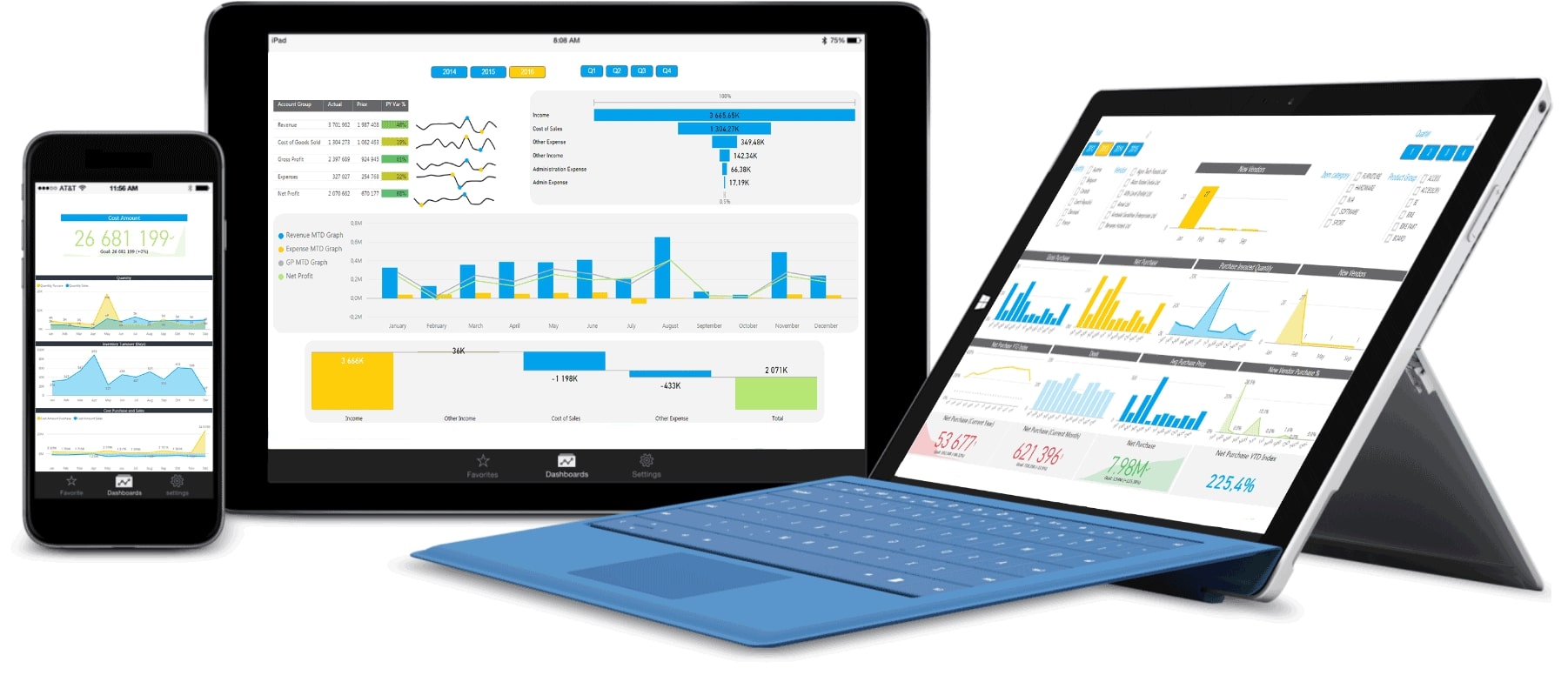
Power BI features
In today's data-driven world, businesses are striving to gain meaningful insights from their data to make informed decisions. Power BI, a powerful business analytics tool developed by Microsoft, empowers users to visualize data and share insights across the organization.
Let's explore some of the key features of Power BI that make it an indispensable tool for data analysis and reporting.
1. Data connectivity
Power BI offers seamless connectivity to a wide range of data sources including Excel spreadsheets, cloud-based services like Azure, SQL databases, SharePoint, and many more. Users can easily import and combine data from different sources, enabling a holistic view of the organization's data.
2. Data modeling and transformation
With Power BI, users can transform raw data into meaningful information. It provides an intuitive interface to perform data modeling tasks like adding custom columns, creating relationships between data tables, and defining measures using the DAX language. The ability to shape and model data ensures accurate and efficient analysis.
3. Interactive dashboards
Power BI allows users to create dynamic and interactive dashboards that provide a consolidated view of key metrics and KPIs. With its drag-and-drop functionality, users can design visually appealing dashboards that update in real-time as the underlying data changes.
4. Data visualization
One of the standout features of Power BI is its powerful data visualization capabilities. Users can choose from a wide variety of customizable charts, graphs, maps, and other visualizations to represent complex data in a visually appealing and easy-to-understand format. These visualizations help stakeholders gain actionable insights at a glance.
5. Natural language queries
Power BI offers a natural language interface that allows users to ask questions about their data in plain English and receive instant answers. The Q&A feature understands the context of the data model and provides relevant visualizations or reports based on the query.
6. Collaboration and sharing
Collaboration is a crucial aspect of data analysis and reporting. Power BI enables users to share reports and dashboards with colleagues, teams, and stakeholders across the organization. The sharing capabilities can be easily controlled, ensuring data security and privacy.
7. Mobile accessibility
As the workplace becomes increasingly mobile, Power BI enables users to access their reports and dashboards on the go. The mobile app allows users to view and interact with data visualizations from their smartphones or tablets, ensuring data insights are readily available wherever they are.
8. AI-powered analytics
Power BI incorporates artificial intelligence capabilities to enhance data analysis. Users can take advantage of features like AI-powered visuals, automated insights, and anomaly detection to uncover hidden patterns, trends, and outliers in their data.
Power BI introduction
Now that we have explored the key features of Power BI, let's dive into an introduction to this powerful tool.
Power BI is a suite of business analytics tools that enables organizations to analyze data and share insights. It consists of three main components:
1. Power BI Desktop
Power BI Desktop is a Windows application that provides a powerful environment for creating interactive reports and visualizations. It allows users to connect to various data sources, transform and shape data, and create compelling reports and dashboards.
2. Power BI Service
Power BI Service is a cloud-based platform where users can publish, share, and collaborate on reports and dashboards created in Power BI Desktop. It provides additional features like data refresh, scheduled data snapshots, and data security settings.
3. Power BI Mobile
Power BI Mobile is a mobile app that allows users to access and interact with their reports and dashboards on smartphones and tablets. It provides a seamless experience for consuming data insights on the go.
Power BI offers a free version, Power BI Desktop, as well as paid versions like Power BI Pro and Power BI Premium, which provide additional features and capabilities for enterprise-level data analysis and reporting.
Data visualization with Power BI
One of the most powerful aspects of Power BI is its ability to transform complex data into clear and meaningful visualizations. Let's explore how to harness this capability in a few simple steps.
Step 1: Importing data
The first step in data visualization with Power BI is to import your data. Power BI supports a wide range of data sources, as mentioned earlier. Once you have connected to your data source, you can load the data into Power BI for analysis and visualization.
Step 2: Data modeling and transformation
After importing your data, you may need to perform some data modeling and transformation tasks to ensure the data is in a suitable format for visualization. This can include tasks like creating relationships between data tables, adding calculated columns, and filtering out irrelevant data.
Step 3: Choosing the right visualizations
Power BI offers a vast library of visualizations to choose from. Depending on the type and nature of your data, you can select the most appropriate visualizations to represent your insights effectively. Experiment with different charts, graphs, and maps to find the ones that best convey your message.
Step 4: Customizing visualizations
Power BI allows users to customize their visualizations to match their specific requirements. From adjusting colors and fonts to adding interactive elements like drill-down functionality, users can make their visualizations more engaging and interactive.
Step 5: Creating interactive dashboards
Once you have created individual visualizations, you can combine them to form interactive dashboards. Power BI's drag-and-drop interface makes it easy to arrange visualizations and create dynamic dashboards that update in real-time.
Step 6: Sharing insights
Power BI makes it effortless to share your visualizations and insights with others. You can publish your dashboards and reports to the Power BI Service, where you can share them with colleagues or embed them into other applications like SharePoint. The sharing capabilities can be tailored to suit your needs, ensuring that the right people have access to the right insights.
By following these simple steps, you can master the basics of data visualization with Power BI and start uncovering valuable insights from your data.
Power BI is much more than just a tool for creating charts and graphs. It empowers users to dive deep into their data, discover patterns, and make data-driven decisions. Whether you are a business analyst, data scientist, or a business owner, Power BI equips you with the tools and features necessary to derive meaningful insights from your data.
Start your journey with Power BI today and unlock the power of your data!
Visit: igmGURU