The most challenging question each Amazon seller faces is what products to sell and how to make sure they bring money. Today’s competitive world leaves you no choice: you must use seller tools to solve this problem. All Amazon sellers do.
However, when you select a product sourcing tool, you must choose wisely. The tool must help with all product sourcing tasks while offering value for money and being trusted at the same time.
This guide will introduce you to the popular Amazon seller tool meeting all these criteria — Seller Assistant.
What Is Seller Assistant?
Seller Assistant Extension is a product sourcing tool that helps find winning products to sell on Amazon. It’s an integral part of Seller Assistant software.

Seller Assistant
Seller Assistant is a product research software for selling on Amazon. It combines two extensions: Seller Assistant Browser Extension, and IP-Alert Chrome Extension by Seller Assistant, Amazon seller tools: Seller Spy, Bulk Restrictions Checker and UPC/EAN to ASIN converter, and features: Side Panel View,FBM&FBA Profit Calculator, Quick View, ASIN Grabber,Stock Checker,IP Alert, and Restrictions Checker.

Seller Assistant
The extension conveniently shows key product data to decide if it’s worth selling. It helps you do research where you need: on the Amazon search and product pages, on the supplier website side-by-side in Side Panel View, and on Amazon Seller Central inventory pages. You can choose where it appears, or use all options.

You can choose where Seller Assistant Extension appears, or use all options
Seller Assistant Extension on the Amazon search pages
The extension appears on the Amazon search pages and allows you to make quick product research with its Quick View feature. You can quickly review key product details and instantly choose best products to sell on Amazon. Quick View shows ASIN, BSR, category, FBA and FBM seller count, your eligibility to sell the product, IP alerts, and custom notes on the Amazon search pages.
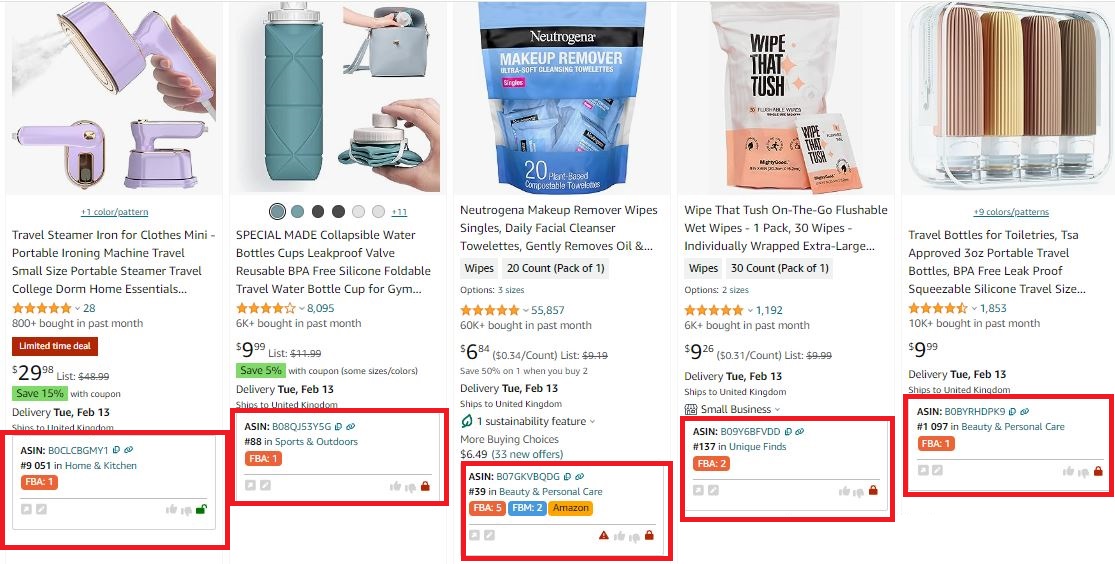
Seller Assistant on the Amazon search pages
Seller Assistant Extension on the Amazon product pages
On the Amazon product pages, the extension displays detailed product data, key product metrics, Lookup Links, Offers, Variation Viewer, Alerts and Flags, Sales Estimator, Stock Checker, Notes, and Restriction Checker. You can do Export to Google Sheets in one click, and
With the product view, you can do detailed product research and identify the deals viable for selling on Amazon.
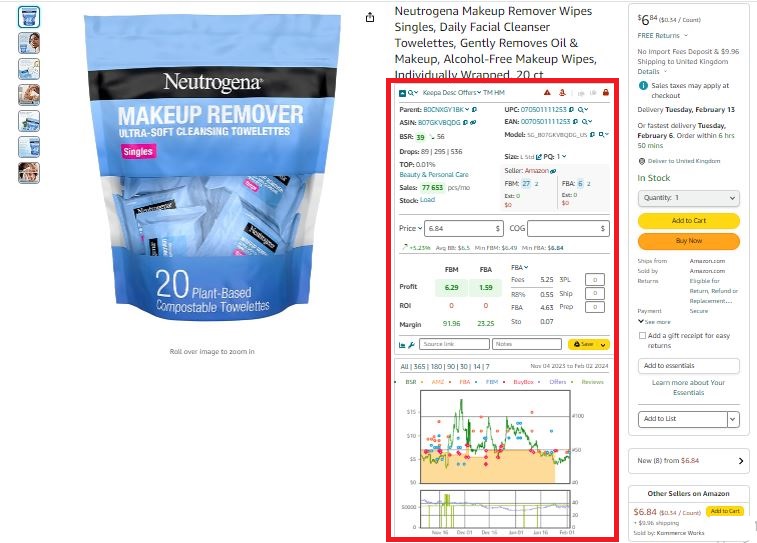
Seller Assistant Extension on the Amazon product pages
Seller Assistant is a one-stop shop tool for wholesale and online arbitrage sellers, dropshippers, and virtual assistants engaged in product sourcing. The tool was developed for Amazon sellers by sellers who know all about product sourcing pain points and how to help you avoid common pitfalls.
Seller Assistant Extension on the supplier website
Seller Assistant’s Side Panel View appears on any website. It allows you to instantly compare all product data side-by-side and calculate profitability on Amazon pages, your Google Sheets, and any other website without leaving your current browsing session.
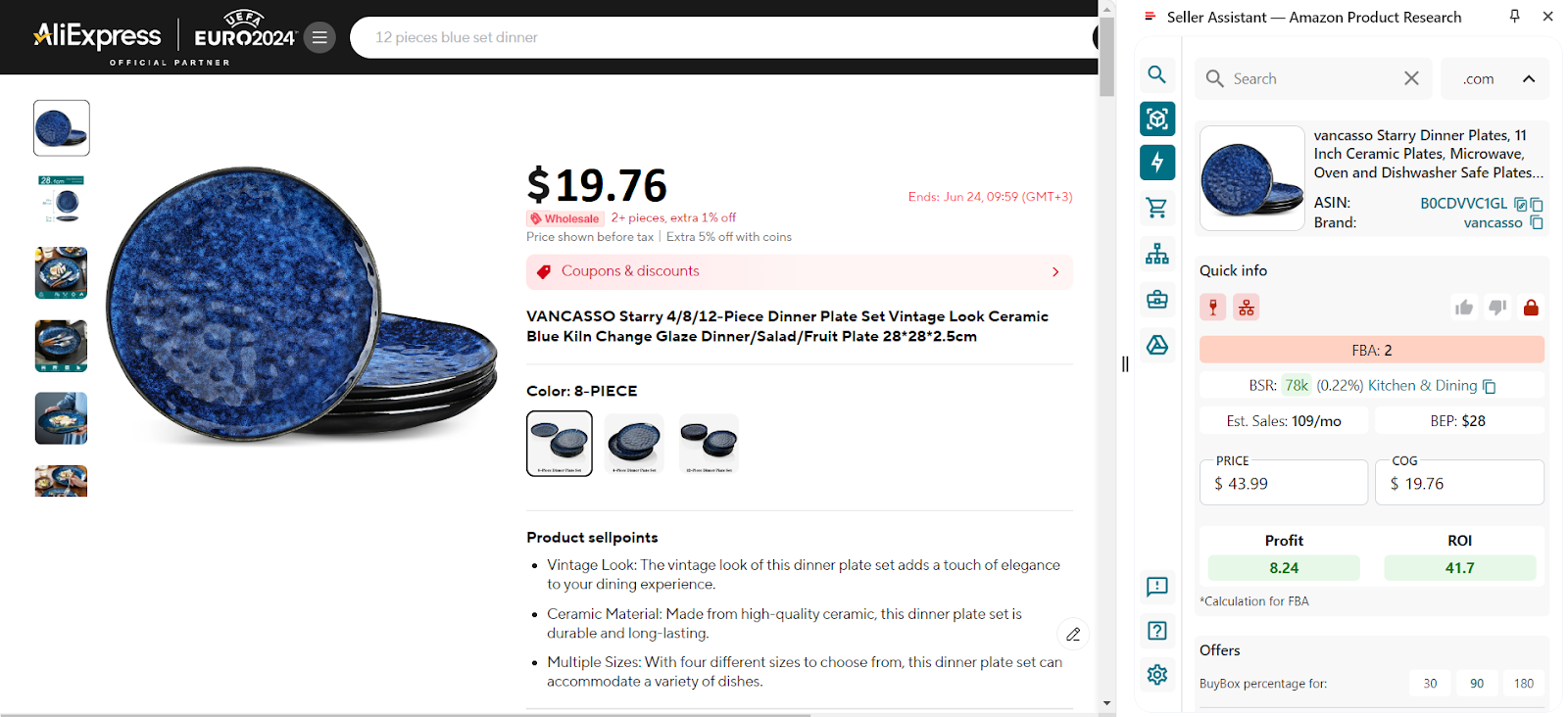
Side Panel View
Related: Amazon Online Arbitrage: How to Make Money
Amazon Wholesale: All You Need To Know
How to Find Amazon FBA Wholesale Suppliers
500+ USA Suppliers For Online Arbitrage And Dropshipping On Amazon
New Dropshipping Strategy That Complies With Amazon’s Policy
Amazon Business Models: How to Choose the Right One?
Why Use Seller Assistant?
Seller Assistant Extension is a comprehensive product sourcing tool for Amazon sellers. It simplifies a complicated and time-consuming product sourcing process by showing all key product data on the Amazon search, product, and inventory pages, and other websites.
Seller Assistant helps online arbitrage, wholesale sellers, dropshippers, and virtual assistants quickly find profitable products to sell on Amazon.
One-stop shop for product research
Seller Assistant collects and displays all essential data about the product in one place. At the same time, its advanced features, including FBM&FBA Profit Calculator, Quick View, IP Alert, Restrictions Checker, and other functionalities, let sellers get insights into product flags, demand, competition, and profitability to make informed product sourcing decisions.
Trusted Amazon partner
Seller Assistant is a trusted third-party extension approved by Amazon. Amazon has confirmed that it is safe to use and complies with all of its policies.
Competitive pricing
Seller Assistant offers excellent value for money. Its pricing is highly competitive compared to other similar tools, while the functionality is more extensive.
Multiple product data widgets
Seller Assistant provides four widgets appearing on the Amazon product pages, search results pages, Seller Central inventory page, and Side Panel View. This lets sellers see all essential product information directly on Amazon and any other website, including pricing, sales history, restrictions, and profitability.
Advanced IP Alert
Seller Assistant offers an Advanced IP Alert system that notifies sellers about intellectual property claims, their type, and the date they were filed. Seller Assistant ’s unique IP Alert database is updated daily. This proactive feature can help sellers identify potential issues and take necessary actions to protect their account health.
Restriction Checker
Restriction Checker helps sellers check products for restrictions instantly. That ensures they comply with Amazon's restrictions and avoid wasting time researching gated items.
Multiple browser support
Seller Assistant is available on Chrome, Edge, and Firefox. That provides the flexibility to use it on your preferred browser.
Human customer support
Seller Assistant cares about its customers and offers extensive customer support. In addition to chatbots, you can always get help from a human expert by contacting customer support.
How to Install Seller Assistant Extension?
To source products with Seller Assistant Extension, you must install it. It is also recommended to connect your Seller Central account to Seller Assistant to get accurate data and let the extension verify your eligibility to sell specific products.
You can install Seller Assistant for Chrome, Edge, and Firefox.
Steps to install Seller Assistant
- Step 1. Open Seller Assistant website and click “Start 14-day trial” to get a free trial.
- Step 2. You will be redirected to your account creation page. Create your Seller Assistant account and follow the onboarding steps.
- Step 3. Install the extension. It will automatically identify your browser.
- Step 4. Connect your Amazon Seller Account to provide you with personalized data about eligibility to sell products on Amazon, fees, and restrictions.
Related: How to install Seller Assistant for Chrome
How to install Seller Assistant for Safari
How to install Seller Assistant for Firefox
How To Connect Amazon Seller Account In Seller Assistant
Seller Assistant Features for Product Sourcing
Seller Assistant offers an extensive set of product sourcing features that help quickly and conveniently select the most high-margin products to sell on Amazon. Below you can find the list of Seller Assistant ’s features, their overview, and a short explanation of how you can use them in product sourcing.
Seller Assistant features
- Advanced Product Data;
- Offers and seller count;
- Sales and Profit Estimator;
- Stock Checker;
- IP Alert;
- Restrictions Checker / Bulk Restrictions Checker;
- Product Flags / Notifications;
- FBM & FBA Profit Calculator;
- VAT and Sales Tax Calculator;
- Variation Viewer;
- Side Panel View;
- Quick View;
- Custom Notes;
- Quick Lookup Links;
- Sales History and Keepa charts;
- Google Sheets Export.
How to Research Deals with Seller Assistant Extension: All Metrics Explained
Seller Assistant Extension is a must-have tool for product research and sourcing. This is because it helps you with quick and advanced product research. You can easily and securely find winning deals for Amazon by researching them yourself.
Quick research
Quick research with the Quick View feature lets you quickly review key product data on the Amazon search pages and understand which products are suitable for selling and which aren’t. For example, you can see the products you can’t sell on your account, items sold by Amazon, or products with low sales potential (high BSR).
Advanced research
Advanced research helps understand in depth if the product is a potential deal. You can review potential risks (meltable, fragile,heavy and bulky, etc.), available offers, your chances to win the Buy Box, best-selling variations, calculate profit, ROI, and margin, and more. Seller Assistant Extension allows you to answer the questions below.
Questions Seller Assistant Extension answers
- What is the product (ASIN,UPC/EAN, model, size, weight, and package quantity)?
- How well the product sells (BSR, Drops, Top, Sales)?
- How intense is the competition (FBA and FBM seller count)?
- Can I win the Buy Box (Buy Box % by seller in the Offers Feature)?
- Who is the Buy Box seller?
- How many products can I potentially sell and how much can I earn?
- Can I sell the product?
- Is the product restricted?
- Does the product have IP complaints?
- Does the product have any hidden risks?
- What is the product profit, ROI, and margin?
- What are Amazon fees for FBA and FBM?
- How is the product priced (Buy Box price, minimum and maximum FBA and FBM price)?
- What is product sales history (how old is the listing, sales and price changes, reviews reviews and ratings, etc.)?
- What is the best-selling variation?
- Does the product match the supplier’s item you find and is it a good deal?
Note. Before you start product sourcing with Seller Assistant, you must do two important things.
- In the “Deliver to” field on the Amazon page enter the country and zip code (for the U.S.) where you want to sell. That affects the count of displayed FBA and FBM offers and delivery options.
- Make sure the product link you use doesn’t contain a referral to avoid getting the wrong information. A referral is the part of the link, starting with ref=. Remove the referral part of the link and reload the page.

To get correct product data, you must remove the referral from the link
You can quickly remove the referral part of the link by clicking the ASIN in Seller Assistant.

You can quickly remove the referral part of the link by clicking the ASIN in Seller Assistant Extension
Related: 13 Rules of OA Product Research Tested by Pain and Gain of Amazon Seller
How to Find Profitable Products for Amazon Online Arbitrage
10 Reasons Why People Fail With Amazon FBA Online Arbitrage
Researching Deals with Seller Assistant Extension
Seller Assistant Extension collects the most essential product details in one place and shows them in a user-friendly, easy-to-understand way. Here are the key questions you must answer to find the winning Amazon deals and how Seller Assistant Extension answers them.
Question 1. What is the product?
Seller Assistant Extension shows the key product details on your Amazon product pages. When you open a product, it automatically appears under the product title.
It shows item’s ASIN,UPC/EAN, model, size, weight, and package quantity.
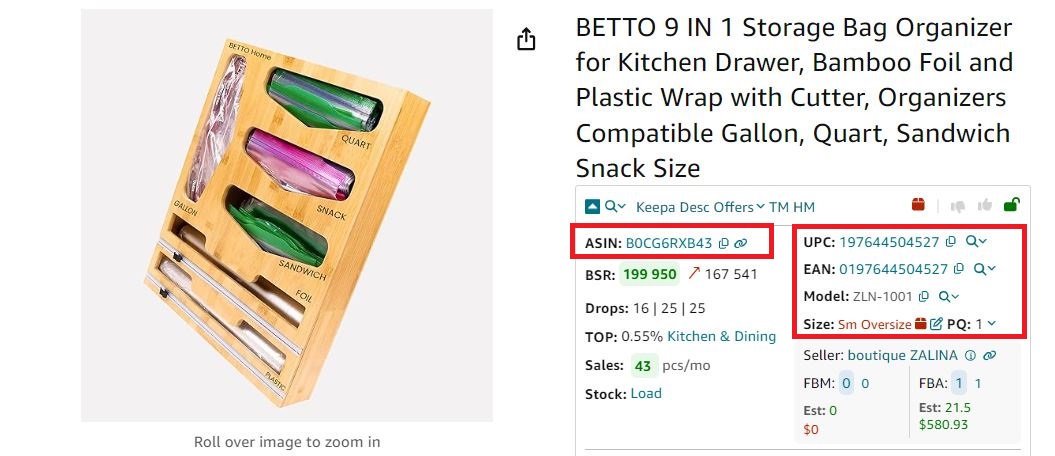
Seller Assistant Extension shows item’s ASIN,UPC/EAN, model, size, weight, and package quantity
What product details do you need to know?
ASIN
ASIN is used to list and track items on Amazon. Seller Assistant allows you to copy the ASIN and product link in one click. You can quickly remove the referral part of the link by clicking the ASIN in Seller Assistant . If the link contains a filter by seller, you must remove the respective part of the link to see the data about all sellers and updated prices.
UPC and EAN
UPCs and EANs are used for the same, and also to find products from other retailers. Seller Assistant allows you to copy UPC and EAN and their products link in one click.
You can use Lookup Links available in the Extension to search products on Google, Google Shopping, eBay, Walmart, Target, Webstaurant, Katom, The Home Depot, and Alibaba.
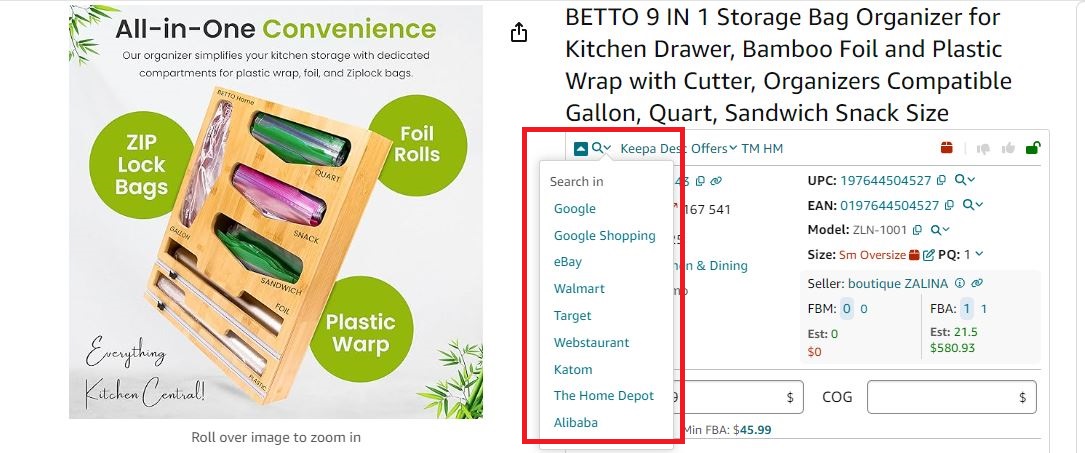
Seller Assistant provides quick links to search products on different search engines
Note. If you need to convert multiple UPCs/EANs to Amazon ASINs, you can use Seller Assistant’s UPC/EAN to ASIN converter. The tool is available in your Seller Assistant personal account.
Size and package quantity
Size and package quantity help estimate the shipping costs. Seller Assistant shows product dimensions and weight. You also have the option to edit the figures. The size of the product affects the cost of storing the product in the Amazon warehouse.

Seller Assistant shows product dimensions
Product data explained
- ASIN
To be able to find and track a product on Amazon, you must know its ASIN (Amazon Standard Identification Number). It is a unique combination of letters and figures given by Amazon to each product in their marketplace.
- UPC
UPC (Universal Product Code) is a unique 12-digit identification number assigned to a product. You can use UPCs to list, and track items on Amazon and find them on other retailers. UPC is primarily used in the United States and Canada.
- EAN
EAN (European Article Number) is an international 13-digit barcode used to identify products. It is used in Europe and elsewhere globally.
- Model
You must know a product model to ensure the product you find at the supplier and the product you’ve chosen on Amazon are exactly the same.
- Size and package quantity
Size is a packaged product size tier based on its weight, dimensions, and dimensional weight. Package Quantity shows the count of items in the package.
- Lookup links
Seller Assistant also provides you with quick links to check a product for trademark registration, and hazmat (dangerous goods). That helps avoid restricted and trademarked products you will have problems selling without Amazon’s or brand’s approval.
You can also view all product offers with key details and there is a link to the product description.
Related: Amazon ASIN, EAN, ISBN, and UPC Explained
Question 2. How well does the product sell?
You must know how well the product sells to be sure Amazon customers will buy it fast and you will make money on it. You must also know how fast it sells to avoid additional Amazon storage fees if you sell with FBA.
The extension displays products BSR (product sales rank in its category, how many products were sold over a time period you choose, how fast the product sells, and estimated sales based on BSR).

Seller Assistant Extension displays products BSR
How to know if the product sells well?
BSR and Sales
Since Amazon doesn’t tell how many units of each product are sold monthly, Seller Assistant helps you estimate that. Amazon uses BSR to show how well the product sells. But it only shows the item’s rating compared to other products in other categories.
Seller Assistant shows estimated product sales based on BSR in the Sales field.

Seller Assistant shows estimated product sales based on BSR in the Sales field
You must look at the average BSR over 90 days and more, the trend (upwards or downwards), to see if product sales increase or decrease. This is because BSR changes all the time.
If the arrow beside the BSR figure is green and points down, the sales increase. If it’s red and points up, the sales decrease.
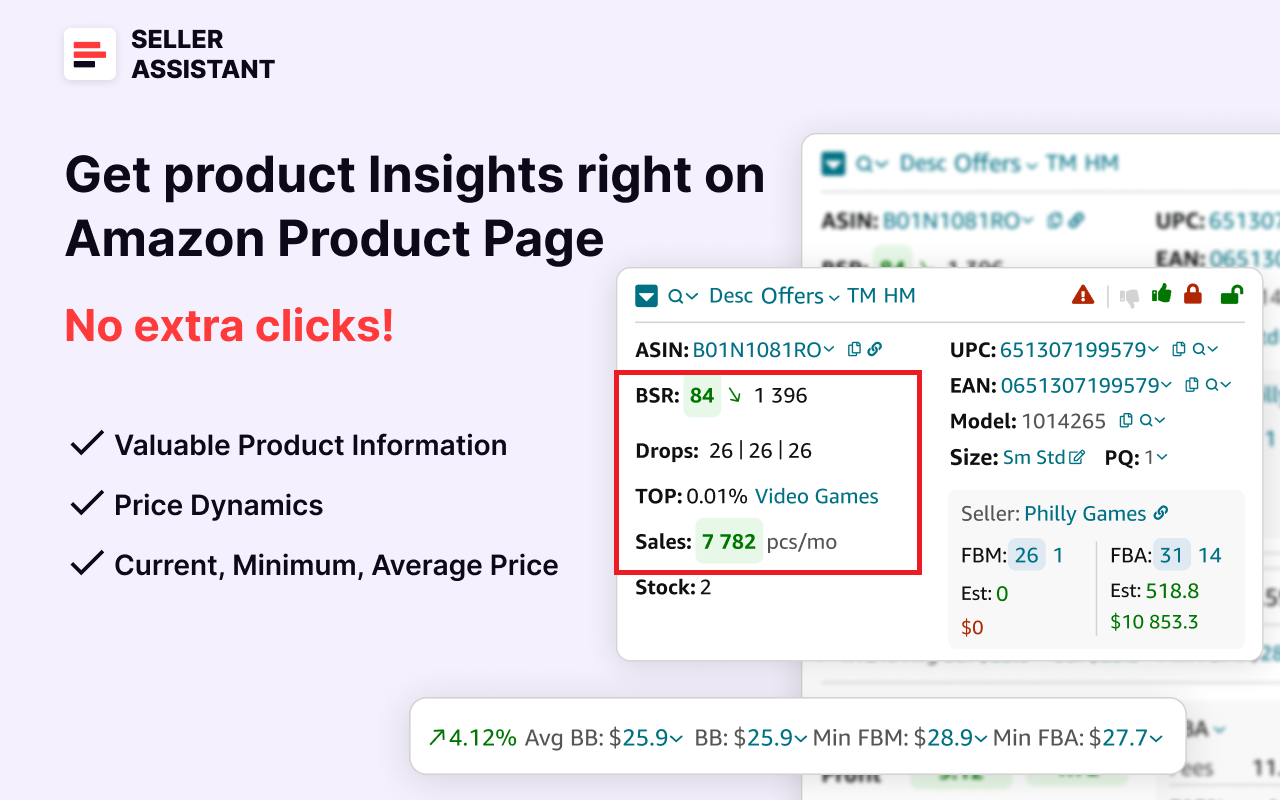
If the arrow beside the BSR figure is green and points down, the sales increase
BSR also helps see if the product is seasonal. That means it sells only in specific seasons, not all year round (for instance, summer or winter shoes). If during specific periods product’s BSR goes down to zero, that may be a seasonal product (you can see that on the Keepa chart integrated into the Extension, at the bottom).

Example of a seasonal product on the Keepa chart
BSR drops
Drops show how many products were actually sold during 30, 90, and 180 days. That helps estimate if you can sell the number of products you want to get the expected money.
Top
Top helps understand the product’s sales velocity as a percentage. If the Top equals 0.5% or less, the product sells well. If the Top equals 1% or more, a product is a slow-mover.
Sales history metrics explained
- BSR
BSR (Best Sellers Rank) shows how well the product sells compared to other products in its category. The lower the rank, the better the product sells. Amazon recalculates BSR all the time.
- BSR trend
Because BSR constantly changes, you must look at the average BSR and the trend to understand how it sells.
- BSR drops
BSR drops are the number of times when BSR is recalculated downward. Seller Assistant shows BSR drops during 30, 90, and 180 days. BSR drops are taken from Keepa.
- Top
This is a product’s rating in the category expressed as a percentage.
Related: Amazon Best Sellers Rank – Everything You Need to Know
Amazon Seasonal Product Check - Complete Guide
Question 3. How intense is the competition?
You can judge how intense the competition is by the FBA and FBM seller count on the listing.

Seller Assistant shows the number of FBA and FBM offers
How to determine competition by FBM and FBA offer count?
The FBA seller count shows two main things.
- One seller offer
If the product has one offer, it indicates if a product is offered by a private label seller, which means it’s trademarked and you can’t resell it. If a product is sold by one FBA seller for a long time and the brand name matches the seller’s name, that’s likely a private label product.

Private label product example
- Multiple seller count
The “good” FBA seller count must range from 3 to 15.

The “good” number of FBA sellers must range from 3 to 15.
The minimum of 3 seller count shows that a product is not sold by a private label brand and it doesn’t file intellectual property complaints if someone else sells that brand’s products.
The maximum of 15 seller count shows that the competition for the Buy Box is fierce. If that is the case, the Buy Box price can drop because the sellers engage in a price war. That means price dumping and low margins, and it’s better to look for another product.

Price war example
Note. The Extension also shows offer details in the Offers feature.

The Extension also shows offer details in the Offes feature
Seller count data explained
FBA and FBM offer count
The FBA and FBM fields show the count of FBA and FBM sellers selling items in the “New” condition.
There are two numbers in the line. The first number on a blue background is the number of all product offers. The number on the white background next to it is the count of the lowest price offers (Buy Box price +5%).
Related: How to Avoid a Price War on Amazon
Question 4. Can I win the Buy Box?
Buy Box often goes from one seller to another because the sellers fight to get it. If one of the sellers dominates the Buy Box with a high Buy Box %, it’s difficult to compete. The same happens if Amazon is in the Buy Box.
How to know the Buy Box percentage by seller?
Seller Assistant Extension shows the Buy Box (Featured Offer) share by seller on the Offers feature.

Seller Assistant Extension shows the Buy Box (Featured Offer) share by seller on the Offers feature
Buy Box share data explained
- Buy Box
Buy Box is a section on Amazon listing where customers add a product to a cart in one click
with the “Buy Now” button. It’s crucial to win the Buy Box because around 80% of sales happen in it. Amazon often grants the Buy Box to FBA sellers and the sellers with the lowest price offer.
- Buy Box %
On Amazon, multiple sellers can offer the same product, but the Buy Box winner is selected based on various factors, including price, shipping speed, customer service, and seller performance. Several sellers can take Buy Box in different proportions.That is typically expressed as a Buy Box %.
Related: What is Buy Box? How to win Buy Box on Amazon
Question 5. Who is the Buy Box seller?
The Buy Box seller is your main competitor. It\s necessary to know who it is to win the essential share of the Buy Box from them.
How to know who the Buy Box seller is?
Seller Assistant Extension shows who is the Buy Box seller.
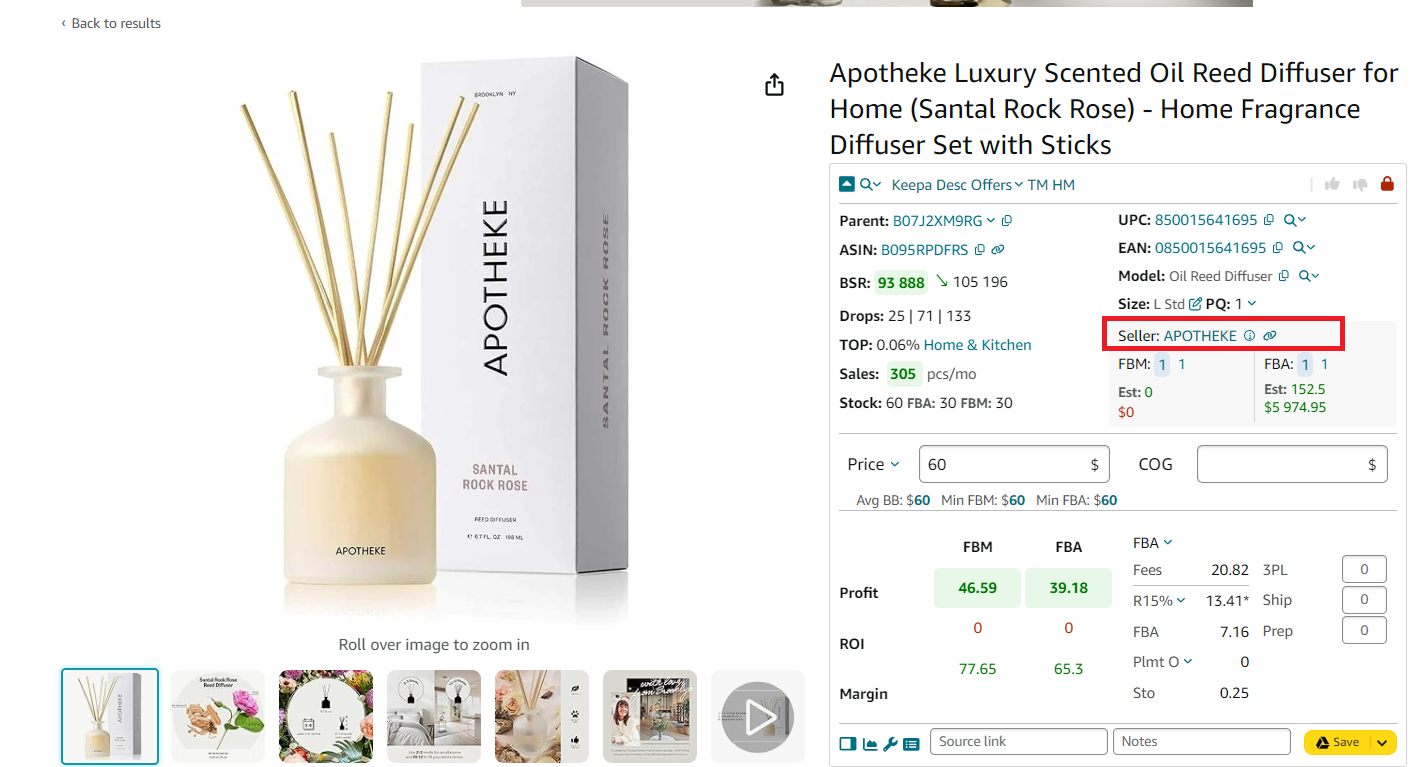
Seller Assistant Extension shows who is the Buy Box seller
If you want to win the Buy Box on a specific product, you must research your competition. That will help you understand how to use their weak points. Are they out of stock soon? Can you beat their price? Or maybe you can scan their store and find new product ideas for your inventory with Seller Assistant’s Seller Spy? Competitor analysis gives you a competitive edge.
Buy Box seller data explained
- Buy Box seller
The Buy Box on Amazon is a feature that allows customers to add items to their cart directly from a product's main page. The seller who wins the Buy Box is prominently displayed as the default seller for that product, making it easier for customers to purchase from them. Winning the Buy Box is crucial for sellers because it significantly increases the chances of making a sale.
Question 6. How many products can I potentially sell?
It’s essential to estimate how many product units you can sell monthly and how much you can earn to understand if your investment will pay off.
How to estimate your potential sales?
Seller Assistant Extension helps you estimate how many products you can sell if you become one more seller on the listing, with its Sales Estimator. The figure appears in the Est field.
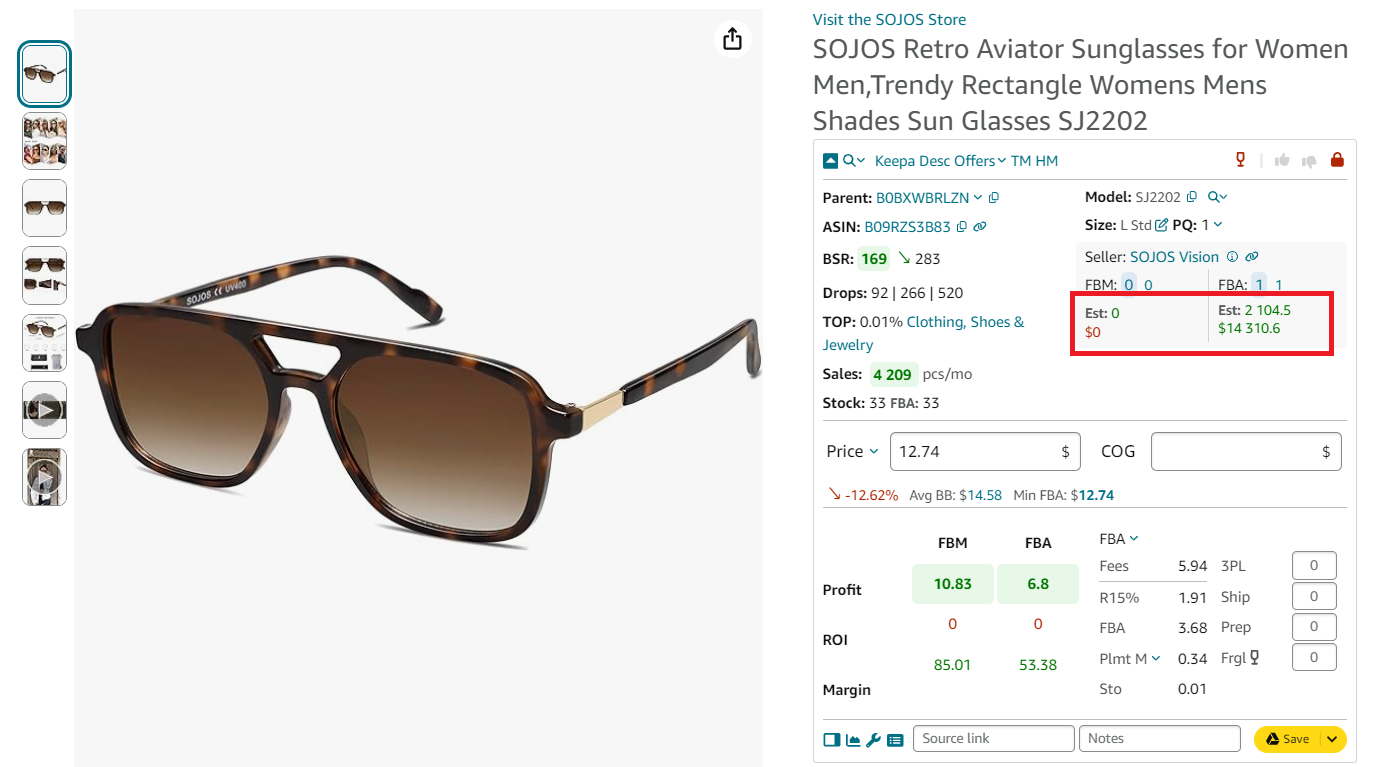
Seller Assistant Extension helps you estimate how many products you can sell if you become one more seller on the listing
Sales Estimator data explained
- Estimated sales
Estimated sales are potential product sales in pieces if you start selling on the listing as one more seller. The figure below it is potential sales in the marketplace currency.
Question 7. Can I sell the product?
On Amazon, you must check if you can sell specific products on your account. You must do it before you buy the products so that you don’t lose money.
How to know if you can sell a product on your Amazon account?
You can check if you are eligible to sell specific products on your seller account with the help of Seller Assistant. It shows you whether you can or can’t sell a product on the Amazon product and search pages, and on your supplier website when you do product research.

You can check if you are eligible to sell specific products on your seller account with the help of Seller Assistant
Restriction Checker shows a red closed lock with an exclamation mark if you can’t sell a product on your account, and a green open lock if you can sell it.
Selling eligibility explained
On Amazon, you may not be allowed to sell specific products on your account. That can happen because you are not eligible as a new seller or your seller performance is insufficient. You must be able to identify such products so that you don’t spend time researching them
Question 8. Is the product restricted?
Amazon has specific products, categories, and brands that you can’t sell without Amazon’s approval.
You must check products for restrictions before you buy them so that you don’t lose time and money because Amazon will not allow you to list unapproved items. You will need to ungate them.
How to identify restricted products?
- Restrictions Checker
Restrictions Checker shows if a product is restricted or you can’t sell it for other reasons. If you see a green open lock icon, you can sell it. If you see a red closed lock, you can’t sell a product.

Restrictions Checker shows if a product is restricted or you can’t sell it for other reasons
Restrictions explained
If a product is restricted, you can’t sell it without Amazon’s approval. Some sellers must avoid restricted products. If you want to sell such products, you must ungate them (get approval to sell from Amazon).
If you want to get approval to sell a product, that takes time and you must submit additional documents like invoices and certificates because such products have stringent safety or other requirements.
However, some experienced sellers prefer to sell in gated categories because the competition is lower.
Note. If you want to check product restrictions in bulk, you can use Seller Assistant ’s unique Bulk Restrictions Checker. To do that, upload a list of ASINs to Bulk Restrictions Checker and download a report with the checkup results.

Bulk Restrictions Checker
Related: How to Check Product Restrictions on Amazon?
Amazon Restricted Products – Complete Guide for Sellers
Question 9. Does the product have IP complaints?
An intellectual property (IP) complaint is when a brand owner complains to Amazon that other sellers resell their brand’s product without its permission. It's risky to sell brands and products with IP complaints unless you have permission from a brand to sell them.
How to know a product has IP issues?
Seller Assistant’s advanced IP Alert feature shows the red triangle icon if a product has IP complaints and other Amazon policy violations.
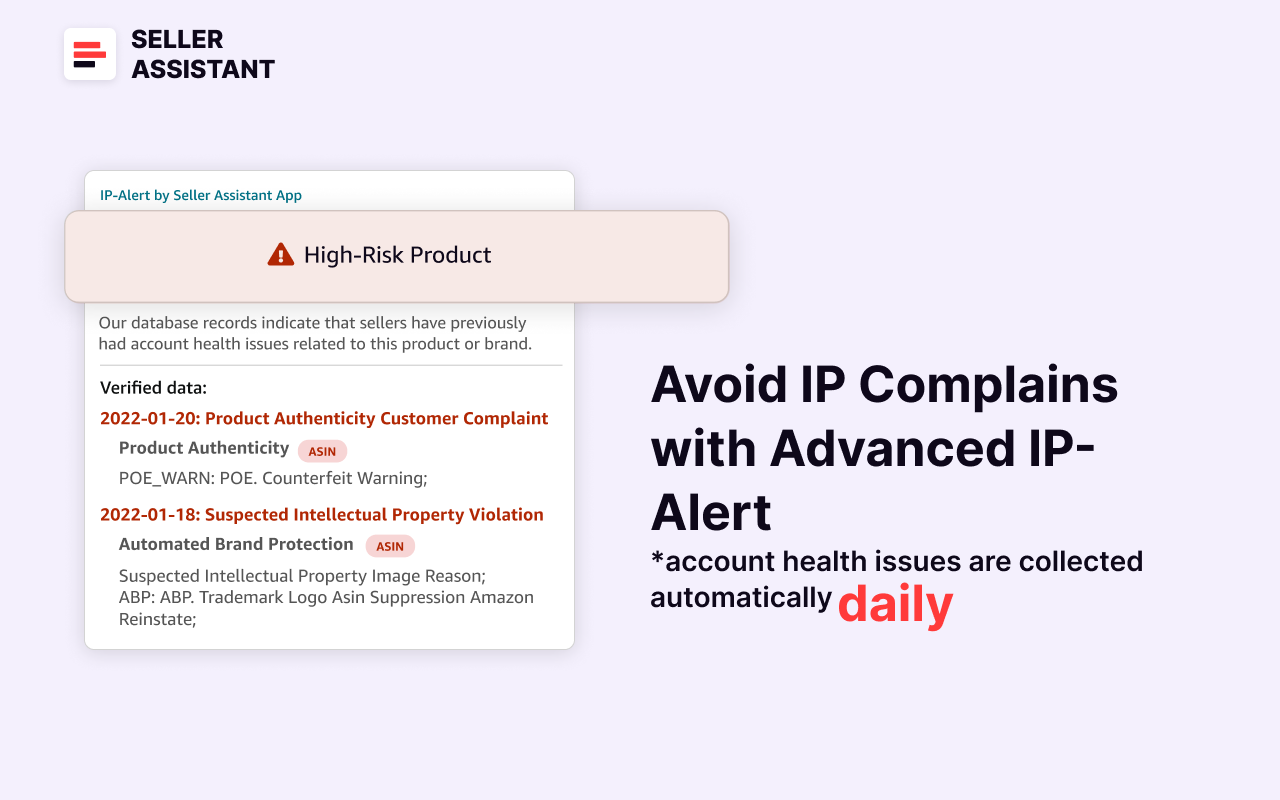
IP Alert
IP Alert is powered by a unique Amazon policy violation database updated automatically in real time. It alerts you about the type of Amazon policy violation and the date it was filed.
IP alerts explained
If a product has IP Alert, this can be a deal breaker. Some brands don’t mind if you resell their products without asking for permission, but some do. If you don’t have permission to resell the brand, they may complain to Amazon that you violate their intellectual property rights.
If you get one of such complaints, Amazon suspends your offer until you provide proof of purchase (invoice or purchase order). If you can’t do that, Amazon will deactivate your offer, which will result in a loss of sales and money. Therefore, it’s better to steer clear of such products.
Seller Assistant’s IP Alert also shows other types of Amazon policy violations a product may have (listed below).
Amazon product policy violations
- Suspected Intellectual Property Violations;
- Received Intellectual Property Complaints;
- Product Authenticity Customer Complaints;
- Product Condition Customer Complaints;
- Food and Product Safety Issues;
- Listing Policy Violations;
- Restricted Product Policy Violations;
- Customer Product Reviews Policy Violations;
- Other Policy Violations;
- Regulatory Compliance.
Related: What is Amazon IP Complaint? How to Avoid IP Complaints
Amazon Account Health – A Guide for FBA Sellers
What is Amazon Seller Account Health Rating?
Amazon IP Complaint: What Amazon Sellers Need to Know About
Question 10. Does the product have any hidden risks?
The deals you find on Amazon may have hidden risks or challenges you may not see at the first glance. For instance, a product may be meltable and you will not be able to sell it through FBA all the year round, or it can be fragile and you will need to pay extra for packaging. You must be aware of that and account for all costs.
How to know a product has risks and flags?
Seller Assistant’s Alerts and Flags feature warns you with a specific icon if a product has one or several flags.
Seller Assistant flags
- Red “A” icon (on the product pages) or Amazon on the orange background (on the search pages) if Amazon is a seller;
- Red box icon for oversized products;
- Red glass icon for fragile products;
- Red drop icon for meltable products;
- Red hazmat icon for the Hazmat (Dangerous goods) category;
- Red 18+ icon for adult products;
- Red GB icon for generic brand.

Seller Assistant flags
Related: Seller Assistant : What Products to Avoid Selling on Amazon?
Seller Assistant flags explained
Below you can find a description of all flags Seller Assistant shows.
- Amazon is a seller
Red “A” icon (on the product pages) or Amazon on the orange background (on the search pages) means that Amazon sells this product as a seller and it is in the Buy Box. In such a case, it’s better to look for another product. That is because it’s very difficult to compete with Amazon in terms of price and offer conditions.

Red “A” icon (on the product pages) or Amazon on the orange background (on the search pages) means that Amazon sells this product as a seller and
- Heavy and bulky (red box)
Heavy and bulky products exceed the standard size and weight limits. Selling such items involves extra fulfillment fees because Amazon calculates FBA fees based on the weight and dimensions of the product.
Additionally, heavy and bulky items are processed in separate Amazon fulfillment centers, which may mean extended order delivery terms if you use FBA.

heavy and bulky alert
Related: Amazon Large Bulky / Extra-Large (Oversize) Products: All You Need to Know
- Fragile (red glass)
Fragile products can easily break and create a safety hazard. Therefore, they must be handled with care. Amazon requires you to package fragile items using materials such as air pillows, bubble wrap, etc., and apply special labels.
That involves extra costs. Additionally, due to these products easily breaking, they have an increased risk of returns.

Fragile alert
Related: Amazon Fragile Inventory: All You Need to Know
Amazon Return Policy for Sellers - All You Need To Know
How to Reduce Your Amazon Return Rate
- Meltable (red drop)
Meltable inventory is products with a high risk of melting during shipping and storage due to high temperatures. Some examples of Amazon meltables include chocolate, wax, and certain types of cosmetics.
Because the high temperature is not suitable for storing and fulfilling meltable products, Amazon accepts them in its fulfillment centers from October 16 to April 14 only.

meltable alert
Related: Amazon Meltable FBA Inventory: All You Need to Know
- Hazmat (hazmat icon)
The Hazardous materials (Dangerous goods) category includes products that may pose a risk to safety, health, or the environment when you use, store, or transport them. On Amazon, that may involve fragrances, like perfume, mobile phone chargers, lithium batteries, etc.
The Hazmat category is restricted on Amazon and you must ask for their approval to sell such goods.

Hazmat alert
Related: How to Sell Hazmat Products on Amazon - The Ultimate Guide
- Adult products (18+ icon)
Adult products are those related to sexual activities or sexual wellness. Amazon does not allow the sale of explicit sexual imagery. However, you can sell some sexually suggestive products.
The Sexual Wellness category is restricted on Amazon and you must ask for their approval to sell such goods. Also, adult products must be packaged in plain brown packaging so that no content is visible on the outside of the box. Additionally, Amazon doesn’t allow to advertise such products.

Adult products alert
Related: Amazon Adult Products Guide
- Generic brand (red GB icon)
Generic brands are unbranded products where Amazon doesn’t allow you to add your offers to existing listings. That means you will not be able to add your offer to that product listing.
Seller Assistant marks generic brands with the red “GB” icon.

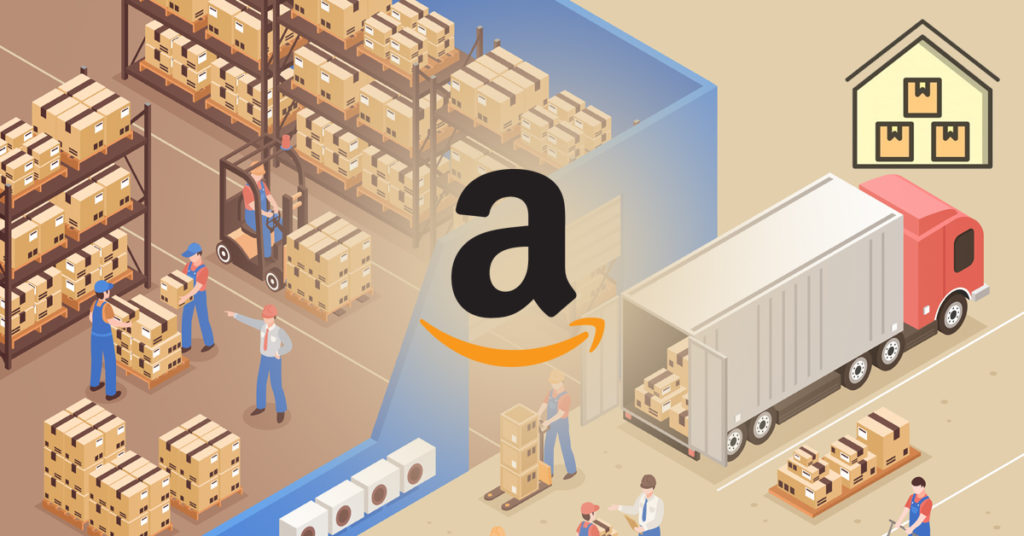
Amazon recently sent an email to sellers stating that they are implementing strict storage restrictions on all third-party retailers that store goods in warehouses in the United States to meet consumer demand.
For many, this change means a reduction of the overall account level inventory limit.
Sellers should consider alternative or backup fulfillment strategies that will free them to these latest changes.
The intention was to give sellers more flexibility with inventory shipments.
The repeated and one-sided changes to Amazon's storage restrictions have clearly disappointed many sellers.
Every amazon seller wants to know everything about this announcement so, let’s get into the details.Read More-https://www.team4ecom.com/blog/new-storage-limit-policy-of-amazon-and-its-impact-on-sellers/