


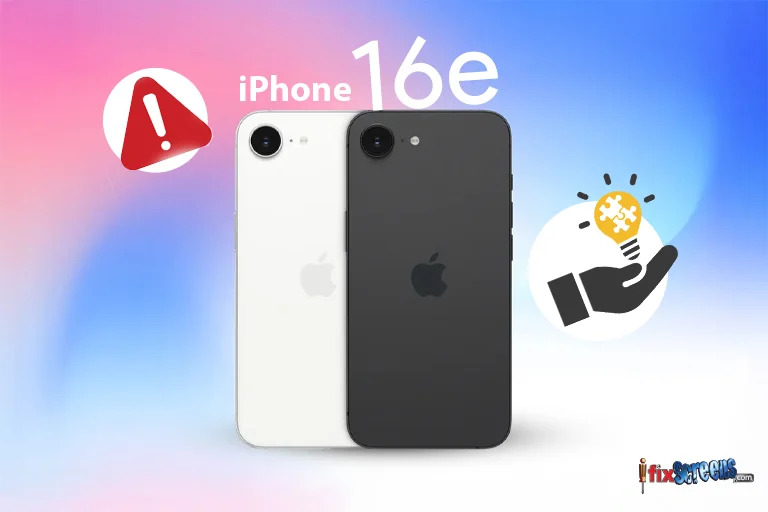
iPhone 16e Common Problems & How to Fix Them
The iPhone 16e is an impressive budget-friendly Apple device, but like any smartphone, it has its share of common issues. If you’re facing battery drain, overheating, connectivity problems, or app crashes, don’t worry! Here’s a guide to troubleshooting the most common iPhone 16e problems and how to fix them.

1. Battery Draining Too Fast
Problem:
🔋 Many users report that the iPhone 16e battery drains quickly, even with minimal usage.
Fixes:
✔️ Check Battery Usage: 📌 Go to: Settings > Battery to see which apps consume the most power.
✔️ Turn Off Background App Refresh: 📌 Go to: Settings > General > Background App Refresh > Off
✔️ Enable Low Power Mode: 📌 Go to: Settings > Battery > Low Power Mode
✔️ Reduce Screen Brightness & Turn Off Always-On Display: 📌 Lower brightness via Settings > Display & Brightness
2. iPhone 16e Overheating
Problem:
🔥 The phone gets hot while charging, gaming, or using multiple apps.
Fixes:
✔️ Remove the case while charging to allow heat dissipation. ✔️ Disable 5G temporarily if overheating occurs during heavy use. 📌 Go to: Settings > Cellular > Voice & Data > LTE
✔️ Close background apps running in the background. 📌 Go to: Settings > General > Background App Refresh > Off
✔️ Avoid using the phone while charging for long periods.
3. Wi-Fi & Bluetooth Connectivity Issues
Problem:
📶 Wi-Fi disconnects frequently, Bluetooth doesn’t pair properly.
Fixes:
✔️ Forget and reconnect to the network:
📌 Go to: Settings > Wi-Fi > Tap on the network > Forget This Network, then reconnect.
✔️ Reset Network Settings: 📌 Go to: Settings > General > Transfer or Reset iPhone > Reset > Reset Network Settings
✔️ Toggle Airplane Mode On & Off: 📌 Turn on Airplane Mode, wait for 10 seconds, then turn it off.
✔️ For Bluetooth Issues: 📌 Forget the device and pair it again via Settings > Bluetooth.
4. Apps Crashing or Freezing
Problem:
📱 Some users experience apps closing unexpectedly or freezing on the iPhone 16e.
Fixes:
✔️ Update the App: 📌 Go to the App Store > Profile > Update All Apps.
✔️ Clear App Cache (For Safari & Some Apps): 📌 Go to: Settings > Safari > Clear History and Website Data
✔️ Restart the iPhone: 📌 Press and hold the Power button > Slide to power off > Restart after 10 seconds.
✔️ Delete and Reinstall the App: 📌 Long press the app icon, tap Remove App, then reinstall from the App Store.
5. Face ID Not Working
Problem:
😕 Face ID fails to recognize your face or works inconsistently.
Fixes:
✔️ Clean the TrueDepth Camera Lens: 📌 Wipe the front camera area with a soft cloth.
✔️ Check Face ID Settings: 📌 Go to: Settings > Face ID & Passcode > Ensure Face ID is enabled for Unlocking iPhone.
✔️ Reset Face ID: 📌 Go to: Settings > Face ID & Passcode > Reset Face ID, then re-scan your face.
✔️ Ensure Proper Lighting & No Obstructions: 📌 Make sure you're not in dim lighting or wearing sunglasses that block Face ID recognition.
6. iPhone 16e Not Charging Properly
Problem:
⚡ The phone charges slowly or doesn’t charge at all.
Fixes:
✔️ Check the Charging Cable & Adapter: 📌 Use an Apple-certified charger to avoid compatibility issues.
✔️ Clean the Charging Port: 📌 Dust and debris inside the charging port can prevent charging—gently clean it with a toothpick.
✔️ Try a Different Power Source: 📌 Plug the charger into a different wall socket or use a different adapter.
✔️ Restart the iPhone: 📌 Restarting can fix minor software issues affecting charging.
7. Touchscreen Unresponsive
Problem:
📱 The screen doesn’t respond to touch or lags.
Fixes:
✔️ Restart the iPhone: 📌 Press and hold the Power + Volume Down button > Slide to power off > Restart.
✔️ Check for Software Updates: 📌 Go to: Settings > General > Software Update.
✔️ Remove Screen Protector or Case: 📌 Some protectors interfere with touch sensitivity—try removing them.
✔️ Reset All Settings: 📌 Go to: Settings > General > Reset > Reset All Settings.
Final Thoughts
The iPhone 16e is a powerful device, but like any smartphone, it can run into issues. Fortunately, most problems can be fixed with simple troubleshooting. If these solutions don’t work, you may need to contact Apple Support or visit a professional repair service.
💡 Did these solutions help? Let us know in the comments! 🚀


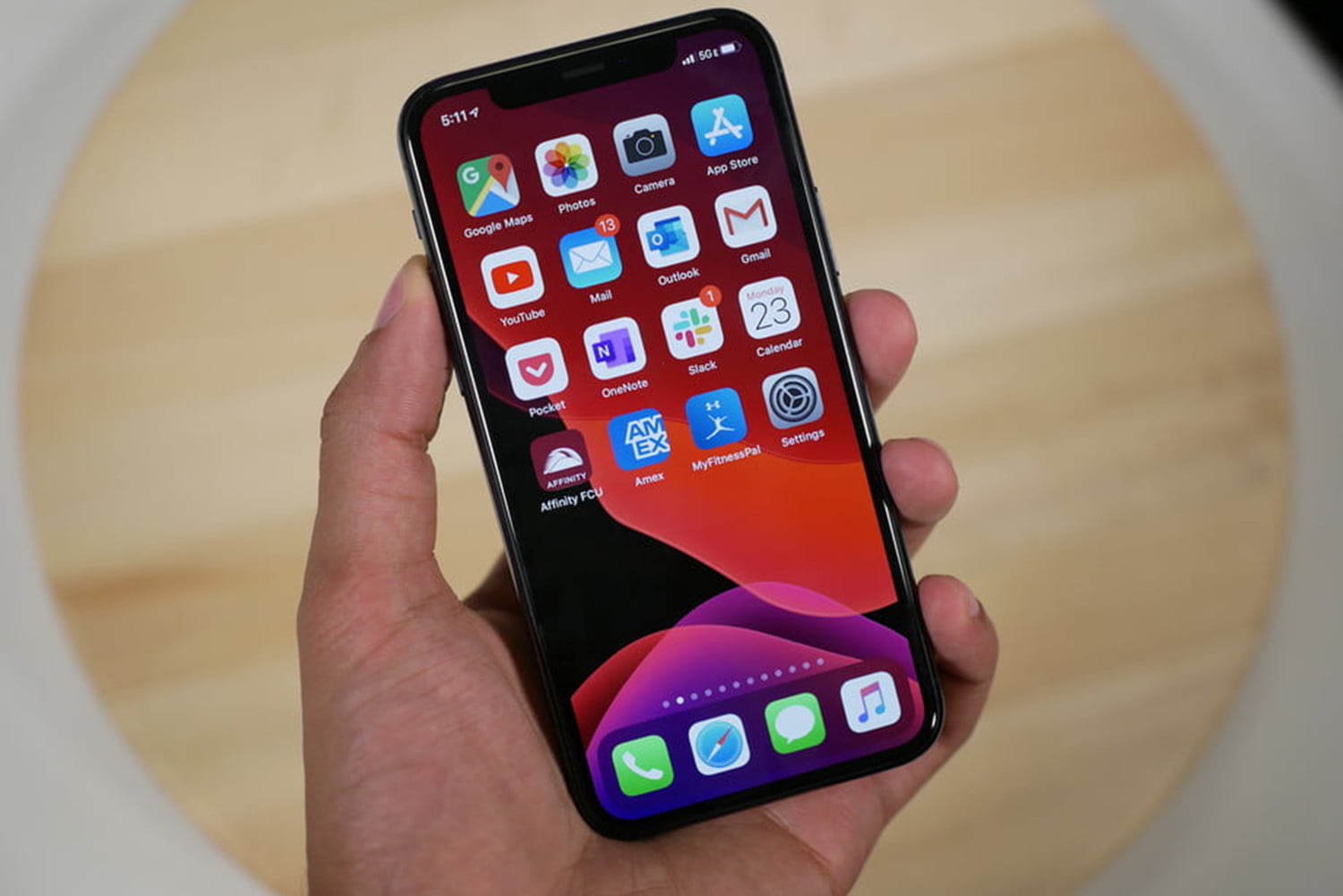
There can be hundreds of reasons due to which you may face some problem on your iPhone.
Keeping this in mind today, we are going over five common iPhone problems and the things that you can do to fix them.
Technical Glitches and BugsLike every other Operating System in the market, iOS is also not completely free from bugs and glitches due to which you may face speed issues, net issues, performance issues, etc.
So, if you are facing these types of issues on your iPhone, then try restarting it.
Yes, it may look like dumb advice, but it can help you fix your mobile’s glitches and make it function normally again.
To do this, press and hold your phone’s home button and wake button together for almost 10-15 seconds.Poor Battery Lifeif you are facing battery issues on your iPhone, then try finding out all the apps/services that are draining your battery behind your back.

If you will get the best troubleshooting steps and want to learn how to fix Canon Selphy CP1300 printer common problems easily.
Then browse the Printer Customer Service website.
Which has a complete technical team of professionals who offers you unique ways to resolve the common queries of the customers without any extra charges.

Games are always the best option for relaxation of the minds.
Though in the trend of the online games, the Pogo games are the best choice.
But, are you facing the sign in issues with the Pogo games, and looking for a solution How to Fix Pogo Sign In Problems?
Well, you have landed on the right page.
This article will help you out in fixing the sign in issues with the Pogo games.
So, without bragging much, let’s start with the process.