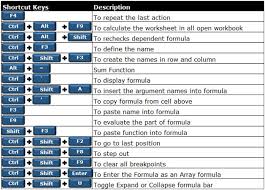
Microsoft Excel is one of the most powerful tools for data management, reporting, and analysis. While formulas are at the heart of Excel’s functionality, navigating and applying them quickly can save hours of work. That’s where excel formulas shortcut keys come into play. By mastering these shortcuts, professionals can boost productivity, reduce errors, and work more efficiently. In this blog, we’ll explore the most useful excel formulas shortcut keys that every beginner and advanced user should know.
Why Use Excel Formulas Shortcut Keys?
Manually typing and editing formulas can be time-consuming. With excel formulas shortcut keys, you can instantly apply, edit, or debug formulas without breaking your workflow. These shortcuts not only save time but also ensure accuracy when working on large datasets. For anyone handling financial models, reports, or statistical analysis, knowing these shortcuts is a game changer.
Top Excel Formulas Shortcut Keys
1. Insert Formula – Alt + =
This shortcut automatically inserts the SUM formula for selected cells. It is one of the most commonly used excel formulas shortcut keys, especially for quick total calculations.
2. Toggle Formula Display – Ctrl + `
Want to see the formulas instead of results? Use this shortcut to toggle formula view in the entire worksheet. Among excel formulas shortcut keys, this is extremely helpful for auditing.
3. Calculate Active Worksheet – Shift + F9
This shortcut recalculates only the active worksheet instead of the entire workbook. It’s useful when working with complex sheets.
4. Insert Function – Shift + F3
Not sure which function to use? This shortcut opens the Insert Function dialog box, making it one of the most helpful excel formulas shortcut keys for beginners.
5. Edit Active Cell – F2
Quickly edit a formula within a cell. Instead of double-clicking, press F2 to enter formula edit mode.
6. AutoComplete Formula – Tab
When typing a formula, Excel suggests functions. Press Tab to auto-complete the highlighted suggestion.
7. Calculate Workbook – F9
This recalculates all formulas in the workbook. It’s one of the most powerful excel formulas shortcut keys for heavy data processing.
8. Absolute & Relative References – F4
While writing formulas, press F4 to toggle between absolute ($A$1), mixed (A$1 or $A1), and relative references (A1).
9. Insert Argument Names – Ctrl + Shift + A
When typing a function, this shortcut inserts argument names inside the parentheses, helping you remember syntax easily.
10. Evaluate Formula Step-by-Step – Alt + M + V
This allows you to evaluate formulas in steps to understand how Excel is calculating results.
11. Apply Name to Formula – Ctrl + Shift + F3
You can define names from selected cells and use them in formulas to make them more readable.
12. Paste Formula Only – Ctrl + Alt + V → F
Instead of copying values, this pastes only formulas into the selected cell.
13. Array Formula Entry – Ctrl + Shift + Enter
Before dynamic arrays, this shortcut was key for entering array formulas. It is still useful in older Excel versions.
14. Insert SUM Quickly – Alt + Shift + =
A faster variation of the SUM formula shortcut that saves extra steps.
15. Display Formula Options – Alt + M
This opens the formulas tab in the ribbon, giving access to formula-related tools.
Conclusion
Mastering excel formulas shortcut keys is essential for anyone who works with data. From simple totals to complex calculations, these shortcuts save time, improve accuracy, and enhance productivity. Whether you are a student, financial analyst, or business professional, practicing these shortcuts daily will make Excel second nature. So, the next time you’re working on a large dataset, try using these excel formulas shortcut keys and experience the difference in speed and efficiency.



In the earlier article, I discussed some very useful Mac keyboard shortcuts including the basic short keys and some unknown keyboard shortcuts too.
In this article, I will be covering some useful windows 10 shortcut keys which will surely make your life and work easier with windows 10.
I have also covered some of the hidden windows shortcuts in the earlier article, which you would definitely like to know.
If we would talk about the keyboard shortcuts for Windows 10, then the list will have a huge number of shortcut keys, and all of them will not be of the daily use or the required one for everyone.
Hence I tried to cover up the most useful Windows 10 keyboard shortcuts which will be proved as the fruitful for the ones who always found near their PCs.
Windows 10 Keyboard Shortcuts You Need to Know