


How do game graphics affect your FPS and game performance? When you play a game, smooth gameplay makes the experience enjoyable.
FPS, or frames per second, is important; too low, and the game feels choppy; high FPS makes everything run smoothly. Textures, shadows, and resolution are all examples of graphics settings that might affect FPS.
NVIDIA Profile Inspector is a tool that enables you to adjust these settings to enhance performance without compromising visual quality.
Whether you play casually or competitively, knowing how graphics affect FPS is important. In this article, we will look at the options that affect performance and how to enhance them for smoother FPS.
What Are Game Graphics?
Game graphics are everything you see in a game. This includes characters, landscapes, objects, lights, shadows, and effects. It's what makes the game look the way it does.
Good graphics make a game more enjoyable and help tell the story. High-quality images, on the other hand, can create game lag if your computer or console is not powerful enough.
Benefits of Adjusting Game Graphics in FPS
Changing your game's graphics can significantly improve its overall vibe. Here is how:
- Smoother gameplay: Adjusting the graphical settings can enhance FPS, resulting in a smoother and more enjoyable gaming experience.
- Better performance on older computers: Even if your machine isn't brand new, adjusting graphics might make games run smoothly.
- Less lag and stuttering: Optimized settings eliminate unexpected frame drops, keeping the action moving smoothly.
- A good balance of looks and speed: You may enjoy attractive images without slowing down the game.
- Faster response in games: A higher FPS helps your actions seem faster on screen, which is ideal for fast-paced or competitive games.
- Keeps Your PC Cooler: Adjusting graphics reduces stress on your GPU, allowing your system to stay cooler and use less power.
Adjusting graphics helps you enjoy games that look good and run smoothly at the same time.
How to Improve Game Graphics for Smoother FPS?

Want games to look good and run smoothly? A few tweaks can improve graphics while preserving FPS. Here are some basic steps to try:
Step 1] Lower the resolution somewhat:
You don't always require the finest resolution. Dropping it can make your game run faster while being clear enough to enjoy.
Step 2] Adjust Texture Quality:
Medium to high textures are usually sufficient. Ultra textures are visually appealing, but they can place a significant burden on your graphics card.
Step 3] Turn Down Shadows:
Shadows help games feel more realistic but decreasing them slightly can result in a considerable FPS boost.
Step 4] Turn Off Motion Blur:
Motion blur can be visually beautiful, but it also makes the game feel slower and less fluid.
Step 5] Check the V-Sync and FPS limitations:
V-Sync can assist in minimizing screen tearing but turning it off or setting an FPS limit may make games feel more fluid.
Step 6] Keep graphics drivers updated:
Update your GPU drivers to address bugs and enhance performance, particularly in recent games.
Step 7] Close Background Apps:
Extra apps running in the background use memory and can slow your game down, so shutting them down is beneficial.
Step 8] Use Performance or Game Mode:
Many PCs and games feature settings for automatically balancing visuals and frame rates, making gaming easier and removing the need for guessing.
These minor adjustments help games look good and run smoothly simultaneously.
Closing Words
Resolving issues that affect your game graphics, such as outdated drivers or hardware limits, is critical to attaining smoother gameplay and better images.
When you address these issues, your games will run more smoothly, appear sharper, and give you more control over the graphics settings, allowing you to strike the best combination of performance and quality.
About the Author:
I'm River Jensen, a tech enthusiast working on NVIDIA Profile Inspector, a project dedicated to enhancing digital experiences through advanced GPU settings and performance optimization.
I'm passionate about combining creativity and technical knowledge to create graphics profiles that improve performance, improve visuals, and maximize the capabilities of NVIDIA technology.
Reference: Video game graphics. In Wikipedia. https://en.wikipedia.org/wiki/Video_game_graphics
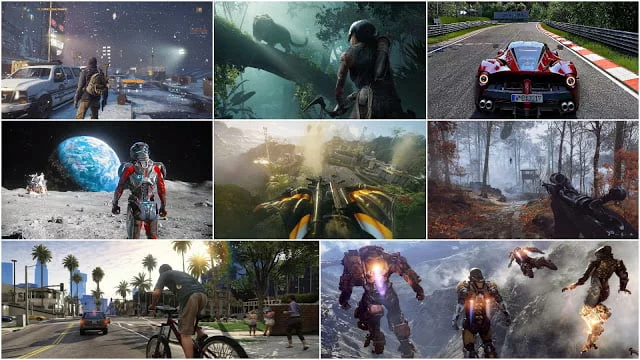
With intensive graphics for PC Games, there is a minute problem – they demand high-end system requirements like 8 GB RAM or greater or 2 GB Graphics or greater, but putting that thing aside let’s dive into this beautiful world of stunning PC Games of another world.Let’s have a quick glance at or GPU Intensive Games list:-Anthem (2019):Tom Clancy’s The Division 2 (2019):Project Cars 2 (2017): Just Cause 4 Reloaded (2018):Mass Effect Andromeda (2017):Forza Horizon 4 (2018): Shadow of the Tomb Raider (2018): Assassin’s Creed: Odyssey (2019): Far Cry 5 (2018):Battlefield V (2018):

Updated headline on 8/8 to reflect 1440p resolution
In the past, the video game console you bought at launch would have the same graphical capabilities for its entire lifespan, with only software-side updates potentially improving how games looked and ran.
It is no longer the past, however, as Merseille’s mClassic device is a plug-and-play graphics processor that promises to boost your consoles’ performance without modification.
The mClassic is designed to work with all of your consoles, including the Nintendo Switch and retro systems.
It touts built-in anti-aliasing, 4K upscaling, better depth of field, and sharper image quality.
Merseille says in its IndieGoGo campaign that the device only adds about 1ms of extra latency onto games when in use.