

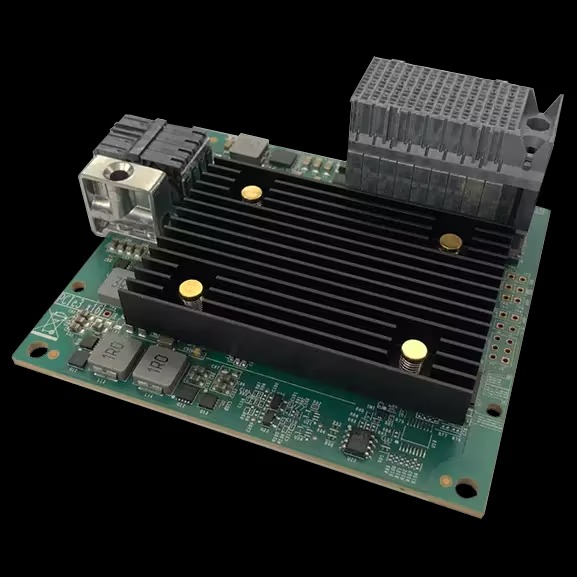
Ethernet adapters are essential for stable connectivity, yet even small issues can cause major disruptions in productivity.
Connectivity problems often stem from a few common causes, and troubleshooting them is about following a clear, step-by-step approach rather than guesswork.
The process begins with physical checkscables, ports, and LEDs before moving on to link speed, duplex settings, and power conditions. From there, drivers, firmware, and configuration details such as IP settings, DHCP, and VLAN tags must be verified.
By progressing through these checks methodically, documenting each step, and testing one change at a time, you can quickly isolate the root cause.
Let us explore HOW!
1. Check The Physical Path: Cable, Jack, And Port LEDs
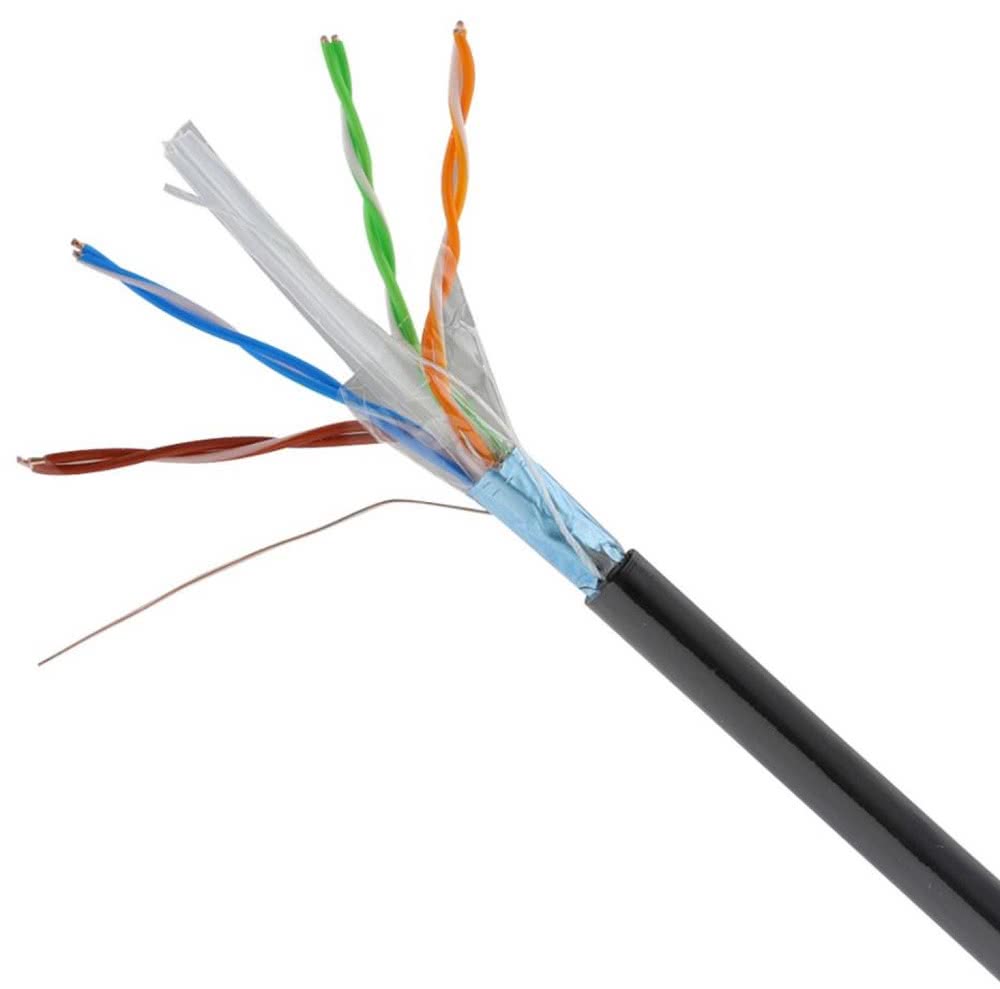
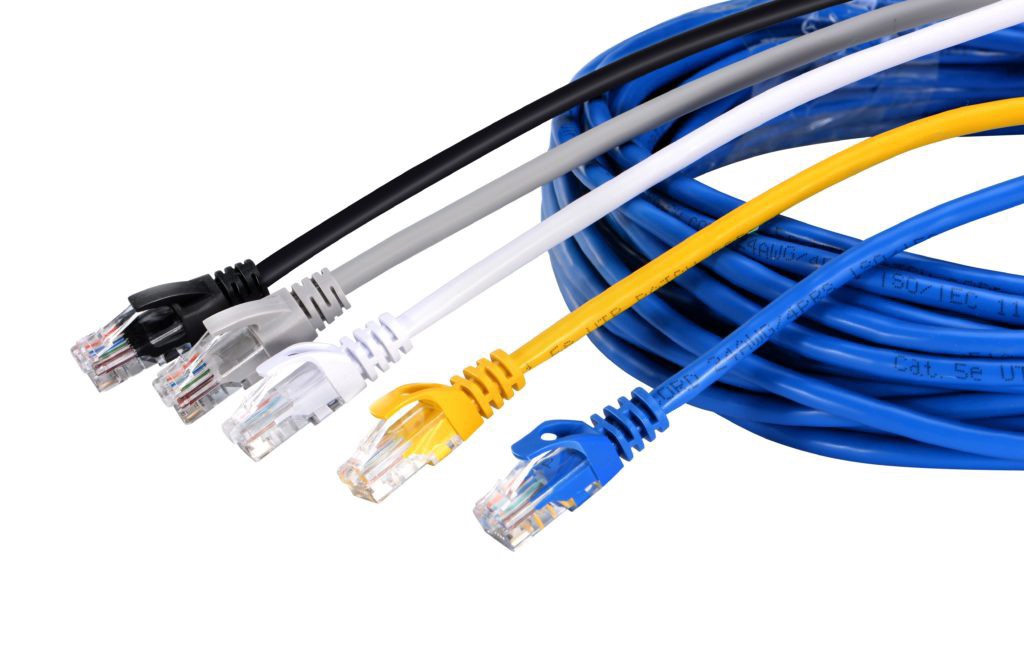
Begin with the basics you can see and touch. Inspect the cable for kinks, crushed boots, or broken clips. Try a known good cable to rule out damage you cannot see.
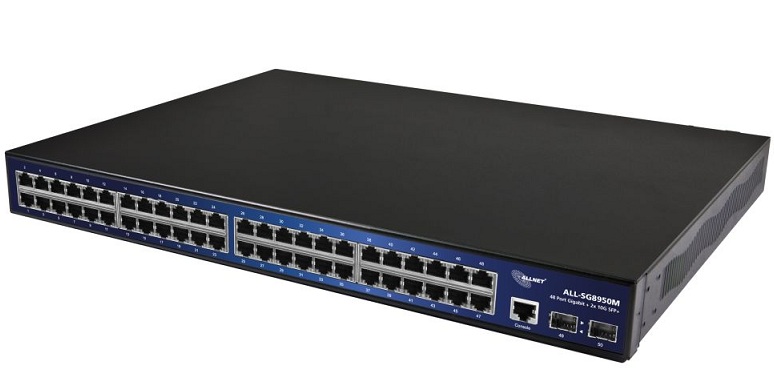
Plug into a different wall jack or switch port. Watch the link and activity LEDs on both the Ethernet adapter and the switch. A dark link light means no physical link; focus on the cable and port.
A solid light with no blinks can mean a link exists, but traffic is blocked or not flowing. If the port supports PoE and powers a phone or camera, test with a non-PoE device to avoid confusion.
2. Verify Speed And Duplex; Avoid Mismatches That Cause Errors
Old gear or odd configs can force a bad pair like 100/Half, which kills throughput and makes apps stall. Modern adapters do best on auto for both speed and duplex, but mixed settings across old and new gear can break that rule.
If you must force a value, write it down and label the port so the next person knows. This step is simple but powerful. Getting link negotiation right often turns a “slow network” into a fast, clean path with no drops.
- If both ends are set to auto-negotiation, leave them on auto first.
- If one end is forced (e.g., 100/Full), match the other end exactly.
- Watch for FCS errors and late collisions; they point to mismatches.
- After changes, reset the link and test with a steady ping for a minute.
3. Power And Poe Checks, Especially On Small Switches
Some adapters and small switches misbehave when power is weak. If your switch runs on a small power brick, make sure it is the right one and seated well. Check for heat; a hot, tiny switch can throttle or flap ports.
If your device draws PoE, confirm the switch budget and the port class. Move high-draw devices to ports with higher priority or to a PoE+ switch. For desktop PCs, disable “Energy Efficient Ethernet” as a test, since it can cause brief link sleeps with some gear.
If the adapter sits in a docking station, test by plugging the cable straight into the laptop. A stable power path removes a whole class of random link drops that are hard to trace later.
4. Update Or Roll Back The NIC Driver And Firmware
New drivers can fix bugs, but sometimes they add new ones. If the issue started after a recent update, try a known stable version.
Keep notes on driver dates and versions so patterns stand out. Update the switch firmware too, if you control it, since link issues can be a two-sided dance.
When driver work is done, clear any advanced tweaks you tried earlier so you can test a clean, default state. A tidy driver stack gives you a fair test of the rest of the path.
- Download the latest driver and firmware from the vendor's site.
- Create a restore point before changes so you can roll back.
- After installation, reboot and run a quick throughput test or file copy.
5. Confirm Ip Settings, Dhcp Leases, And Duplicate Addresses
A solid link light does not mean you have an IP. Check whether the adapter has a valid address, mask, gateway, and DNS. If DHCP is in use, release and renew the lease.
Watch for long waits, which can mean the server is out of addresses or blocked by a relay issue. If you use static IPs, make sure no one else is using the same address. A quick way to check is to ping the address before you assign it. If you see a reply, pick another number.
Also, check DNS. A bad DNS server makes the web feel slow, even when raw IP pings work. Fixing IP basics turns “the network is broken” into “the app is fine” in many cases.
6. Look At VLAN Tags, Access Vs. Trunk, And Security Rules
If your laptop works on one port but not another, the VLAN may be different. A phone that powers on but does not register can be on the wrong voice VLAN.
For servers and hypervisors, check whether the OS adds tags on top of the switch tags; double tagging breaks traffic. Make one change at a time, then test.
When it works, document the port mode and VLAN so you or a teammate can rebuild it later without guesswork. Clear VLANs keep traffic flowing to the right place.
- On the switch, confirm the port is in the right VLAN for that device.
- For trunks, make sure the needed VLANs are allowed and tagged.
- Turn off 802.1X or port security briefly to test basic access.
- Check for DHCP snooping or ACLs that block unknown devices.
Conclusion
Ethernet problems feel random until you add structure. Start with the cable and port. Fix speed and duplex so the link is honest. Check the power and small switches that run hot. Keep drivers clean and current, but do not fear a rollback if a new version breaks things.
Make sure IP settings are right and leases are fresh. Confirm VLANs and security rules so traffic reaches the right place. Then test the full path with simple tools and a real app.
This steady flow turns a messy hunt into a short checklist. It saves your time and gives users quick, lasting fixes. Keep your notes and label your ports. The next time a link drops, you will know exactly where to look and what to try first.