



There’s nothing more frustrating than a slow computer. You turn on your PC to finish an important task — and it takes forever to load. Whether you’re working, gaming, or just browsing the internet, a sluggish PC can waste time and kill productivity.
But here’s the good news — you don’t need to buy a new laptop or PC every time it slows down. With a few smart tweaks and optimizations, you can boost your PC’s speed and make it run like new again.
In this guide, we’ll show you step-by-step methods to speed up your PC, improve performance, and maintain long-term smoothness — whether you’re using Windows 10 or Windows 11.
Why Does Your PC Slow Down?
Before fixing the problem, let’s understand the root causes. Your computer may be running slow because of:
Too many background apps
Unnecessary startup programs
Fragmented hard drive
Malware or viruses
Outdated software or drivers
Low RAM or storage
Overheating issues
Understanding these causes helps you take the right steps to boost performance effectively.
1. Disable Unnecessary Startup Programs
When you start your PC, several programs automatically launch in the background. These slow down boot time and overall performance.
How to Fix It:
Press Ctrl + Shift + Esc to open Task Manager
Go to the Startup tab
Disable programs you don’t need at startup
Example: Disable tools like Spotify, Zoom auto-launch, or Adobe Updater unless you use them daily.
2. Uninstall Unwanted Programs
Over time, your PC gets cluttered with software you rarely use — they take up space and resources.
How to Fix It:
Go to Control Panel → Programs → Uninstall a Program
Remove unused or old software
Use tools like Revo Uninstaller for deep cleaning
Pro Tip: Always check before uninstalling system apps or drivers.
3. Run Disk Cleanup and Remove Junk Files
Windows automatically stores temporary and cache files that pile up over time. These can slow your computer significantly.
How to Fix It:
Type Disk Cleanup in the Windows search bar
Select your main drive (usually C:)
Tick all boxes (Temporary Files, Cache, Recycle Bin) and click OK
Bonus Tip: Use tools like Cleaner or Advanced SystemCare for deeper cleaning.
4. Scan for Viruses and Malware
A hidden virus or malware can drastically slow down your system. Many users ignore this, but it’s one of the most common reasons for poor performance.
How to Fix It:
Use a trusted antivirus like Quick Heal, McAfee, Kaspersky, or NPAV
Run a Full System Scan
Delete or quarantine any detected threats
Expert Tip: Keep your antivirus updated. You can buy genuine antivirus software directly from My PC Panda for the best price.
5. Upgrade Your Storage: Move to SSD
If your PC still runs on a traditional hard drive (HDD), switching to a Solid State Drive (SSD) can make a night-and-day difference.
Benefits of SSD:
Faster boot time
Quicker file transfers
Smoother multitasking
Lower power consumption
Pro Tip: Even upgrading to a small 256GB SSD for Windows and main apps can significantly boost performance.


Microsoft manufactures the whole suite of Microsoft software which stars a variety of applications, servers, and services like MS Word, PowerPoint, Excel, Access, MS Office and OneNote.
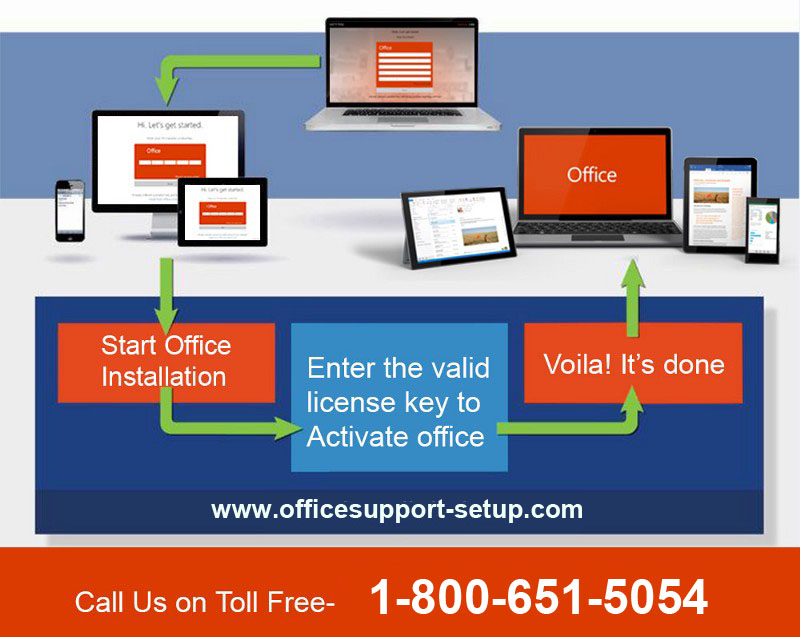
www.office.com/setup enter your product key online.
Download & Install Microsoft Office Product Visit activation website www.office.com/setup to register and activate.
For download, install, reinstall, and office setup contact our toll-free number 1-800-651-5054.
Office setup with your 25 character product key.
Get started: Go to office.com/setup - Sign in, then Enter product key and Install Office 365 or 2016, 2019.