





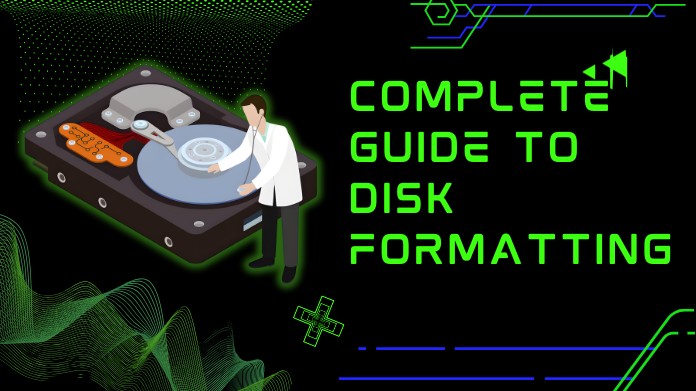
Have you ever wondered why the system asks you to format a disk before using it? Well, you're not alone.
To properly store data on a storage device, such as a hard drive, SSD, or USB drive, disk formatting is a crucial step. In addition to erasing existing data, it also establishes a new file system that improves the reading and writing capabilities of your operating system.
Understanding disk formatting is vital whether repairing a corrupted drive, installing a new one, or switching file systems. GUI Format Download and other tools make this process quick and easy for beginners.
In this article, you'll learn what disk formatting is, what varieties exist, and when and how to utilize it successfully.
What Is Disk Formatting?
The process of getting a hard drive, SSD, or USB drive ready for use by an operating system is known as disk formatting. It entails creating a file system structure that enables the operating system to read, write, & organize data effectively.
To put it simply, formatting a drive creates a new structure that allows files to be stored and retrieved correctly, while erasing all existing data. Before a drive can be utilized for storage or to reinstall an operating system, this is a necessary step.
Your device wouldn't be able to identify or handle data properly without proper formatting, which would result in mistakes and useless storage space.
Why Is Disk Formatting Important?
Formatting a drive involves more than just deleting data; it also requires organization and optimization. It matters for the following principal reasons:
- Removes Errors and Corruption: Formatting can resolve corrupted files, defective sectors, & file system issues.
- Prepares a Drive for OS Installation: When installing a new operating system, a formatted disk guarantees a clean environment.
- Improves Performance: Formatting can revitalize an outdated drive and increase its performance over time.
- Changes File Systems: Depending on your requirements, you can switch between file systems such as FAT32, NTFS, exFAT, or APFS.
Types of Disk Formatting
There are mainly three stages of disk formatting, each serving a specific purpose:
1. Low-Level Formatting
Usually completed at the factory level, this is the most basic kind of formatting. To store data, it physically builds tracks and sectors on the disk.
Manufacturers typically manage low-level formatting, so users rarely do it themselves.
It basically specifies the actual configuration of the storage medium, guaranteeing reliable data writing and reading at the hardware level.
2. Partition Formatting
The process of partition formatting entails splitting the disk into one or more partitions. Different file systems or even operating systems can be hosted on each partition, which can be formatted independently.
This stage facilitates effective data organization, enabling users to manage various settings and storage needs on a single device.
3. High-Level Formatting
The bulk of consumers are used to this procedure. It prepares the disk for regular data storage and creates the file system structure (FAT32, NTFS, or exFAT).
It's the final stage of a drive's operation, preparing it for efficient data storage, access, & organizing.
This type of formatting also allows the operating system to assign a drive letter to the disk and make it available to the user for file management purposes.
Standard File Systems Used in Disk Formatting
Different devices and operating systems use different file systems. These are the most typical ones:
- FAT32: Compatible with most systems but limited to 4GB per file.
- exFAT: Designed for flash drives and supports larger files.
- NTFS: Default for Windows, supports permissions, encryption, and large file sizes.
- APFS: Apple’s file system optimized for macOS and SSDs.
- EXT4: Commonly used in Linux distributions.
How Disk Formatting Works?
When you format a disk, several steps take place:
- The existing data and file tables are erased.
- A new file system is written to the disk.
- The OS verifies the structure and marks usable sectors.
- The drive becomes ready for use, and new data can be stored efficiently.
It's essential to note that complete formatting thoroughly checks the drive for damaged sectors and completely wipes data.
In contrast, rapid formatting merely eliminates the file table, making data recovery more challenging.
When Should You Format a Disk?
Formatting is typically done in the following situations:
- Installing a new operating system
- Fixing file system errors or drive corruption
- Changing the file system type
- Preparing a new drive for first-time use
- Removing malware or persistent data issues
Tools for Disk Formatting
Although formatting tools are included in modern operating systems, specialized tools such as GUI Format Download provide greater control and compatibility, particularly when working with huge drives or particular file systems like FAT32.
The GUI Format is lightweight, easy to use, and ideal for both novices and specialists who seek dependable and fast results.
Final Thoughts
Disk formatting is a necessary step for preserving storage devices and ensuring optimal performance. Knowing the different file systems & formatting types will assist you in making better selections while installing a new drive, troubleshooting difficulties, or just upgrading your system.
Tools such as GUI Format Download make the process easier, faster, and more effective, ensuring that your drives are always ready to use.
To avoid unintended data loss and ensure a smooth setup process, always back up your important data before formatting.
About the Author:
Greetings, my name is Wilford Conrad. I'm a computer enthusiast, system engineer, and gadget lover who enjoys learning about and discussing software tools, data storage, and PC performance.
To help people maximize the potential of their storage devices, I enjoy testing new technologies and formatting tools.
Have you previously formatted your drive? Post any advice or experiences you may have here!
Reference: Linda. (2019, November 18). What is Disk Formatting - MiniTool Partition Wizard? MiniTool. https://www.partitionwizard.com/help/what-is-disk-formatting.html
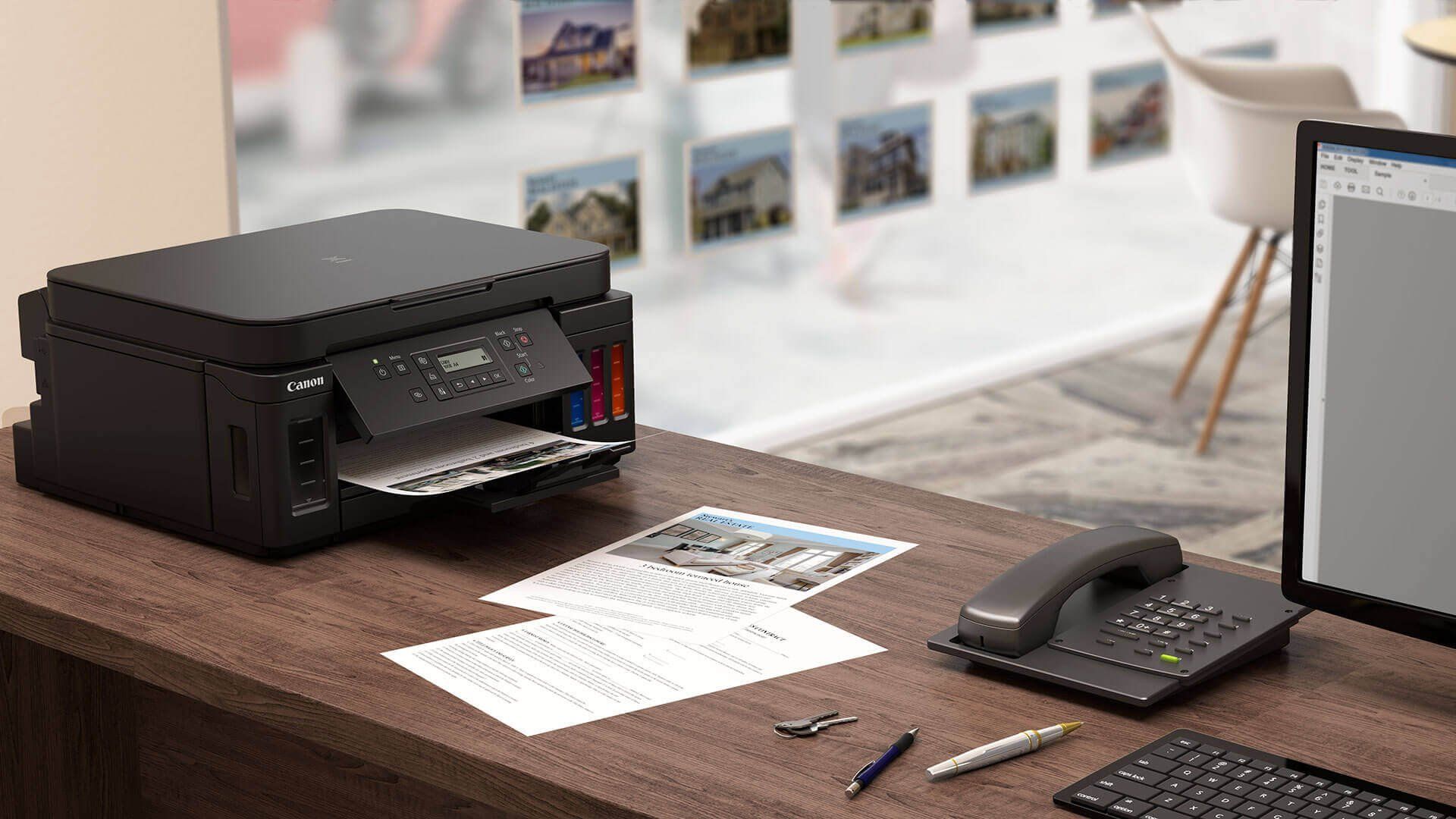
Everything you need to know about the canon.comijsetup, Then no look further, visit the Com IJ Printer website and resolve your Canon IJ setup issues online.
We provide you a safe, secure, and reliable platform for downloading the driver with the latest updates of the Canon software.


The need of superior packaging alternative can act as a driver this market over a given period.
It is forecasted that that demand for exotic fish and fish products will eventually go up.
The dependency of consumer on meat and powdered products packages will have a positive impact on the industry growth.This market segment will benefit from demand for sustainable natural food and organic food product for their pets.
In addition, ease of printing on the product coupled with easier can design modifications is expected to emerge as the major growth drivers.In European market Steel food cans has a significant market share due to its properties like recyclability and excellent temper resistance.
However, it is expected to witness limited demand because of Aluminium cans.Application InsightsThe use of the product for packaging fruits is expected to account for over 25% of the revenue in Europe driven by a high production volume of canned fruits in Russia.
The demand for the product by the consumers across the region is expected to be driven by the use in salads and fruit puddings.Consumption of corned meat has lead to expansion in meat can industry in Europe.