





The decision to transition from Apple Mail (often referred to as Mac Mail) to Microsoft Outlook 2021 marks a significant shift, typically driven by the need for advanced collaboration tools, cross-platform consistency, or integration with the broader Microsoft 365 ecosystem. While both are powerful email clients, they utilize different native file formats—Apple Mail relies on the MBOX format, whereas Outlook 2021 (the standalone version for Windows and Mac) primarily uses PST (Personal Storage Table) files for imported data on Windows and OLM (Outlook for Mac) files or PST on Mac.
This fundamental difference necessitates a crucial conversion process, as Outlook cannot directly read Apple Mail's MBOX files. This detailed guide explores every aspect of a successful, professional-grade Apple Mail to Outlook 2021 migration.
Understanding the Technical Challenge: MBOX to PST/OLM
The core technical challenge lies in file format incompatibility:
- Apple Mail Format: Data is stored in the MBOX format (.mbox), a standardized way to store collections of email messages in a single file.
- Outlook 2021 Format (Windows): For local archive and imported data, it uses the PST format (.pst).
- Outlook 2021 Format (Mac): Modern Outlook for Mac can also read PST files, but its native archive format is OLM (.olm).
Therefore, the migration process is not a simple import; it's a multi-step procedure: Export MBOX → Convert to PST → Import PST into Outlook 2021.
Step-by-Step Migration Methods
There are two primary approaches for migrating your Mac Mail data to Outlook 2021: the manual method (complex, multi-step, and best for small mailboxes) and the automated, professional method (recommended for data integrity and bulk migration).
Method 1: The Multi-Stage Manual Approach (Via IMAP or Intermediary Clients)
The fully manual conversion is highly complex, often involving several intermediary email clients like Eudora or Thunderbird, making it error-prone and generally not recommended for business-critical data. A more feasible semi-manual approach leverages the IMAP protocol or a third-party client as a bridge.
A. Migration via IMAP (Best for Currently Configured Accounts)
This method is ideal if your email account (like Gmail, Yahoo, etc.) is currently configured in both Apple Mail and supports IMAP.
- Ensure IMAP is Enabled: Verify that IMAP is enabled for your email service (e.g., in Gmail settings).
- Create a Bridge Folder in Apple Mail: In Apple Mail, create a new folder under your IMAP account's structure (not "On My Mac"). Name it something clear, like "Migration_Export."
- Transfer Mailboxes: Select the mailboxes you wish to move from the "On My Mac" section in Apple Mail and drag and drop them into the new Migration_Export folder. This uploads the mailbox data to the server.
- Configure Outlook 2021: Set up the exact same email account in your Outlook 2021 client (Windows or Mac), ensuring it's configured as an IMAP or Exchange account.
- Synchronization: Allow Outlook to synchronize with the server. The Migration_Export folder and its contents will appear automatically in Outlook 2021.
Note: This method only moves email messages. Contacts and Calendar entries require separate export/import steps (e.g., Contacts as VCF/CSV, Calendar as ICS).
B. Direct Export from Apple Mail (Preparing for Conversion)
If the IMAP method is unsuitable, you must first export the MBOX file:
- Export Mailbox: In Apple Mail, select the mailbox you wish to export. Go to Mailbox > Export Mailbox...
- Save Location: Choose a destination to save the exported file. The resulting folder will contain the MBOX file.
- Transfer File: Move this MBOX file to the Windows machine (or the Mac where Outlook 2021 is installed) using a flash drive or cloud service.
Method 2: The Professional Automated Solution (Recommended)
For large volumes of data, preserving folder hierarchy, and ensuring the integrity of attachments and metadata, a dedicated MBOX to PST Converter tool is the industry-standard recommendation.
1. Export MBOX Files: Follow the steps in Method 1B to export your MBOX files from Apple Mail.
2. Convert MBOX to PST:
- Acquire and launch a professional MBOX to PST conversion utility.
- Load the exported MBOX files into the software.
- Select PST as the desired output format.
- Run the conversion. The tool converts the Apple Mail data into a single or split Outlook Data File (.pst).
3. Import PST into Outlook 2021:
- Open Microsoft Outlook 2021.
- Navigate to File > Open & Export > Import/Export.
- Select Import from another program or file > Next.
- Choose Outlook Data File (.pst) > Next.
- Browse to the converted PST file, select your import options (e.g., handling duplicates), and click Next and Finish.
This professional approach guarantees compatibility with your target Outlook 2021 version and minimizes the risk of data corruption.
Migrating Supplementary Data: Contacts and Calendar
Email is only part of the story. Contacts and Calendar data must be migrated separately.
1. Contacts Migration (Address Book)
- Export from Apple Contacts: Open the Contacts application on your Mac. Select all contacts, then go to File > Export > Export vCard (VCF) or, preferably, Export > Contacts Archive (if available, or export to a compatible CSV format using a third-party tool).
- Import into Outlook 2021: In Outlook, navigate to File > Open & Export > Import/Export. Select Import from another program or file and then choose Comma Separated Values (for CSV) or manually import the VCF/vCard files into the Outlook Contacts folder.
2. Calendar Migration (iCal)
- Export from Apple Calendar: Open the Calendar application (formerly iCal). Select the desired calendar, go to File > Export > Export. Save the calendar as an ICS (.ics) file. Repeat for all required calendars.
- Import into Outlook 2021: In Outlook, go to File > Open & Export > Import/Export. Select Import an iCalendar (.ics) or vCalendar (.vcs) file and import the exported ICS files.
Best Practices and Troubleshooting Tips
Successful migration requires careful planning and execution.
Pre-Migration Best Practices
• Data Backup: Before starting any migration, create a full backup of your entire Apple Mail data.
• Mailbox Cleaning: Delete unnecessary emails, spam, and large attachments from your Apple Mail client to reduce the size of the MBOX file, making conversion faster and more reliable.
• Maintain Folder Structure: When using an automated tool, ensure it offers Folder Hierarchy Maintenance to keep your emails organized as they were in Apple Mail.
Read more: https://www.shoviv.com/how-to/export-mbox-to-pst-manually.php
Conclusion: Ensuring a Smooth Transition
The migration from Apple Mail to Outlook 2021 is a necessary endeavor for users seeking enhanced functionality and enterprise integration. While manual methods exist, they are often tedious, technically challenging, and pose risks to data integrity. For any professional or user dealing with a substantial amount of crucial data, investing in a reputable Shoviv MBOX to PST Converter tool is the most reliable, efficient, and data-secure pathway to a truly seamless transition.

Import Apple Mail files to Outlook by Abrienne
Exporting particular email file from a desktop client application to add to another client cannot be an easy task to carry out, which may require a lot of expertise and practice.
One such example is migrations of Apple Mail Email files into Microsoft Outlook, where technical basics and specialized skill is needed.
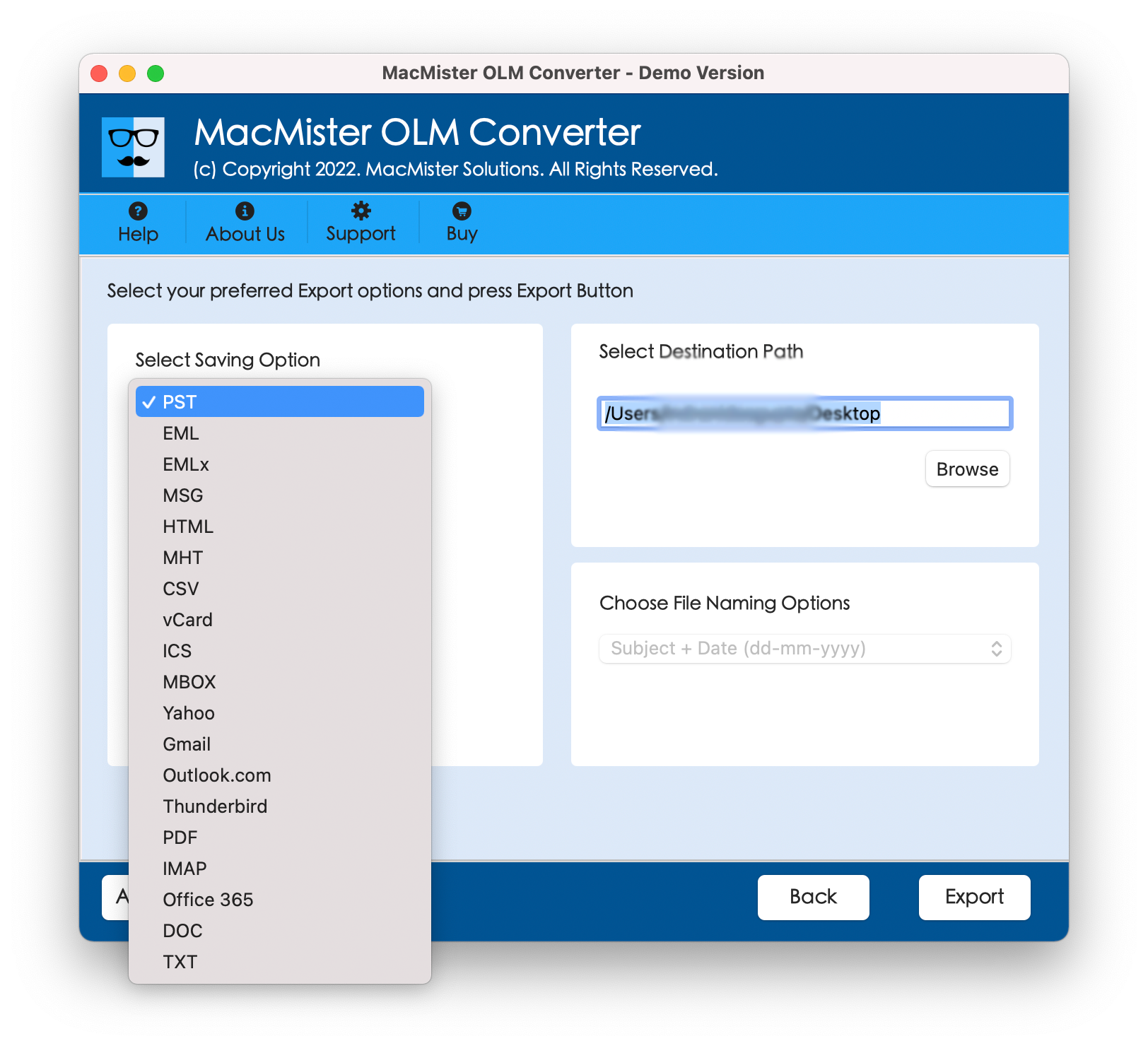
This forced to come up with this Apple Mail to Outlook Converter Software.
Many organizations use MBOX Supported email clients Apple Mail as their basic email computer.
The time when the same user needs a migration from Apple Mail to MS Outlook, the Mail items within Apple Mail need to be converted into PST format of Outlook.