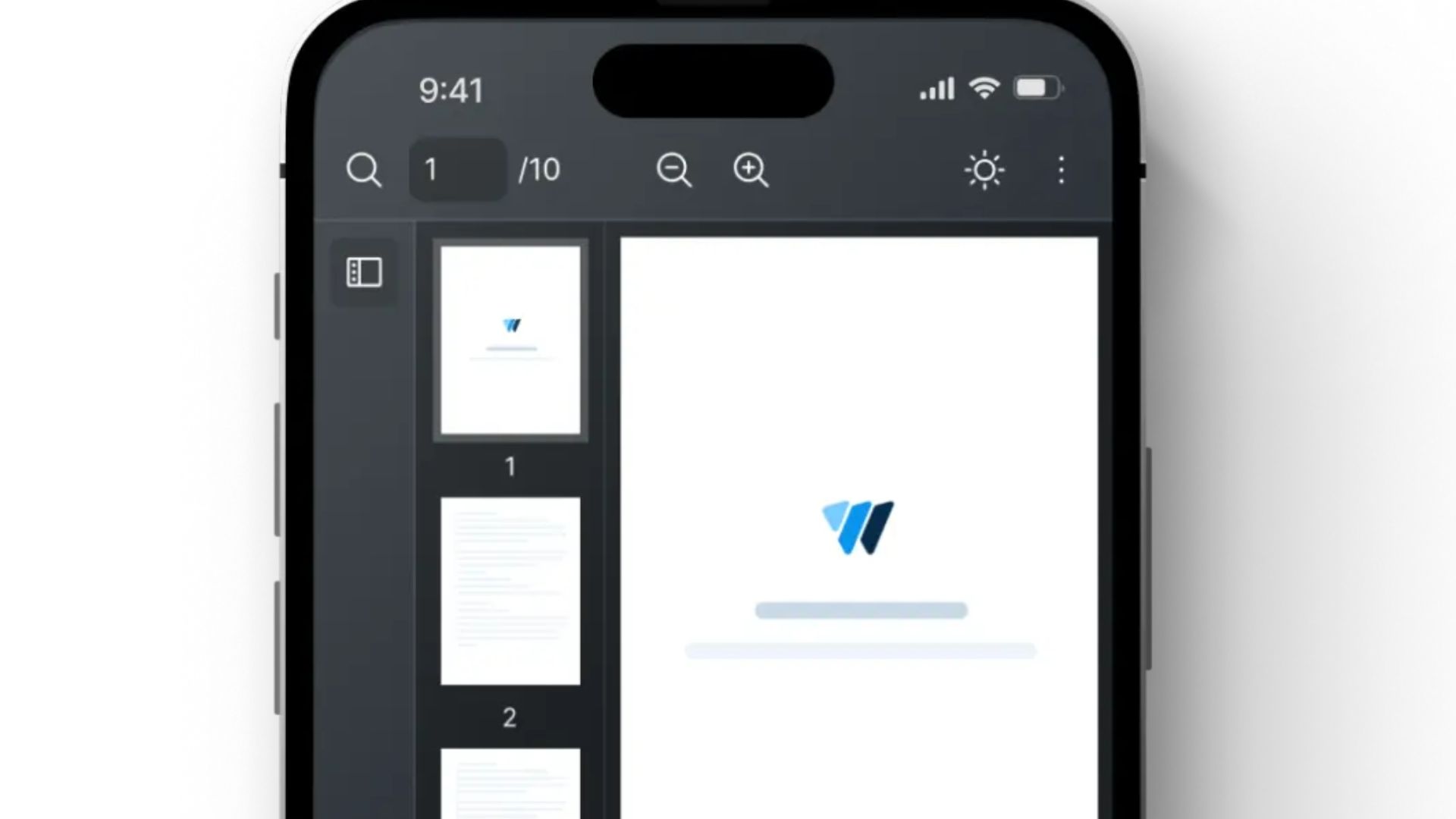
Rendering PDF documents directly in web applications has become a common requirement for modern developers. From dashboards and document management systems to educational platforms and online invoices, PDFs are everywhere. For React developers, providing client-side PDF rendering ensures users can view documents seamlessly without downloading them or relying on external plugins.
Among the many tools available, React-PDF has emerged as the preferred solution for developers looking for speed, flexibility, and control. In this guide, we explore why React-PDF is the go-to choice, how it works, best practices for implementation, and tips for creating a smooth user experience.
What is Client-Side PDF Rendering?
Client-side PDF rendering refers to the ability to display PDF documents directly in a user’s browser without sending them to a server for processing. This approach has several advantages:
Immediate viewing – Users can open PDFs instantly without downloads.
Interactive features – Multi-page navigation, zoom, and scroll functionality.
Reduced server load – Rendering is handled on the client, freeing server resources.
Responsive display – Works across devices including desktops, tablets, and smartphones.
For developers, client-side rendering improves both user experience and application efficiency.
What is React-PDF?
React-PDF is a React library built on PDF.js, an open-source PDF rendering engine. It allows developers to render PDF documents natively in React applications using simple, reusable components. React-PDF provides:
Document and Page components for easy rendering
Support for local and remote PDFs
Dynamic multi-page rendering
Zooming and scaling options
Performance optimizations like lazy loading
These features make React-PDF a versatile choice for interactive PDF viewers in React applications.
Why Developers Prefer React-PDF
React-PDF stands out for several reasons:
1. Seamless Integration with React
React-PDF leverages React components and hooks, making it intuitive for developers to integrate PDFs into their projects. State management for page numbers, zoom, and scale is straightforward.
2. Multi-Page PDF Support
Handling multi-page PDFs is simple. Developers can dynamically render pages and implement navigation controls, ideal for reports, manuals, or educational materials.
3. Zoom and Scaling Functionality
The scale prop allows developers to implement zoom controls, ensuring documents are readable on all devices. Combined with responsive design, this enhances the user experience significantly.
4. Performance Optimizations
React-PDF supports lazy loading of pages and works efficiently with PDF.js web workers. This reduces the memory footprint and improves performance for large PDFs.
5. Remote PDF Compatibility
React-PDF can render PDFs from URLs or API endpoints, enabling dynamic content delivery for invoices, reports, or cloud-stored documents.
6. Customizable Styling
Unlike simple iframe solutions, React-PDF allows CSS styling of containers and pages, ensuring the PDF viewer integrates seamlessly with your React application design.
Installing and Setting Up React-PDF
To start using React-PDF:
npm install react-pdf
# or
yarn add react-pdf
Ensure your React project is compatible with the version of React-PDF you install. Once installed, you can import the components:
import { Document, Page } from 'react-pdf';
Rendering a Basic PDF
Here’s a simple example:
import React, { useState } from 'react';
import { Document, Page } from 'react-pdf';
const PdfViewer = () => {
const [numPages, setNumPages] = useState(null);
const onDocumentLoadSuccess = ({ numPages }) => {
setNumPages(numPages);
};
return (
<div className="pdf-container">
<Document
file="/example.pdf"
onLoadSuccess={onDocumentLoadSuccess}
>
{Array.from(new Array(numPages), (el, index) => (
<Page key={`page_${index + 1}`} pageNumber={index + 1} />
))}
</Document>
</div>
);
};
export default PdfViewer;
This implementation demonstrates multi-page rendering with React-PDF and serves as the foundation for more advanced features.
Zooming and Navigation Controls
For enhanced user interaction, add navigation and zoom controls:
const [pageNumber, setPageNumber] = useState(1);
const [scale, setScale] = useState(1.0);
<Page pageNumber={pageNumber} scale={scale} />
<button onClick={() => setPageNumber(pageNumber - 1)}>Previous</button>
<button onClick={() => setPageNumber(pageNumber + 1)}>Next</button>
<button onClick={() => setScale(scale + 0.1)}>Zoom In</button>
<button onClick={() => setScale(scale - 0.1)}>Zoom Out</button>
This creates a responsive, interactive PDF viewer suitable for applications with complex documents.
Lazy Loading Large PDFs
Rendering all pages at once can impact performance. Implement lazy loading by only rendering visible pages:
<Page pageNumber={currentPage} />
This improves rendering efficiency and reduces memory usage, especially for multi-page reports.
Displaying PDFs from URLs
React-PDF can load remote PDFs, enabling dynamic content delivery:
<Document file="https://example.com/report.pdf">
<Page pageNumber={1} />
</Document>
This is particularly useful for cloud-based documents, user-uploaded files, or server-generated PDFs.
Styling Your PDF Viewer
Using CSS, you can create a responsive PDF container:
.pdf-container {
width: 100%;
max-width: 900px;
margin: auto;
border: 1px solid #ddd;
padding: 10px;
}
This ensures that your PDF viewer integrates well with your React application layout.
Error Handling and Fallbacks
Always include error handling to account for missing or corrupted PDFs:
<Document
file="/example.pdf"
onLoadError={(error) => console.error('Error loading PDF:', error)}
>
Providing fallback messages ensures graceful degradation and improves user experience.
FAQ's
Q1: Can React-PDF handle large PDFs efficiently?
Yes, with lazy loading and web workers, large PDFs can be rendered without affecting performance.
Q2: Is React-PDF better than iframe embedding?
Absolutely. React-PDF provides zoom, navigation, and responsive layout, which iframes lack.
Q3: Can React-PDF render PDFs from external URLs?
Yes. Remote PDFs are fully supported and can be dynamically loaded.
Q4: Is React-PDF mobile-friendly?
Yes, when combined with responsive styling and scaling, PDFs are fully viewable on mobile devices.
Q5: Does React-PDF support multi-page documents?
Yes. Developers can dynamically render multiple pages with navigation controls.
Common Use Cases
Document management systems – View contracts, reports, and guides inline.
Educational platforms – Render textbooks, worksheets, and research papers.
Invoice or receipt viewers – Display dynamic PDFs in dashboards.
Analytics dashboards – Allow interactive PDF reports with multiple pages.
Best Practices for Client-Side PDF Rendering
Use lazy loading for better performance with large PDFs.
Implement error handling for missing or corrupt files.
Use responsive design to support desktops, tablets, and mobile devices.
Leverage web workers to offload PDF parsing.
Provide navigation and zoom controls to enhance user experience.
Conclusion
React-PDF is the go-to solution for client-side PDF rendering in React applications. It combines speed, flexibility, and ease of use, offering developers the ability to render multi-page PDFs, integrate navigation and zoom controls, and support remote document loading. Its performance optimizations, such as lazy loading and web worker support, make it ideal for modern web apps that handle large or dynamic PDFs. By following best practices, developers can create interactive, responsive, and professional PDF viewing experiences for users across devices.