When people build or upgrade a PC, one common concern is balance. You may have a powerful graphics card, but your processor might struggle to keep up. Or maybe your CPU is strong, yet your GPU becomes the limiting factor. This is where a gpu bottleneck calculator becomes useful. It helps users understand how different components work together and where performance gaps may exist.
A bottleneck in a computer system happens when one component limits the performance of others. Think of it like traffic on a highway. Even if most lanes are clear, congestion in one lane can slow everything down. In a PC, this usually involves the CPU and GPU. Understanding these limits is important because it can save money, reduce frustration, and guide smarter upgrades.
Many users assume that buying the most expensive hardware guarantees the best results. In reality, performance depends on how well components match each other. A mid-range GPU paired with a balanced CPU often performs better than a high-end GPU paired with a weak processor. Balance matters more than raw numbers.
This article explains how GPU bottlenecks work, how calculators estimate performance gaps, and what users should consider before making decisions.
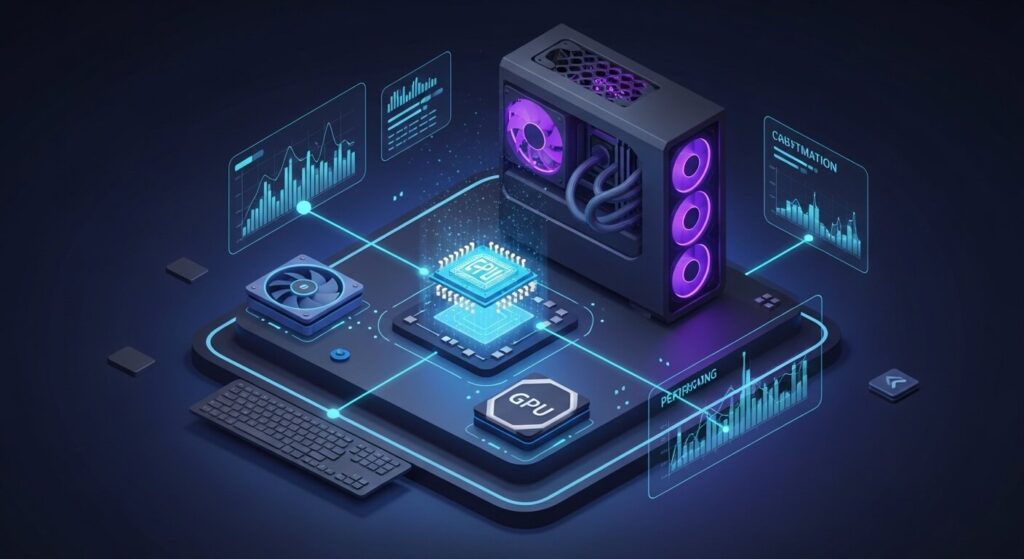
Understanding Bottlenecks in Simple Terms
A bottleneck occurs when one hardware component cannot process data as fast as others. In gaming and graphics-heavy tasks, two main parts are involved:
CPU (Central Processing Unit)
GPU (Graphics Processing Unit)
The CPU handles logic, calculations, and instructions. The GPU handles visual processing. If either one becomes overloaded, the system’s overall performance drops.
For example
A slow CPU with a fast GPU → CPU bottleneck
A fast CPU with a slow GPU → GPU bottleneck
Both scenarios reduce efficiency.
What is a GPU Bottleneck?
A GPU bottleneck happens when the graphics card cannot render frames as quickly as the CPU can prepare them. This leads to:
Lower frame rates
Stuttering
Reduced visual smoothness
In this case, the CPU is waiting for the GPU.
GPU bottlenecks are more common at:
Higher resolutions (1440p, 4K)
Graphics-intensive games
Heavy visual workloads
As resolution increases, the GPU workload increases.
What is a CPU Bottleneck?
A CPU bottleneck happens when the processor cannot send data to the GPU fast enough. This leads to:
Unstable FPS
Micro-stutters
Poor performance even with a strong GPU
CPU bottlenecks are more common at:
Lower resolutions (1080p)
High refresh rate gaming
Simulation-heavy games
At lower resolutions, GPUs render frames faster, placing more pressure on the CPU.
Why Bottlenecks Matter
Many users overlook bottlenecks. However, they impact:
Gaming performance
System responsiveness
Upgrade efficiency
Budget planning
Without understanding bottlenecks, users may:
Overspend on unnecessary upgrades
Blame wrong components
Experience unexpected performance issues
How a GPU Bottleneck Calculator Works
A GPU bottleneck calculator does not measure real performance. Instead, it estimates compatibility using:
CPU model
GPU model
Resolution
Usage type
It compares expected workloads and predicts which component may limit performance.
These tools typically rely on:
Benchmark databases
Performance averages
Generalized formulas
They provide guidance, not absolute answers.
Important Factors Affecting Bottlenecks
1. Screen Resolution
Resolution heavily impacts GPU load.
1080p → More CPU pressure
1440p → Balanced load
4K → Heavy GPU pressure
Higher resolution = more pixels = more GPU work.
2. Refresh Rate
Higher refresh rates increase CPU demand.
60Hz → Standard load
144Hz → Higher CPU usage
240Hz → Very CPU dependent
3. Game Type
Different games stress hardware differently.
Competitive shooters → CPU sensitive
Open-world games → Mixed load
Ray tracing games → GPU heavy
4. VRAM Capacity
Low VRAM can mimic bottlenecks.
Symptoms include:
Texture pop-in
Sudden FPS drops
Stuttering
5. Background Processes
Running many apps affects CPU performance.
Examples:
Browsers
Recording software
Updates
6. Thermal Throttling
Heat reduces performance.
Common causes:
Poor airflow
Dust buildup
Weak cooling
Realistic Expectations from Bottleneck Calculators
Users often misunderstand these tools.
They can help with:
✔ Identifying obvious mismatches
✔ Planning upgrades
✔ Comparing component pairs
They cannot guarantee:
✘ Exact FPS numbers
✘ Perfect accuracy
✘ Real-world performance
Hardware performance varies by workload.
Common Bottleneck Myths
Myth 1: Bottlenecks are Always Bad
Reality: Every system has some bottleneck. It is normal.
Myth 2: 0% Bottleneck is Possible
Reality: Impossible. Something always limits performance.
Myth 3: Only CPU & GPU Matter
Reality: RAM, storage, cooling, drivers all matter.
Myth 4: Bottleneck Calculators are Exact
Reality: They provide estimates.
When Should You Worry About a GPU Bottleneck?
You should consider action if:
GPU usage stays near 100% constantly
FPS is consistently low
Visual settings cause instability
System feels unbalanced
Signs of a GPU Bottleneck
Typical indicators:
GPU at full usage
CPU underutilized
Lower FPS at high settings
Performance improves when lowering resolution
Signs of a CPU Bottleneck
Typical indicators:
CPU near full usage
GPU usage fluctuates
FPS unstable
Performance improves at higher resolution
Upgrade Decisions: GPU vs CPU
Choosing upgrades depends on workload.
Upgrade GPU if:
✔ Playing at higher resolutions
✔ Using ray tracing
✔ Visual quality is priority
Upgrade CPU if:
✔ High refresh rate gaming
✔ Simulation-heavy tasks
✔ CPU usage remains high
Balanced System Design
A balanced PC:
Avoids extreme mismatches
Maintains consistent FPS
Uses hardware efficiently
Balance improves real-world experience more than peak numbers.
Comparing Popular Online Tools
VersaCalculator
VersaCalculator offers various computing tools, including bottleneck estimations. It provides simple inputs and easy-to-read results.
BottleneckCalculators
BottleneckCalculators focuses on CPU and GPU compatibility analysis. It helps users evaluate component balance quickly.
BottleneckCalculator
BottleneckCalculator provides performance gap estimates based on common benchmarks. It is often used for quick upgrade checks.
PCPartPicker
PCPartPicker is widely used for building PCs. While not strictly a bottleneck calculator, it helps users choose compatible components.
Practical Example: GPU Bottleneck Scenario
Imagine:
High-end CPU
Entry-level GPU
1440p gaming
Result:
CPU waits
GPU overloaded
FPS limited
Solution:
Upgrade GPU
Practical Example: CPU Bottleneck Scenario
Imagine:
High-end GPU
Older CPU
1080p high refresh gaming
Result:
GPU underused
CPU overloaded
Solution:
Upgrade CPU
Gaming vs Productivity Bottlenecks
Gaming Workloads
Focus on:
FPS
Latency
Visual smoothness
Productivity Workloads
Focus on:
Rendering times
Encoding speed
Stability
Different tasks create different bottlenecks.
Laptop vs Desktop Bottlenecks
Laptops face unique limits:
Power constraints
Thermal limits
Integrated components
Desktop systems offer more flexibility.
Overclocking and Bottlenecks
Overclocking may:
✔ Reduce bottleneck severity
✔ Improve FPS
✔ Increase heat
It is not a permanent fix.
Driver Optimization Matters
Outdated drivers cause:
Performance loss
Instability
Hardware miscommunication
Always keep drivers updated.
RAM and Bottleneck Behavior
Insufficient RAM can mimic bottlenecks:
Symptoms:
Freezing
Stuttering
Slow loading
Storage Speed and Perceived Performance
Slow drives impact:
Loading times
Asset streaming
System responsiveness
SSD upgrades improve user experience.
Limitations of Bottleneck Calculators
These tools cannot fully capture:
Game engine differences
Driver variations
Thermal behavior
Background processes
Real-world testing is still important.
Best Practices for Using a Calculator
✔ Use as guidance
✔ Compare multiple sources
✔ Avoid blind decisions
✔ Combine with benchmarks
Frequently Asked Questions
Is a bottleneck always harmful?
Every PC has bottlenecks. Problems arise only when limits are severe.
Can software updates change bottlenecks?
Yes. Optimizations and drivers affect performance.
Does higher resolution reduce CPU bottlenecks?
Often yes, because GPU workload increases.
Can RAM upgrades fix bottlenecks?
Sometimes, especially if memory was limiting performance.
Are online calculators reliable?
They are helpful but not exact.
Final Thoughts
A GPU bottleneck calculator is a practical estimation tool, not a diagnostic instrument. It helps users understand potential performance gaps and guides smarter hardware decisions. Bottlenecks are normal in computing systems. The goal is not elimination but balance.
Understanding how CPU, GPU, resolution, refresh rate, and workload interact leads to better system planning. Instead of chasing perfect numbers, users benefit more from realistic expectations and balanced upgrades.
When used correctly, bottleneck calculators reduce guesswork, prevent unnecessary spending, and improve overall PC performance strategy.
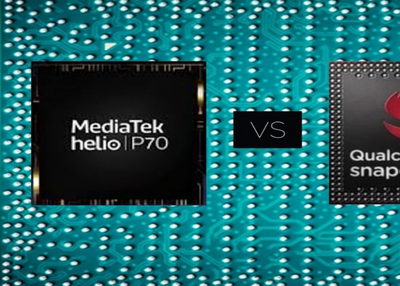
The output of both Helio P70 and Snapdragon 660 are very similar. Thanks to the better GPU, the Snapdragon 660 delivers better GPU performance. However, in the case of CPU efficiency benchmarks, Helio P70 outperforms Snapdragon 660.

In order to develop new mobile applications with the latest technologies, app development agencies look for cross-platform solutions and some of the companies have a fixed budget and a small span of time to launch different apps daily.Nowadays, a very useful cross-platform solution is Flutter – Highly different from native iOS development.
To Get a Joyful experience while developing apps iOS Developer focuses on Flutter Platform.An Overview: FlutterAn open source mobile app SDK known as Flutter created by Google using which developers can create a similar codebase for developing both iOS and Android Apps.
Flutter offers complete support of native features.These could be one of the reasons that big companies are a nowadays gripping stable platform for mobile app development.If you are curious to know more about these open-source, cross-platform Flutter app development than no need to worry, this article will help you to get the detailed knowledge about Why Flutter is the excellent choice for iOS development?Let’s Discuss iOS Development With Single Code: FlutterWe gonna discussed point by point about how Flutter is better than native iOS development why iOS developer should focus on it.Quick Development Concept:Flutter has taken fast development concept a step further.
Using traditional compilers are not easy but it uses dynamic scripting language DART to experience a good performance of the compiled languages.Dart has two modes – compiled and interpreted modes.
The interpreted mode offers a great reload experience and the compiled mode helps to compile application down to native machine code while the application is on the launching stage.The other exceptional features of Dart are amazing for developing mobile applications that have a unique experience for Flutter.UI Factors:While developing an application the maximum time of the iOS developers taken in the UI development.
The native iOS system has all the user-driven interface that offers UIKit including full native support, printing, animation, and drawing.Flutter’s UI components help developers in a fast development cycle and concept of widgets also offer by Flutter and using these widgets user can create tricky UI.Technical Structure:In terms of technical architecture Flutter highly differentiates native iOS development.