Most Salesforce Admins who've set up SMS automation have done the same thing: they've automated the welcome message. A new lead hits the CRM, a text fires, the admin feels good about it, and that's where the automation story ends.
The other side of the pipeline — the proposal that's been sitting unread for four days, the demo that's booked but not confirmed, the deal marked lost that's actually just gone quiet — that part stays manual. Someone on the team either remembers to follow up or they don't, and mostly they don't, because there are 30 other things happening that morning.
That's the gap worth closing. And the good news is that none of it requires a developer, a Salesforce consultant, or anything beyond the native Flow builder and a properly installed SMS app from AppExchange.
Here's how the setup actually works — and where most teams go wrong in the process.
Why the Welcome Message Is the Wrong Thing to Automate First
The instinct makes sense. A new lead creates urgency, you want to respond fast, and automating that first touch is the obvious win. But here's what actually happens in most orgs: the lead gets an instant SMS, the rep still handles everything manually from that point forward, and the automation was solving the least difficult part of the problem.
The stages where follow-up genuinely breaks down are further along the pipeline. After the demo. After the proposal goes out. When a contact goes quiet for a week. When a booking confirmation never comes back. These are the moments where an automated SMS would change the outcome — and they're the moments nobody bothers to wire up.
The reason tends to be scope creep anxiety. Setting up one trigger feels manageable. Setting up six feels like a project. But in Salesforce Flow, each trigger is an independent automation — you build one, verify it, move to the next. They don't compound in complexity.
What You Actually Need Before You Build
Before opening Flow Builder, you need two things confirmed and nothing else.
First: an SMS app installed from AppExchange that operates natively inside Salesforce. 360 SMS App is one option here — it installs natively, which means its send actions appear directly inside your Flow configuration as standard elements rather than requiring an external API call or a Zapier workaround. That distinction matters for admins because it keeps everything inside the tool you're already using and logging against records you're already managing.
Second: a clear map of your pipeline stages and the follow-up action that should happen at each one. Not a spreadsheet — just a whiteboard answer to "what should happen when a deal moves to Proposal Sent and nothing comes back for 72 hours?" If you can answer that for five pipeline stages, you have five automations ready to build.
For a thorough breakdown of how Salesforce SMS automation fits into the full messaging setup, this Salesforce SMS automation guide covers the trigger logic in detail — though the principles map directly to the Salesforce Flow approach we're covering here.
Building the Trigger in Flow Builder
Open Flow Builder and create a Record-Triggered Flow. The trigger object is whatever record type you're working with — Leads for top-of-funnel, Opportunities for deal-stage automation.
Set the trigger condition. If you're targeting deal stage changes, you're looking for a field update: "Stage changed to Proposal Sent." If you're building a time-based follow-up — messages that fire when no reply has come back after 48 hours — you'll use a Scheduled Path, which is the underused element most admins forget exists inside the same Flow editor.
The Scheduled Path is where the real pipeline automation lives. You define a time window relative to a record field — "72 hours after Close Date" or "48 hours after Last Modified Date" — and the Flow checks whether your condition is still true at that point. If the deal is still in Proposal Sent with no activity, the SMS fires. If someone's already moved it forward, nothing happens.
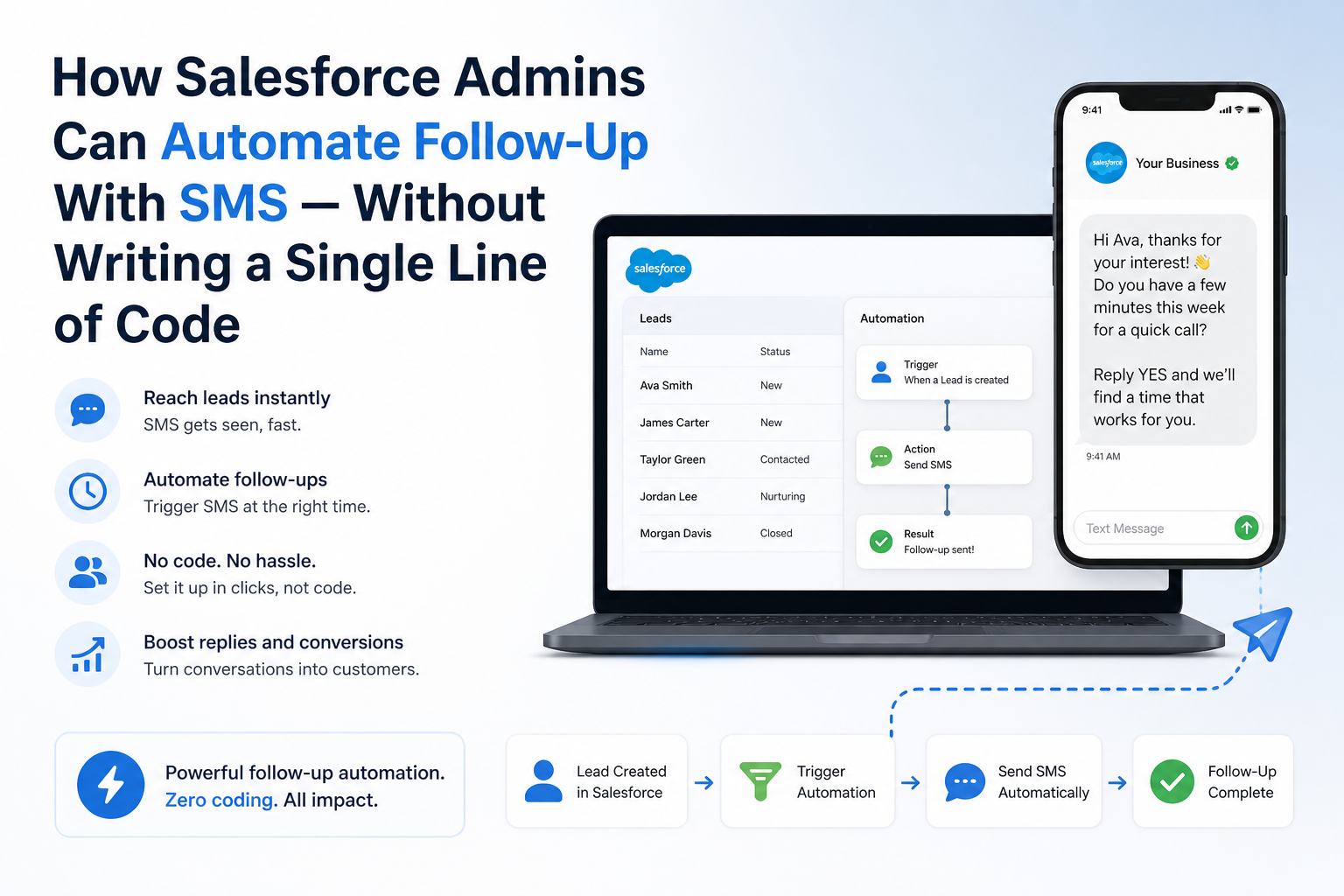
From inside that Scheduled Path, you add the 360 SMS App send action. The action pulls merge fields directly from the Opportunity or Lead record — the contact's first name, the deal name, the rep's name — so the message that goes out reads like a human sent it, not like a broadcast. Something like: "Hi [First Name] — just checking if you had a chance to review the proposal for [Deal Name]. Happy to answer questions or adjust anything."
That's it. That's the automation. No code. No API. No developer.
The Five Pipeline Stages Worth Building
Here's an honest prioritised list, based on where follow-up actually fails in most sales teams.
Proposal Sent, no response in 72 hours. This is the highest-leverage trigger in the pipeline. Proposals go out, email gets buried, and reps assume silence means disinterest. An SMS nudge at the 72-hour mark recovers a meaningful percentage of deals that would otherwise stall quietly.
Demo booked but not confirmed. A booking confirmation email is easy to miss. An SMS confirmation 24 hours before and another two hours before the meeting cuts no-show rates noticeably. The two-hour reminder is the one that actually matters — it arrives when the person is checking their schedule for the afternoon.
Demo completed, no next step taken. When a demo goes well but the prospect doesn't book a follow-up or request a proposal within 48 hours, a light-touch check-in SMS performs better than a call attempt at this stage. The tone matters here: "Any questions from what we covered?" rather than "Are you ready to move forward?"
Deal marked as Lost. Most CRMs treat a lost deal as the end of the conversation. A re-engagement SMS 14 to 21 days after the loss designation — sent only to contacts who engaged meaningfully during the sales process — brings back a small but reliable percentage. It's worth building even if you're skeptical of the numbers.
Onboarding start. When a deal is Closed Won, the customer's next question is "what happens now?" An automated SMS with the onboarding link, their CSM's name, and a clear next step fires before they have to ask.
The Two Setup Mistakes That Break Everything
There are exactly two things that reliably cause SMS automation setups to fail in practice.
The first is missing the time-of-day restriction. Salesforce Flow will fire a Scheduled Path at whatever time the window calculation lands on — including 2 AM on a Saturday. Every SMS automation needs a business-hours condition wrapped around it. Flow supports this natively, but it requires an explicit decision branch: check the current time and day before executing the send action. Most first-time setups skip this. Most admins discover the problem when a contact responds at 2:47 AM asking why they received a message.
The second is forgetting the exit condition. If an automation fires because a deal has been in Proposal Sent for 72 hours, but the deal moves to Negotiation before the scheduled send executes, the message should not fire. Without an exit condition that checks the current stage at send time, you end up sending "just checking in on the proposal" to a contact you're actively negotiating with. That's a credibility problem, not a technical one.
Both fixes are two minutes of Flow configuration. But you have to know to build them in.
What Logging Looks Like on the Other Side
Every message 360 SMS App sends through Flow logs automatically on the related record — the Lead or Opportunity. That means your team can open any contact record and see the full outbound history: which trigger fired, what message was sent, at what time, and whether a reply came back.
Replies from contacts land in the same record thread. A rep doesn't need to check a separate inbox or a separate platform — the reply is sitting on the account in Salesforce, the same place they manage everything else. For teams running Salesforce two-way SMS at scale, that consolidated view is what makes the whole thing manageable rather than chaotic.
Where to Start if You Haven't Built Any of This Yet
Pick one trigger. Not five. Not the whole pipeline map.
Pick the stage where follow-up currently breaks most visibly — probably the proposal stage — and build that Flow first. Get it live, let it run for two weeks, and look at what came back. A deal or two that moved forward because a text arrived at the right moment is usually enough evidence to build the next trigger.
The mistake is treating this as a system to design before building anything. It isn't. It's a series of independent automations, each one simple, that compound over time as you add more pipeline coverage.
For teams looking at the full setup — message design, Flow logic, two-way reply handling, and compliance configuration — the Salesforce SMS automation guide covers it in practical detail and is worth reading before you get into the Flow Builder.
A Note on Compliance Before You Go Live
Nothing in this article is legal advice, and SMS compliance genuinely varies by country, region, and industry. That said, two things are non-negotiable regardless of where your contacts are.
Consent must be documented before you send. If you're texting leads who came in through a web form, that form needs to include explicit SMS consent language at the point of submission. Salesforce can capture and store that consent status as a field on the Lead record, and your Flow can include a condition that checks it before any message fires.
Opt-out handling must be automatic. When a contact replies STOP, that number comes off your send list and stays off. 360 SMS App handles this automatically — the opt-out is logged, the record is updated, and future triggers skip that contact. If you're evaluating other AppExchange options, confirm this works automatically before you build anything.
Frequently Asked Questions
1- Does Salesforce have built-in SMS functionality, or do you need a third-party app?
Salesforce doesn't include native SMS sending out of the box — you need an AppExchange app to add that capability. Apps like 360 SMS App install natively and appear as send actions inside Flow Builder, which means setup stays inside Salesforce without external integrations or API configuration.
2- What's the difference between a Record-Triggered Flow and a Scheduled Path for SMS automation?
A Record-Triggered Flow fires the moment a record change happens — when a lead is created or a deal stage updates. A Scheduled Path fires a set amount of time after a trigger condition is met, which is what you need for follow-up automation. Most pipeline SMS triggers use a Scheduled Path inside a Record-Triggered Flow, so both work together in the same automation.
3- Can SMS replies from contacts be tracked back inside Salesforce?
With 360 SMS App, two-way messaging is built into the setup. When a contact replies to an automated text, that reply logs directly on their Lead or Opportunity record. The rep sees it inside Salesforce — no separate app or inbox to check.
4- How do you prevent automated messages from firing at inappropriate times?
Add a time-of-day condition before the send action in Flow. This checks the current time and only allows the message to execute during the hours you define — typically 9 AM to 6 PM in the contact's local time zone. Salesforce Flow supports this check natively, but it needs to be built in deliberately. It doesn't default to business hours on its own.
5- How many SMS automations can you run simultaneously in Salesforce?
There's no fixed cap on the number of active Flows. In practice, most teams run between five and ten pipeline-stage automations at any given time, each one targeting a different trigger condition and record type. Each Flow is independent — they don't interfere with each other, and adding a new one doesn't affect anything currently running.
This article was written by the team at 360 SMS App — a Salesforce-native messaging platform for SMS, WhatsApp, and multi-channel automation. If you're looking to explore the full setup, you can find more detail at 360smsapp.com.

It is not just limited to management of huge database or to convert more leads into sales, it is also used for various other reasons as well.
We know that text messages play a vital role in our lives.
Whether it is for personal communication or even it is used for marketing and business-related purposes by the majority of the business firms.
Keeping that in mind, Salesforce has also launched various texting apps on its AppExchange platform that can be used the companies which use SMS as their primary mode of communication with the customers.
Emails or other marketing methods may result in higher costs and also it might not get you the desired results as well.
Secondly, it can be also said that text messages tend to impact people in a more efficient manner than emails or any other methods.