


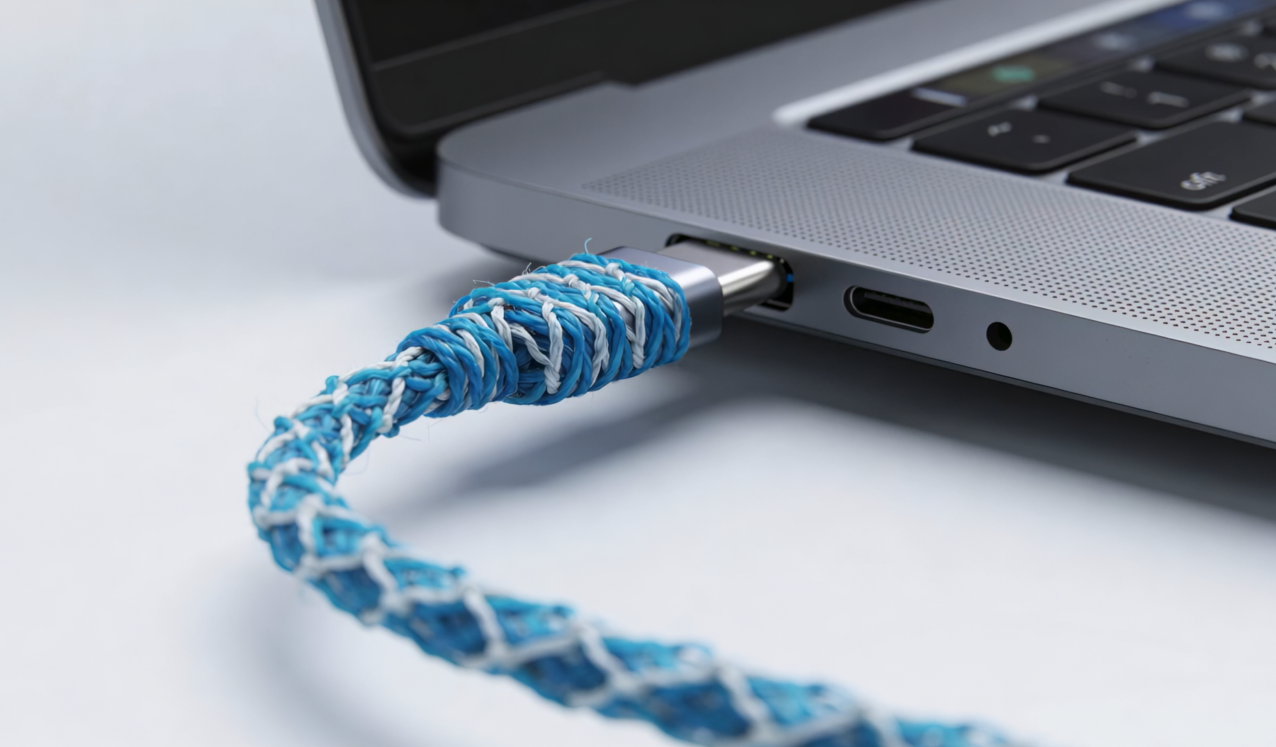
In 2026, the term “USB cable” is a minefield. You likely have a drawer full of cords that look identical but perform completely differently. One might be a basic USB-C charging cable limited to slow power, while another is a high-performance USB4 cable capable of running dual 8K monitors. This guide helps you decode the mess by identifying physical shapes, invisible data standards, and power ratings.
Common Types of USB Cables and Shapes
To the untrained eye, many types of USB cables look similar, but their physical design dictates which devices they can support. Before you worry about data speeds, you must match the connector “shape” to your port. While USB-C is the 2026 global standard, understanding legacy USB cable types is vital for backward compatibility.
USB-C: The Modern Universal USB Cable Type
The USB-C cable is the current industry standard, featuring a slim, oval-shaped connector. Its primary advantage is its reversible design, which eliminates the “wrong way” frustration of older ports.
- Common Devices: iPhone 15/16/17, MacBooks, Dell XPS, iPad Pro, and Nintendo Switch.
- Capabilities: A single high-quality cord can carry power, data, and 8K video signals simultaneously.

The 10 Essential USB Connector Shapes
Despite the rise of Type-C, many professional and home environments still rely on these various USB port shapes. Use this table to identify which cable matches your device’s port:
Connector NamePhysical ShapeGeneration / SpeedTypical UsageUSB-C (Latest)OvalUSB 3.2 / USB4Smartphones, MacBooks, 8K VideoUSB-A (2.0)RectangularUSB 2.0 / 1.1Keyboards, Mice, Basic ChargersUSB-A (3.0)RectangularUSB 3.0 (Blue)High-speed Flash Drives, WebcamsUSB-B (2.0)SquareUSB 2.0Standard Printers, Desktop ScannersUSB-B (3.0)SquareUSB 3.0 (Bumped)Pro Audio Hubs, High-end ScannersMini-BMiniatureUSB 2.0 (T-shape)Dash Cams, Older Digital CamerasMini-AMiniatureUSB 2.0 (Rare)Specialized Legacy Industrial GearMicro-B (2.0)TrapezoidUSB 2.0Older Androids, Power BanksMicro-B (3.0)TrapezoidUSB 3.0 (Wide)Portable External Hard DrivesMicro-ATrapezoidUSB 2.0 (White)Niche Legacy Electronics

USB Standards and Data Transfer Speeds
The “Shape” of a cable does not tell you its speed. A USB connector could be a slow “charging-only” wire or a high-performance 80Gbps line. Understanding USB cable standards is the difference between a 10-second file transfer and a 10-minute wait.
Comparing Data Speeds Across USB Cable Types:
Marketing LabelTechnical StandardMax Data SpeedBest Real-World UseUSB 2.0High Speed480 MbpsMice, Keyboards, Basic ChargingUSB 10GbpsUSB 3.2 Gen 210 Gbps4K Video Editing, Fast BackupsUSB 20GbpsUSB 3.2 Gen 2×220 GbpsHigh-End External NVMe SSDsUSB 40GbpsUSB4 / TB440 GbpsDocking Stations & Dual MonitorsUSB 80Gbps+USB4 v2.0 / TB580 – 120 Gbps8K Video & Pro Workstations
USB Cable Power Delivery & Charging
Not every USB-C charging cable can power a laptop. High-wattage devices require cables with specific internal hardware called an E-Marker chip to communicate safely with the power brick.
Choosing the Right USB-C Charging Cable for Your Device:
Device TypeRequired WattageCable RequirementSmartphones18W – 45WStandard USB-CStandard Laptops60W – 100W100W Rated Cable (With E-Marker)Gaming Laptops140W – 240WPD 3.1 / EPR Cable (240W Certified)
The “One-Cable” Myth: Solving the Docking Station Bottleneck
The biggest frustration today is the Docking Station Bottleneck. You plug in a USB cable, but your monitor stays black. A docking station is a “Multi-Lane Highway” that must carry power, video (DisplayPort Alt Mode), and data simultaneously. Using a “charging-only” (USB 2.0) cable results in power delivery but no video output.
Cable Capability Comparison for Docking:
TaskUSB 2.0 (Basic)USB 3.2 (High Speed)USB4 / TB4 (Pro)Charging✅ Yes✅ Yes✅ YesSingle 4K Monitor❌ No✅ Yes✅ YesDual 4K Monitors❌ No❌ No✅ Yes
Also read: Powering Connections with USB-C to USB-C Active Optical Cable
Buying Strategy: How to Choose the Right USB Cable
Passive vs. Active USB Cables: When Cable Length Matters
One of the most common reasons high-speed setups fail is cable length. As data speeds increase, the electrical signal degrades faster. In 2026, choosing between a passive or active cable is the difference between hitting 40Gbps and being throttled to 10Gbps.
- Passive Cables: Standard copper wires with no internal circuitry. They rely on the device’s power, causing signals to weaken quickly—limiting high-speed data to under 1 meter.
- Active Cables: Feature internal chips (Retimers) that boost and “clean” the signal. This allows them to maintain maximum speeds over much longer distances than passive copper.
Speed RequirementMax Length (Passive)Solution for Long DistanceUSB 2.0 (480Mbps)Up to 5 MetersStandard Passive CableUSB 10Gbps1 Meter (3.3 ft)High-Quality PassiveUSB 40Gbps (USB4)0.8 Meters (2.6 ft)Active Cable (with Retimer Chips)USB 80Gbps+0.5 Meters (1.6 ft)Active or Fiber Optic
For long-range needs, this Active Optical USB Cable (CAB-UAOC-15) maintains a full 10Gbps signal at 15 meters. This male-to-female solution is designed to extend high-speed devices like PTZ cameras or smartboards across large rooms without signal loss.
Final Verdict: Matching the USB Cable to Your Device
To ensure you aren’t overpaying for “over-specced” cables or under-speccing your professional rig, follow this matching logic:
- For Simple Charging (Phones/Headphones): A basic USB-C to USB-C cable is sufficient. Don’t spend extra on 40Gbps cables for a device that only draws 20W and never transfers large files.
- For External SSDs & Creative Backups: Look for a USB 10Gbps or 20Gbps cable. Keep the length under 1 meter to ensure you get the maximum transfer speed without the high cost of active components.
- For Laptops & Pro Docking Stations: This is where you should splurge. Buy a certified USB4 or Thunderbolt 4 cable (Active if you need 2+ meters). This ensures your dual 4K monitors, high-speed Ethernet, and 100W+ charging all function through a single, reliable plug.
About WyreStorm
WyreStorm delivers professional-grade AV over IP solutions, HDMI matrix systems, and advanced wireless presentation and conferencing systems for seamless collaboration.
Its portfolio also includes high-performance HDMI Extender and KVM Extender products designed for reliable, scalable signal distribution.
Explore more innovative solutions at WyreStorm.com and elevate your next project today.
To view the original version on Wyrestorm visit: 10 Types of USB Cables: How to Tell the Difference?


No need to borrow from someone else now.
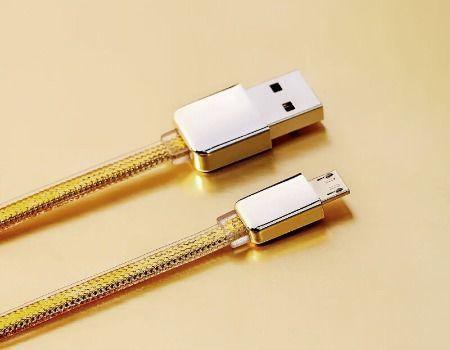
At Earkits, we have a wide variety of wholesale charging cables, best-suited for all mobile types.
Also, these are of such high-quality that you don’t need to worry about them before buying.
What else do you need?

The printer offline mac is an error message in HP printer and it signifies that the communication between the HP printer and Apple Mac computer is not established properly.
This message also means that the printer is turned off or the connection between USB cables is disconnected.

Second hand laptops are low cost and also available in good condition but still, people need to know few things before buying a used laptop.Used laptops purchasable on classified sites are the simplest place to shop for used products but few people want to earn quick money by selling their faulty or damaged product.
These scammers are very clever and smart they know well the way to fool you by distracting you with their activities in order that it becomes easy for them to sell their damaged laptops to you easily and make some time and money worthless and once you become a victim of those scammers.
So, better take care.To avoid being scammed by scammers there are certain things that every individual should know this thing before buying a second hand laptop.
For that, you would like proper knowledge of the laptop/computer.
Even if you don’t have proper knowledge of the merchandise, no got to worry, you'll take the assistance of any computer technician who can identify the faulty laptops or duplicate parts that fit inside the laptop easily and by this process, you'll be avoided being scammed.Cifiyah is one of the top classified site in India.
Here thousands of consumer are coming this site to post their ads for free.