Running a successful WooCommerce store is not only about choosing the right products or designing an attractive website. The real foundation of a smooth online shopping experience lies in proper store configuration. Many store owners launch their websites quickly but overlook important WooCommerce settings that directly affect sales, customer trust, SEO, and overall performance.
Whether you are starting a small online business or scaling an established eCommerce brand, configuring WooCommerce correctly can save you from major operational issues later. From payment gateways and shipping rules to tax setup and customer emails, every setting plays a role in creating a seamless shopping experience.
One common area many beginners overlook is product customization. Using a Woocommerce Product Options(https://wordpress.org/plugins/woo-custom-product-addons/)plugin can significantly improve customer experience by allowing buyers to personalize products with add-ons, custom text, gift wrapping, and more. Without such functionality, store owners may miss opportunities to increase conversions and average order value.
In this guide, we will walk through the essential WooCommerce settings every store owner should configure before launching or scaling their online store.
Store Details and General Settings
The first step in WooCommerce setup begins with the general store settings. These settings define your business identity and operational preferences.
Navigate to:
WooCommerce → Settings → General
Here, configure:
Store address
Selling locations
Shipping locations
Currency options
Default customer location
Choosing the correct currency and location settings ensures accurate pricing and shipping calculations. For example, if your store targets customers in the UK, displaying prices in GBP improves customer trust and reduces confusion.
Why This Matters
Incorrect store settings can lead to:
Wrong shipping calculations
Currency mismatch issues
Tax errors
Reduced checkout conversions
Think of this setup as the foundation of your physical store. If the address or pricing labels are wrong, customers immediately lose confidence.
Configure Payment Gateways Properly
Payment flexibility directly impacts conversions. Studies consistently show that customers abandon carts when their preferred payment option is unavailable.
WooCommerce supports multiple payment gateways including:
PayPal
Stripe
Razorpay
Direct bank transfer
Cash on delivery
To configure payments:
WooCommerce → Settings → Payments
Enable only the payment methods relevant to your audience.
Tips for Better Payment Setup
Use trusted gateways with secure checkout
Enable guest checkout for faster purchases
Offer local payment methods for regional customers
Test transactions before going live
For example, Indian stores often perform better with Razorpay or UPI integration, while international stores benefit from Stripe and PayPal support.
Set Up Shipping Zones and Methods
Shipping confusion is one of the biggest reasons customers abandon online purchases.
WooCommerce allows store owners to create custom shipping zones based on regions or countries.
Go to:
WooCommerce → Settings → Shipping
Create shipping zones such as:
Domestic shipping
International shipping
Free shipping regions
Then assign shipping methods like:
Flat rate
Free shipping
Local pickup
Best Practices
Clearly display delivery timelines
Offer free shipping thresholds
Avoid hidden shipping fees
Use real-time shipping calculators if possible
Amazon’s success is heavily influenced by transparent shipping policies. Smaller WooCommerce stores can improve conversions using the same principle.
Configure Tax Settings Carefully
Taxes can become complicated if not configured properly from the beginning.
WooCommerce allows automatic and manual tax calculations.
To enable taxes:
WooCommerce → Settings → General → Enable Taxes
Then configure:
Tax rates
Tax classes
Inclusive or exclusive pricing
Display options
Important Considerations
Different countries have different tax laws:
GST in India
VAT in Europe
Sales tax in the US
If you sell internationally, using automated tax plugins can save time and reduce compliance risks.
Optimize Product Settings
Product configuration affects both user experience and inventory management.
Go to:
WooCommerce → Settings → Products
Here you can manage:
Product measurements
Reviews
Inventory handling
Downloadable products
Inventory Management Tips
Enable stock management to:
Track inventory automatically
Prevent overselling
Receive low-stock notifications
For example, fashion stores with multiple product variations benefit greatly from automated inventory control.
Configure Product Addons and Customization
Modern customers increasingly expect personalized shopping experiences.
Adding customization options can improve engagement and increase sales. This is where a WooCommerce product addon plugin becomes valuable.
Store owners can offer:
Custom engraving
Personalized text
Gift messages
Extra accessories
File uploads for custom orders
This feature works especially well for:
Gift stores
Print-on-demand businesses
Handmade products
Apparel brands
Product personalization creates a more interactive buying experience and often encourages customers to spend more.
Set Up Customer Emails and Notifications
WooCommerce automatically sends transactional emails for:
Order confirmations
Shipping updates
Refund notifications
Password resets
You can manage these under:
WooCommerce → Settings → Emails
Why Email Customization Matters
Default WooCommerce emails look generic. Customizing them with:
Brand colors
Logos
Personalized messaging
helps improve professionalism and customer trust.
You should also:
Use SMTP for reliable delivery
Test all email flows
Ensure mobile responsiveness
A missed order confirmation email can create unnecessary customer support requests.
Configure SEO-Friendly Settings
Search engine visibility is critical for long-term growth.
While WooCommerce itself is SEO-friendly, proper optimization is still necessary.
Essential SEO Configurations
Use SEO plugins like Yoast SEO or Rank Math
Create clean permalinks
Optimize product titles and descriptions
Add image alt text
Enable breadcrumbs
To configure permalinks:
Settings → Permalinks
Choose:
Post name structure
Example
Instead of:
yourstore.com/?p=123
Use:
yourstore.com/product/leather-wallet
Clean URLs improve both SEO and user experience.
Secure Your WooCommerce Store
Security should never be ignored in eCommerce.
A vulnerable store risks:
Customer data theft
Payment fraud
Malware attacks
Revenue loss
Essential Security Measures
Install SSL certificates
Enable two-factor authentication
Use strong admin passwords
Keep plugins updated
Install security plugins
Popular security plugins include:
Wordfence
Sucuri
iThemes Security
Even a small security breach can seriously damage customer trust.
Optimize Checkout Settings
A complicated checkout process often leads to abandoned carts.
WooCommerce checkout settings can be optimized for better conversions.
Go to:
WooCommerce → Settings → Accounts & Privacy
Recommended Settings
Allow guest checkout
Enable account creation during checkout
Minimize unnecessary form fields
Use autofill where possible
Why Simplicity Wins
According to Baymard Institute research, lengthy checkout processes are among the top reasons for cart abandonment.
A fast and simple checkout experience directly increases completed purchases.
Configure Analytics and Tracking
You cannot improve what you do not measure.
WooCommerce analytics helps store owners understand:
Best-selling products
Customer behavior
Revenue trends
Conversion rates
Integrate:
Google Analytics
Google Search Console
Facebook Pixel
These tools provide insights for marketing and optimization.
For example:
If analytics show high cart abandonment on mobile devices, you may need to improve mobile checkout usability.
Backup and Performance Settings
Store speed and backup systems are critical for business continuity.
Essential Performance Improvements
Use caching plugins
Optimize images
Choose quality hosting
Use a CDN
Backup Recommendations
Set automated backups using plugins like:
UpdraftPlus
Jetpack Backup
A backup system protects your store from:
Plugin conflicts
Hacking incidents
Accidental deletions
Think of backups as insurance for your online business.
Conclusion
Proper WooCommerce configuration is the difference between a store that struggles and one that scales successfully. While many beginners focus only on design and products, experienced store owners understand that backend settings directly affect customer experience, SEO, conversions, and operational efficiency.
From payment gateways and shipping zones to security and product customization, every WooCommerce setting contributes to your store’s long-term growth.
Start by reviewing your current setup and fixing any overlooked areas. Even small improvements like optimizing checkout pages or enabling personalized product options can create a noticeable impact on sales and customer satisfaction.
As your store grows, revisit these settings regularly to ensure your WooCommerce store continues performing at its best.
FAQ
What are the most important WooCommerce settings for beginners?
The most important settings include payment gateways, shipping zones, taxes, product inventory, checkout optimization, and email notifications.
Why is shipping configuration important in WooCommerce?
Proper shipping setup helps avoid unexpected costs, improves customer trust, and reduces cart abandonment rates.
How can a WooCommerce product addon plugin improve sales?
It allows customers to personalize products with extras like custom text, gift wrapping, and additional options, which can increase average order value.
Is WooCommerce SEO-friendly?
Yes, WooCommerce is SEO-friendly, especially when combined with SEO plugins like Yoast SEO or Rank Math.
How often should WooCommerce settings be reviewed?
Store owners should review settings regularly, especially after plugin updates, design changes, or business expansion into new markets.

WooCommerce Product Bundles - Now bundled your products easily by using woocommerce Product Bundles Extension in WordPress website.
With product bundles woocommerce Extension you can easily sell combined products or any service package to your customers.
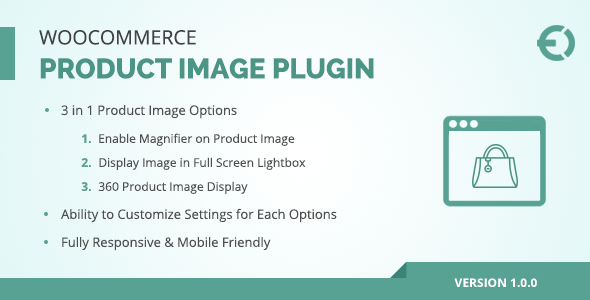
WooCommerce product zoom plugin enables 3 types of product image zooming on your e-store.
It displays the images in a lightbox where customers can zoom in and zoom out the product images.
WooCommerce product zoom extension also zooms the product images in a magnifier through which customers can closely look your products.
It also enables image 360° zooming which allows your customers to see the whole product by rotating the images.
This plugin cost you only $39 and comes with free support and upgrades.Screenshots: