A campaign image can have the correct dimensions and still leave nowhere for the headline. The product sits in the center, the background is busy, and the button covers the one detail that explains the offer. Exporting a second size may only move the collision somewhere else.
The asset needs to work inside a message hierarchy. Before approving it, place the actual headline and call to action over the proposed artwork. That simple layout comparison reveals whether the image supports the campaign or competes with it. Dimensions tell the designer where the boundary is; they do not decide what deserves attention inside it.
Choose the Object That Must Survive Every Placement
Identify the visual element that carries the offer. In a hypothetical campaign for a desk lamp, it might be the lamp's adjustable arm rather than the decorative objects around it. If the campaign promises a more flexible workspace, a crop that hides the joint can weaken the message even while preserving most of the product.
Mark that element in a planning copy and write down what the accompanying text will say. The image and headline can share the work. The headline may explain the offer while the photograph makes the product recognizable. They do not both need to compete for the same central space.
An AI Photo Editor can help prepare a candidate once those relationships are clear. PicEditor AI offers image-editing options that include changing backgrounds and describing an intended modification. A useful direction specifies the space the layout needs as well as the object that should remain visible.
Use the real campaign text for the first layout check, even if it is still provisional. A short placeholder can conceal a problem that appears when the actual headline wraps onto another line. Likewise, a tiny sample button does not represent a longer call to action. The artwork should be evaluated against a plausible page, not an unusually forgiving mockup.
Compare the Existing Image Crop and New Composition
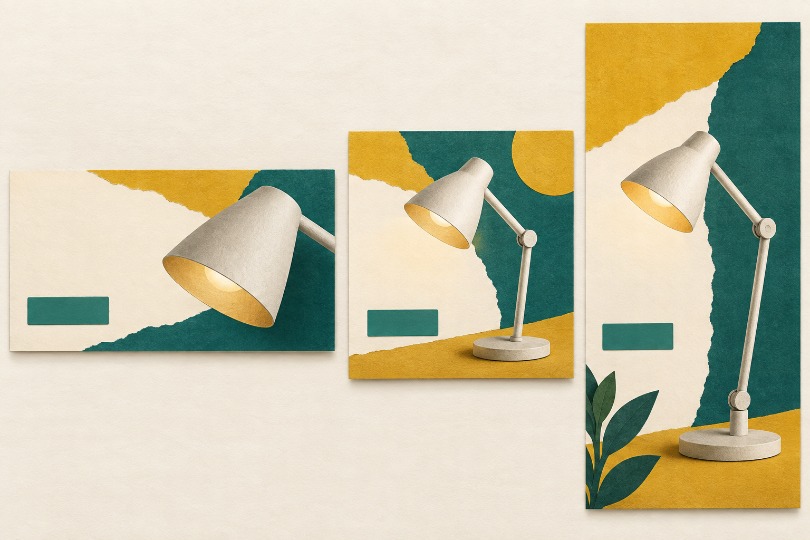
There are at least three useful candidates to consider: the existing image placed as it is, a crop of that source, and a newly arranged or edited composition. Compare them inside the intended layout. Looking at three isolated image files makes it too easy to prefer the most impressive picture instead of the most usable campaign asset.
The existing image is the reference. It shows what the source already provides and may be sufficient when the layout can place text beside it. Do not create an editing task merely because another version is possible. If the important joint remains clear and the headline has room, the source may already solve the problem.
A crop is useful when surplus surroundings consume space. It can bring the lamp closer or remove an irrelevant shelf. Yet cropping cannot create room beyond the captured boundary, and it may remove the very detail the campaign needs. Compare the arm and joint after the crop rather than checking only whether the lamp still fits.
An AI Photo Editor can support a different composition when the source cannot accommodate the layout. PicEditor AI is one option for producing an edited candidate. Review any generated surroundings and the retained product carefully; extra space has value only if the result remains suitable for the offer.
Record the tradeoff beside each preview. The source might keep the complete lamp but leave the headline over a patterned wall. The crop might quiet that wall while cutting off the joint. A revised composition might solve both problems but need closer inspection for changes to the product. These observations make the choice reviewable. They also expose cases where adjusting the page layout is simpler than making another image, such as moving the headline into a separate solid-color panel.
The choice is not a ranking of techniques. The unchanged source might suit a wide banner, while a tighter crop works in a square card. A new composition may be needed for a tall placement. Each option earns its place by supporting the same message under a different spatial constraint.
Inspect Attention With the Headline and Button Visible
Put the candidates into the real design with text, button, and any required marks visible. Look first at the intended product detail, then at the headline and the action. If a bright object in the background attracts attention before all three, it may be doing work the campaign never asked it to do.
Temporarily hide the artwork while leaving the layout visible. This separates a text problem from an image problem. If the headline is difficult to read even on a plain background, revising the photograph alone will not resolve it. Restore the image and inspect the specific collision instead of asking for a generally cleaner design.
When using a photo editing tool, describe that collision in the next editing request. For example, the lamp's arm needs to remain unobstructed on the right while the left side supports the headline. This is more actionable than requesting a professional advertisement without identifying how the elements must relate.
Evaluate the PicEditor AI photo editing tool result at the smallest intended display size. Fine texture that looks attractive in a large preview may become visual noise behind short text. A restrained background can help, but reducing contrast everywhere may also weaken the product. Inspect the actual hierarchy rather than applying one treatment to the entire image.
Keep a placement preview with each PicEditor AI candidate you retain. The preview records why that version works: clear joint, readable headline, unobstructed action. Without it, another designer may reuse the image under different text and assume that the earlier approval applies to the new arrangement.
Pay attention to what the button covers, not only whether it is legible. A button can be easy to read while concealing the feature the headline describes. Move the layout element or select another candidate, then check the relationship again. The product detail and the action should not have to take turns being visible.
Ask a colleague to describe the offer from the composed preview before explaining your intention. Treat their response as a small editorial check, not a conversion study. If they notice the decorative shelf but miss the adjustable arm, investigate the hierarchy. A single response cannot establish performance, but it can reveal an obvious mismatch worth correcting.
Deliver Assets With Their Intended Layouts Attached
Name each approved asset for its placement and keep the corresponding composed preview nearby. Include enough information to distinguish a crop from a newly edited version, especially when the source product must be checked again. The person assembling the campaign should not need to reconstruct why one file was selected.
Approval belongs to the relationship between image, message, and action. When the headline changes substantially or a placement becomes narrower, reopen that relationship and inspect it. Reopen the composed preview with the new headline and button before reusing the asset, and confirm that the message-bearing product detail remains visible.
FAQs
1. Why can a campaign image with the correct dimensions still fail?
Correct dimensions only define the boundary. They don’t decide what deserves attention inside it. A busy background, a centered product, or a button covering the key detail can leave no room for the headline and weaken the message. Check the image against the real headline and call to action, not just the size.
2. What should I compare before choosing a campaign image?
Compare three candidates inside the intended layout: the existing image as it is, a crop of that source, and a newly edited composition. The source may already work if the key product detail stays clear and the headline has room. A crop helps when surroundings take up space, and an AI Photo Editor like PicEditor AI can help when the source can’t fit the layout. Note the tradeoff of each beside its preview.
3. How do I check whether the image, headline, and button work together?
Place the actual headline, button, and any required marks over the artwork and see what draws the eye first. Hide the artwork temporarily to tell a text problem from an image problem, and review the result at the smallest display size. Also confirm the button isn’t covering the product detail the headline describes. If the headline or placement changes significantly, repeat the check before reusing the asset.