





Most small offices in Pakistan build their network the same way. One internet connection, one router from the ISP, and a few cheap extenders added every time someone complains that the Wi-Fi doesn’t reach their desk.
It works until the business grows. Then calls drop, files take forever to load, the CCTV goes offline and the printer disappears from the network. Everyone blames “the internet.”
Often the internet is fine. The problem is the network inside the office. Here’s a plain guide to the three pieces that matter, and how to plan them properly.
The three building blocks
1. The router: the front door
The router connects your office to the internet. It also hands out addresses to every device and decides what’s allowed in and out.
The router your ISP provides is usually built for homes. It’s fine for a few users. In an office with twenty people, CCTV, a biometric attendance machine, printers and phones, it can struggle.
A business-grade router handles more connections at once, gives you better control over who uses what, and can manage two internet connections together. That last point matters in Pakistan, where many offices keep a backup line for when the main one goes down.
2. The switch: the backbone
A switch connects all your wired devices: computers, printers, NVRs, attendance machines, access points and IP cameras.
There are two kinds most SMEs should know about:
Unmanaged switches are plug-and-play. They’re simple and cheap, and they’re good for small, straightforward setups.
Smart or managed switches let you see what’s connected, separate traffic, and spot problems. For example, you can keep CCTV traffic away from the accounts department’s computers.
3. Access points: Wi-Fi done properly
Extenders are the usual fix for weak Wi-Fi, but they often cut speed and create several separate networks that phones keep jumping between.
Access points are the proper alternative. They connect to the switch with a cable and broadcast Wi-Fi from where they’re mounted, usually on the ceiling. In a multi-room office or across two floors, two or three well-placed access points give steady coverage everywhere.
What PoE is and why it matters
PoE (Power over Ethernet) sends power and data through the same network cable. A PoE switch can power devices directly, with no separate socket or adapter for each one.
That’s useful for:
- IP cameras mounted high on walls or outside.
- Wi-Fi access points mounted on ceilings.
- IP phones on desks.
- Attendance terminals and door-access devices.
For a growing office, a PoE switch brings three practical benefits:
Cleaner installation. One cable per device, with no power points needed on the ceiling.
Easier backup during load-shedding. Put the PoE switch on a UPS, and every camera and access point it powers stays on. You don’t need a separate backup at each device.
Easier troubleshooting. Some switches can restart a single port remotely. If a camera freezes, you can power-cycle it without sending someone up a ladder.
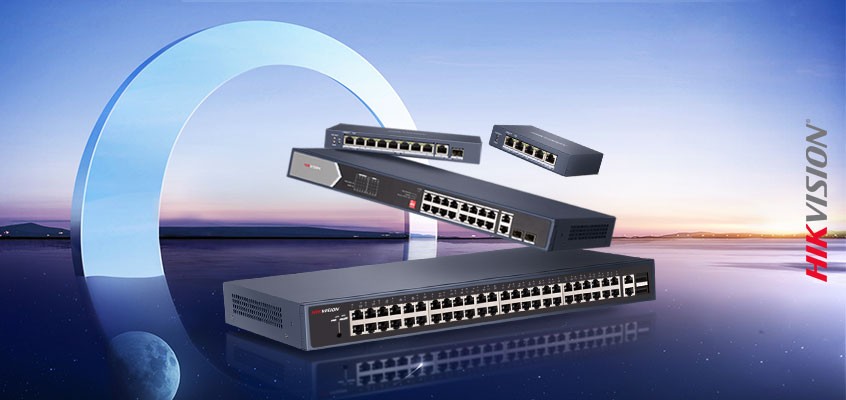
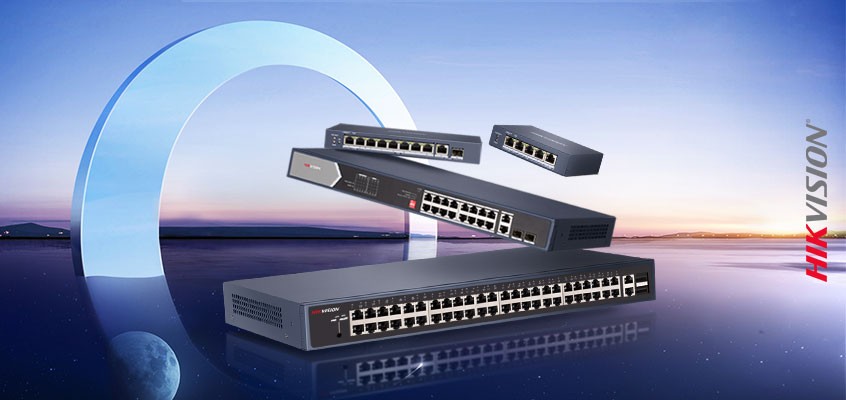
Hikvision’s network switches include both unmanaged and smart managed PoE models built for offices that run cameras alongside everyday IT.
Planning an office network: a simple checklist
1. Count your devices, and add more. List every device that needs a network connection today: computers, printers, cameras, access points, phones and attendance machines. Then add about a third for growth. Choose a switch with enough ports for that total.
2. Work out your PoE power budget. Every PoE switch has a maximum total power it can supply. Add up the power needed by all the cameras and access points it will run, and leave some headroom. A switch running near its limit can drop devices.
3. Use proper cable. Use good-quality, solid-copper Cat6 cable, and keep each run within standard Ethernet length limits. Cheap cable causes slow speeds and devices that keep disconnecting, which are hard to diagnose later.
4. Put the core equipment on a UPS. At minimum, back up the router, the main switch and the NVR. A short power cut shouldn’t take your whole office offline.
5. Separate business traffic from cameras and guests. Give visitors a guest Wi-Fi that can’t reach your company files. On a managed switch, keep CCTV on its own network segment.
6. Label everything. Label each cable at both ends and keep a simple sheet that says which port connects to which device. It turns a two-hour fault into a ten-minute one.
7. Plan where the access points go. Mount them centrally and high, away from thick concrete walls and metal cabinets. In a typical Pakistani office building with concrete floors, plan for at least one per floor.
Common mistakes to avoid
- Chaining cheap switches together under desks. Use one properly sized switch in a central location.
- Relying on Wi-Fi extenders instead of wired access points.
- Leaving default passwords on the router and switches.
- Forgetting about heat. Network equipment in a closed cupboard with no airflow fails sooner, especially in summer.
- Buying for today only. A small extra spend on more ports and PoE power now avoids replacing everything in a year.
The bottom line
A reliable office network isn’t about buying the most expensive equipment. It’s about the right pieces in the right places: a capable router, a properly sized PoE switch, wired access points instead of extenders, and backup power for the core.
Get those right, and “the internet is slow” stops being a daily complaint. Your cameras, phones and Wi-Fi then run off one tidy system you can actually manage.





Relix Networks provides excellent value Industrial PoE Switches with stable POE output.
Relix Networks makes more reliable, easy to use, and effective Products.
