


Abigail Smith

0

0

2


Do you want to create a complete backup of your Windows 10 system? If yes, then you have come to the right place. In this article you will learn a simple way to make a backup of your computer effortlessly.
The backup you are going to create with the help of this article will include the whole system. It includes your all data, apps, settings, operating system, etc. All you need to do is create a backup using this article that is a pretty easy process.
When you want to restore your computer using your backup, you will need a Windows 10 Bootable USB drive. So it would be a lot better if you create in advance.
Let’s dive in…
Creating Complete System Backup on Windows 10 , 2020-antivirus
You should create a backup of your system in a removable or portable hard drive because it is the safest and fastest way.
You should create a backup of your system in a removable or portable hard drive because it is the safest and fastest way.
Follow the below mentioned steps to create a backup of your whole Windows 10 computer:
- First and foremost, hit the “Windows + D” keys to ensure that you are on the home screen.
- On your keyboard, press the “Windows + I” keys at the same on your keyboard to trigger the Settings.
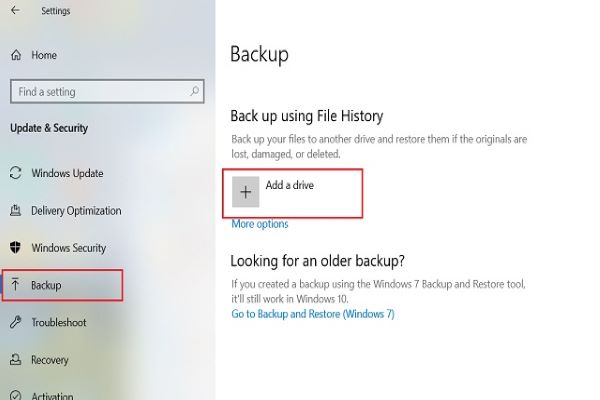
- In the Settings of your system, tap the Update & Security option.
- Now head to the Backup option.
- Underneath the “Looking for an older backup?” option, press on “Go to Backup and Restore” option (for Windows 7) .
- On your left side menu, head to the “Create a system image” option.
- Inside the “Where do you want to save the backup?” option, press the option saying “On a hard disk” option.
- In the drop-down menu, choose the storage path to save all the backup files of Windows 10.
- Now, click on Next.
- Choose the extra drives or partitions that you might wish to add in the backup.
- Hit on Next.
- Head to Start backup icon.
- Now hit the “No” icon.
- Hold tight because the backup process will now start and wait until it wraps up.
- Hit the Close button to exit the wizard.
Voila, you have successfully created the complete backup of your Windows 10 PC.
Eject the portable hard drive once the all process wraps up and then safely store it somewhere in your house. This hard drive contains your whole Windows 10 PC including your computer’s main hard drive and the system reserved partition. This means your C drive that has Windows 10 operating system is also stored in your portable USB hard drive.
Use Your Portable Hard Drive to Restore Your PC
If something went wrong with your computer such as it is not booting up or you have replaced the hard drive, you can use your backup stored in your portable hard drive to restore your computer:
- First and foremost, connect your portable hard drive to your PC that contains backup.
- Now plug in a “Windows 10 USB bootable drive” to your PC’s USB port.
- Turn on your computer.
- When you see the “Windows Setup” screen, head to Next.
- Press on “Repair your computer” on the lower-left corner.
- Navigate to Troubleshoot.
- Head to the “System Image Recovery” option.
- Choose Windows 10 as your target OS.
- Now you will see the “Re-image your computer” screen, choose the “Use the latest available system image” link.
- Press on Next.
- Click the Next option to continue.
- Hit the Finish button.
- Go to Yes.
Now the restoration process will begin and you can grab a cup of coffee until it wraps up. Don’t click randomly as it can trigger interruptions in the process and you will end up with an error.
Abigail Smith is an inventive person who has been doing intensive research in particular topics and writing blogs and articles on 2020-antivirus and many other related topics. He is a very knowledgeable person with lots of experience
Abigail Smith is an inventive person who has been doing intensive research in particular topics and writing blogs and articles on 2020-antivirus and many other related topics. He is a very knowledgeable person with lots of experience
0
0
2
Abigail Smith
From the Author



Related Articles

For more help related to backuping your windows you can visit TechDrive Support , there they provide comprehensive support to any issue or query related to your Microsoft software. The Importance of Backup Backups are an important part of any computer, whether you have a traditional desktop or laptop. To back up on Windows 10, first connect the computer to the network and start loading Windows 10. Configuring Windows 10 automatic backups is a great way to keep your computer and data safe. Conclusion Stay Tuned with TechDrive Support for the Next PartTo be continued.
0
2

Fortunately, Windows 10 comes equipped with built-in backup features that allow you to safeguard your valuable data effortlessly. In this guide, we will walk you through a simple 9-step process to create an effortless Windows 10 backup. This evaluation will help you determine the size of the backup storage you'll need and which method is best suited for your requirements. ConclusionData loss is an unfortunate reality, but with Windows 10's built-in backup features, protecting your important files has become easier than ever. By following this simple 9-step guide, you can set up an effortless backup solution for your Windows 10 computer.
0
2

One of the most compelling reasons to upgrade to Windows 10 Pro or get a Windows 10 home key is the increased security features. What's the Difference Between Windows 10 Pro and Windows 10 Home? Advantages of Windows 10 ProfessionalWindows 10 Pro provides enhanced security and the flexibility to download applications from any location on the internet. Cons of Windows 10 Pro UpgradeWindows 10 Pro is a fantastic operating system, but it isn't without flaws. If you are a professional user, Windows 10 Pro is well worth the update.
0
3