


Imagine that you are waiting for an important email, and you do not receive a notification. Yes, that's what some Gmail users on Android recently experienced. If your Gmail is not syncing on Android, a problem like this can cause you to miss important emails, which can be a serious issue if you don't resolve it quickly. In this blog, I provide some easy solutions to fix this problem on your Android phone.
How to fix Gmail is not syncing on android?
Solution # 1: check internet connectivity
You must have a good internet connection to receive emails. Sometimes the reason Gmail is not syncing on android because you are not properly connected to the internet. Therefore, check your internet connection. If it is good and you are still facing the same problem, you can move on to the next solution.
Solution #2: Update the Gmail app
The next thing you can do is update your Gmail application. Keeping your Gmail application up-to-date is necessary for it to run smoothly. And who knows, maybe Gmail is not syncing on android can resolve with an updated Gmail application.
To update your Gmail application, you can use the Google Play store on your Android phone.
Solution #3: Clear the Storage & cache of the Gmail app
Sometimes additional cache files can get corrupted, and your Gmail application gets fail. When you experience Gmail is not syncing on android phone, you can Clare the cache or storage file to fix glitches with the application. Follow these steps to clear the cache & storage data files for Gmail.
Step1: Open the Settings application on your android phone.
Step2: Click on the Apps
Step3: Now, select the Gmail app.
Step4: click on the Storage option
Step5: You will now able to see the clear data or clear cache option. Click the button to clear your cache.
Method 4: Enable Auto-Sync
If you still face Gmail is not syncing on an android phone, and the above solution doesn't solve your problem. There is a feature called Auto Sync that automatically downloads your messages as you receive them. If this feature is disabled, messages will be download only when you open the Gmail application and refresh it manually.
So if you don't receive any notification, you should check if auto-sync is turned off or not.
Step1: Click on Settings on your phone.
Step2: Now click on the Users & Accounts option.
Step3: Click on the Google icon.
Step4: Here, enable the auto Sync Gmail option if it is off.
Step5: You can reboot the device after this to make sure the changes are saved.
Solution 5: Make Sure Gmail Servers Aren’t Down
Sometimes Gmail itself is the main reason why Gmail won't sync on Android. Gmail sends and receives emails through Google's servers. It's rare, but sometimes Google's servers are down, and Gmail isn't syncing properly. However, this is a temporary issue and will be fixed as soon as possible.
Solution 6: Check email Notification Settings
Sometimes your Gmail sync is all right, but you still don't get any notification on your android phone. Maybe by mistake, you turn off your notification setting on your Gmail application. Follow the instruction bellowed to check your notification setting.
Step1: Open your Gmail app.
Step2: On the top left-hand corner, click on the hamburger icon.
Step3: Now click the Settings option.
Sep4: Click on your email address so that you can change settings that are specific to your account.
Step5: Under the Notifications tab, click on Inbox notifications; check if it is off then on it.
Step6: Now, click the Label Notifications option and hit on the Ok button. So that Gmail allow sending notifications on your phone.
Step 7: tick the checkbox next to “Notify for every message”.
Solution 7: Manually Sync Gmail
After trying all the above solutions, if you still facing the same problem. Then you can fix this Gmail is not syncing on android manually by Follow the steps given below:
Step1. Open the phone setting.
Step2. Click on the Users and Accounts option.
Step3. Now select Google Account.
Step4. Click the Sync now button.
This solution will sync your Gmail application and all other application connected to your Google Account.
Conclusion
In this blog, I discuss some simple effective solution from which you can fix Gmail is not syncing on android. You can choose any of the solutions depending on your convenience.


The Global Vitamin Market Research Report – Industry Analysis, Size, Share, Growth, Trends and Forecast Till 2027 gives an evaluation of the market developments based on historical studies and comprehensive research respectively.
The market segments are also provided with an in-depth outlook of the competitive landscape and a listing of the profiled key players.The comprehensive value chain analysis of the market will assist in attaining better product differentiation, along with detailed understanding of the core competency of each activity involved.
The market attractiveness analysis provided in the report aptly measures the potential value of the market providing business strategists with the latest growth opportunities.
The report classifies the market into different segments.
These segments are studied in detail incorporating the market estimates and forecasts at regional and country level.
The segment analysis is useful in understanding the growth areas and probable opportunities of the market.Download Free Sample Report of Global Vitamin Market @ https://www.decisiondatabases.com/contact/download-sample-23437The report also covers the complete competitive landscape of the global Vitamin market with company profiles of key players such as: BASFRoyal DSMAdisseo FranceArcher Daniels MidlandNBTYAmwayPfizerDuPontGlanbia Nutritionals DeutschlandBayerThe detailed description of each has been included, with information in terms of H.Q, future capacities, key mergers & acquisitions, financial overview, partnerships, collaborations, new product launches, new product developments and other latest industrial developments.SEGMENTATIONS IN THE REPORT: By ProductVitamin AVitamin BVitamin CVitamin DVitamin EVitamin KBy ApplicationAnimal Feed AdditivesCosmeticsFood and DrinkDietary SupplementsPharmaceuticalsBy GeographyNorth America (NA) – US, Canada, and MexicoEurope (EU) – UK, Germany, France, Italy, Russia, Spain & Rest of EuropeAsia-Pacific (APAC) – China, India, Japan, South Korea, Australia & Rest of APACLatin America (LA) – Brazil, Argentina, Peru, Chile & Rest of Latin AmericaMiddle East and Africa (MEA) – Saudi Arabia, UAE, Israel, South AfricaBrowse the complete Global Vitamin Market Research Report – Industry Analysis, Size, Share, Growth, Trends and Forecast Till 2027 @ https://www.decisiondatabases.com/ip/23437-vitamin-market-reportThe Global Vitamin Market has been exhibited in detail in the following chapters –Chapter 1 Vitamin Market Preface Chapter 2 Executive SummaryChapter 3 Vitamin Industry AnalysisChapter 4 Vitamin Market Value Chain AnalysisChapter 5 Vitamin Market Analysis By ProductChapter 6 Vitamin Market Analysis By ApplicationChapter 7 Vitamin Market Analysis By GeographyChapter 8 Competitive Landscape Of Vitamin CompaniesChapter 9 Company Profiles Of Vitamin IndustryPurchase the complete Global Vitamin Market Research Report @ https://www.decisiondatabases.com/contact/buy-now-23437Other Reports by DecisionDatabases.com:Global Vitamin D Market Research Report – Industry Analysis, Size, Share, Growth, Trends and Forecast Till 2026Global Vitamin E Market Research Report – Industry Analysis, Size, Share, Growth, Trends and Forecast Till 2027Global Vitamin K3 Market Research Report – Industry Analysis, Size, Share, Growth, Trends and Forecast Till 2027About-Us:DecisionDatabases.com is a global business research reports provider, enriching decision makers and strategists with qualitative statistics.
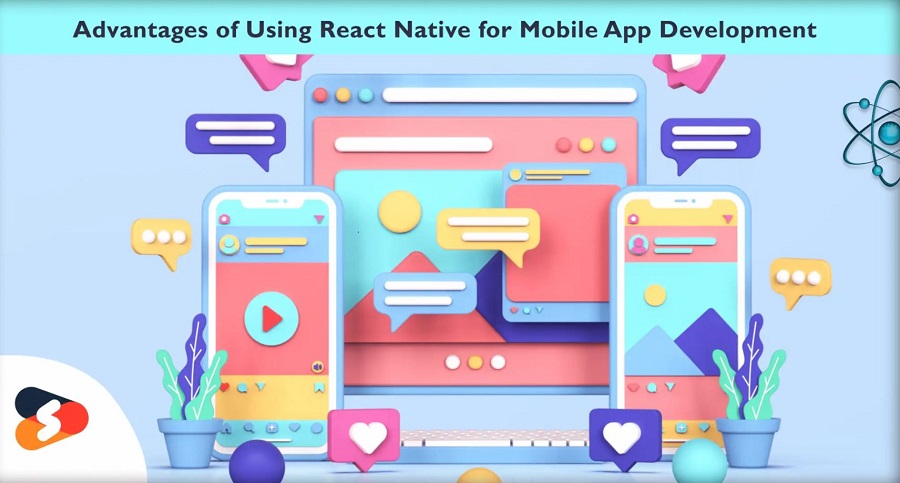
If you’re searching for a business app, React Native is a viable solution.When compared to native app development, you may release your app in less time and at a cheaper cost.
React Native is usually a good fit for most apps, unless it’s a fast-paced, graphically intense game when utilizing native code for Android or IOS has advantages.It has demonstrated its worth as a quick application development framework that is trustworthy, quick, and scalable by being used by firms such as Instagram, Facebook, and Tesla, among many others.
Take a peek at some of the mobile apps created with React Native App Development Services.In this blog, you will learn about the advantages of developing an app in React Native.There are several advantages to using React Native Mobile App Development Services in Australia1) Saves Time and MoneyBecause 95 percent or more of the code is cross-platform, meaning it is compatible with both Android and iOS, developers only need to write one app, resulting in the creation of two apps.
This saves time during app creation, which saves a lot of money that would have been spent on establishing individual apps.
Businesses may use React Native to develop two applications at the same time for less than half the cost of producing just one.
Furthermore, maintenance and upgrades are performed on both applications at the same time, saving money when the applications are constructed and deployed.2) Great PerformanceReact Native apps operate remarkably identically to native apps developed on the respective iOS or Android platforms.