

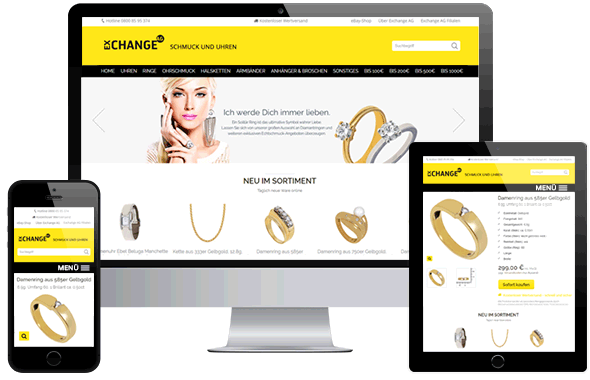
I'm going to tell you how to use this free downloadable template that I as a web developer have personally built to create this listing it's completely free it doesn't take much time and it's completely customizable and it's really easy and simple to do this video is for complete beginners who don't know any coding at all I've perfected this templates and I've sold thousands of items on eBay myself and if you watch this video you will know how to use this template to make a listing for your business stay tuned what is up guys I'm Nick and I'm a web developer and if you're selling on eBay and you want a better listing but you don't know how to build one. now I was exactly in the same position as you were years ago and I wasn't even a developer at the time so trust me you're really gonna find value in this video so I'm going to teach you how I would have wanted to be taught to create a better listing for my eBay business so here's the ebay template we're going to use now one thing I noticed.
when I was building this is there are loads of other listings on the internet that aren't actually responsive so they can't be viewed on mobile or tablets devices and the beauty of this is as I string the browser window everything is completely responsive and it doesn't use what's called JavaScript so many listings currently have you can roll over a thumbnail and that would change the main image but the problem with that is a BAE has restrictions on JavaScript and if they change in the future to ban the use of JavaScript then your listing could be penalized so nothing bad is ever going to happen everything's responsive and it's completely future proof so to get started the first thing you want to do is to download the free listing so in order to do that you just need to go to outset web.com /e Bay and then you can download the listing for free from there so when you open the ebay template file what you'll get is a load of this code so all you need to do is highlight everything press ctrl copy or command + ctrl copy if you're using a Mac and then you need to go to your eBay account click on sell create listing choose the category and then go to the HTML tab of the description and then simply paste in the code so if we quickly preview this then as you can see it is successfully.
inserted and if we want to see it on the mobile view as I said before it's completely responsive so it will work on a mobile phone so obviously looking at it now now the first thing we want to do is replace this green area with a image so you can actually keep it as a color or change the color if you want to and I'll show you how to do that but I would much rather include my own header image so you will need to provide your own image here and it has to be a thousand and fifty pixels by a hundred and fifty pixels so it has a seven to one aspect ratio and what you need to do now is upload the image onto a server now doing this is completely free and i would recommend imageshack so all you would need to do is sign up enter your details and then just click sign up and then it is completely free as I said and it's really easy to just register so once we've registered which I've already done we'll then just upload our images to there and then it'll be fetched by the listing so once you're in just click on upload find the images and once that's done what you'll then need is the URLs of the images that you want to use.;
so if now we want to use the header so if we click on the drop down menu next to the image and then click on direct and then ctrl copy and just previewing it in a tab this is the actual link to that image now this is a JPEG image so what ever you need you just needs the link to that specific image so that when you view it in a web browser it loads that image and it has to end in the file extension so if we go back to creating our listing and we go to the HTML view click anywhere inside controller type in green and where it says green this is currently what the background image is and what we'll need to do here is replace this green with the following code and remember use single apostrophes not quotes otherwise it won't work and type in the URL so if we then go to the standard view as you can see this browser has fetched that image to this listing now notice at the bottom right of this header image there are a few links here now you don't have to have these so if you don't want them then what you would need to do is go to the HTML view and then find and then type in ID equals header ul so this is what we need to delete so if we select the opening and closing ul tags and just delete them then if we go back to standard as you can see they've now gone now I don't want to delete these links.

Things from the same person donating club room i can’t believe i sold it it’s kind of a garbage brand but you know it’s still a cashmere sweater so that’s why i picked it up still sold top shop banana republic express torrid are you guys noticing a trend here this is just your regular mall there’s nothing in here that’s fancy torrid lanzan old navy tommy hilfiger um escapada loft dg2 diane gilman stalinco zara this is a target brand so i’m i bought a couple of target pallets that i regret buying so don’t recommend buying target pallets they do sell but not for very much money torrid um jhl soft surroundings lane bryant um chico’s three like i said three and 2.5 sell the best for me torrid cabbie loft vineyard vines here we go vineyard vines finally one out of a hundred and something items it’s so hard for me to find here gap um brooks brothers free people agb talbots vineyard second vineyard vines we’re on fire torrid romans um tm luin which is a really nice dress shirt but doesn’t sell very well for some reason it’s kind of like charles turret or whatever and um hathaway makes.The importance of a good eBay listing templateA button-down shirt but they don’t sell very well for some reason i think it’s because people really aren’t going into the office ernest sohn i learned about that brand i lived in new york city it’s pretty cool i do like it and um i’ve been selling jeans for such a long time that i can recognize most brands by looking at any kind of marking so ernest sohn has this numbering system like ebay template right there you can see it um let’s see right here so when i see these numbers i know that it’s earnest zone already without looking at it but that brand sells sells great for me all right lularoe yes they weren’t bankrupt and they totally um you know scammed a bunch of people for multi-level marketing but still sells for me i find it all the time because people gave up on their home business peter millar hollister finally a carhartt hurley j crew woman within wrangler.Designer Templates Build Your BrandThis person i had two pairs they bought both pairs ralph lauren american eagle nike boomba ultimate white stripe i don’t know what that is you can see the numbers really small so i have bins one through one thousand so 87 is early on i didn’t know what i was doing so i picked up this brand still sold so must have been sold really cheap let’s see it probably gave it away let’s find out nope still got 16 bucks for it so um i probably just got lucky i don’t know why this sold for so much buck mason gus guess coldwater creek j jill ben sherman j crew lulu’s dress this this pair of sandals i could not find so you know my number one ebay listing template tip is ship fast and i think i can find it on monday but i have one late shipment one thing that’s nice when you have a larger store is that one late
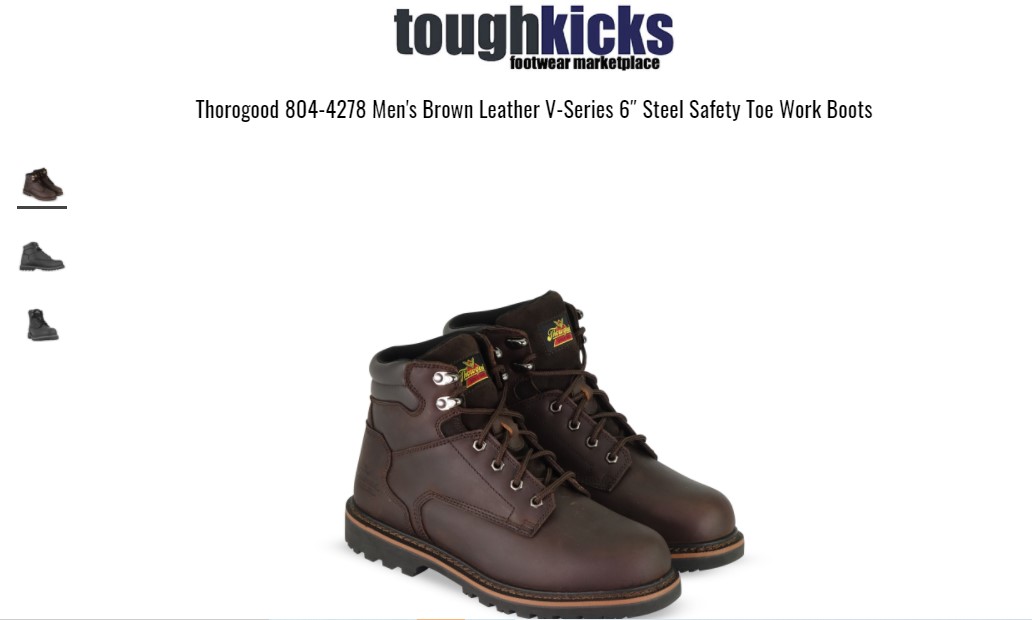
eBay Listing Templates are a great way to save yourself time and effort in eBay there are a lot of ways you can use them but two of the most basic ones are to create a template that you come back to all the time for a certain kind of item for example I list batches of 78 records from time to time so I created myself a template which includes things like how I mail them a description of how I ship them and the basic item specifics 78 record 10 inches all that stuff and so whenever I'm listing about just 78 records I can start from this template and either keep reusing this template or just use it once and then do you create similar for my subsequent listings a second way you can use templates is more ephemeral.For example I have a pile of Steel Safety Toe Work Boots to list and they have a few features in common and the way I list them has a lot of features in common so I'm just gonna create a ebay template for Steel Safety Toe Work Boots that I'm gonna use today for the pile of 20 or so sitting on my desk I may never use it again but I might and it's gonna save me a lot of time in the short term premiere tell us what you're selling page where you start off a single listing go to create new template instead give your template a name and this is something only you see not the public the title is actually the title that will appear in your listings so if there is something that will appear in every title you can include that if not leave it blank and of course even if you do put something in here you can edit it as needed just whatever is common choose your category your store category if applicable.In my case these are all used and they can all get the same description or their condition photos will be different for everyone so I'll leave that as is brand will be different all of these things will be different except they're all vintage they're all unmodified items for my item description I'm gonna do something kind of general that can apply to every single pencil I listing my idea here is that I'm relying on the photographs and on the item title to give people the specifics all of these are gonna have best offer I'll trace them individually they'll all have the same shipping policies of first class on the same payment and return policies and they're all gonna be able to ship for four ounces so once I've finished with this I just hit save template and I can go on to either create another template or to start using this one right now which is what I'm gonna do here I go with my first copy of my eBay Template you'll see I've plopped right into my title with a cursor blinking to help me know I need to write something else in here I'll just fill this out more fully with some keywords all of this is already set up for me I need to add some pictures which I will do by just dragging and dropping them into this plus sign here as they upload I'll continue on and make sure my item specifics are reasonable.It is not gold that is the color a brand is wherever I'm gonna leave the rest of that and I'll price it once the variable characteristics are filled out for this particular item I just hit list item and the easiest thing to do now is just create similar and move on to my next pencil you might have noticed in that last dialog box that you can in fact save any listing that you're completing as a template when the dialog box pops up about what you're gonna do next and that's another way to make that hopefully you could tell that that's gonna speed up my listing of these twenty or so Steel Safety Toe Work Boots and I hope it speeds up your listings too.