

In this article, we will discuss regarding the importing process of Thunderbird contacts to Office 365 profile. Both the ways are available to import Address Book details from Thunderbird to Office 365 format, Manual and Automated method. Let’ find out where Mozilla Thunderbird store its contact details.
Follow the below steps to locate the directory path of Thunderbird email client
- Launch the Mozilla Thunderbird e-mail client.
- Now, go to options from the Thunderbird Menu to find address book files.
- Navigate to the Thunderbird directory by selecting Account Settings >> Server Settings >> Local Directory to copy the Thunderbird contact files.
- Now, Store address book (abook.mab, history.mab, impab.mab) files in a separate folder location.
Import Thunderbird Contact files to Office 365 – Manual Approach
Let’s talk about the manual approach to import or migrate Thunderbird Address Book easily.
Stage-1: How to Export CSV from Mozilla Thunderbird
- Run the Thunderbird App and then select the Address Book option.
- Now, select the Tools option from the top and hit on the “Export” option to export CSV files.
- Click the drop-down icon to select the CSV option, after that click on the Save button.
Stage-2: How can I Import CSV into Office 365
- Go to Outlook in your Office 365 mail account.
- Time to select the “Gear” icon from the left pane.
- Now click on “People” and select Import Contacts.
- Finally, select the Browse button to locate contact files and then click Import.
Automated Solution to Import Thunderbird Address Book to Office 365
Thunderbird Converter by CubexSoft Tools completely helps you to convert, move or import Contacts Thunderbird to Office 365 account, you can simply import exported Thunderbird contact (CSV) file into Office 365 account directly in a trouble-free manner. This program allow users to import multiple CSV file or folders Contacts Office 365 environment in no time, it saves your time and effort.
Follow the steps below to migrate Thunderbird contacts in a complete automated manner.
- Download and Run CubexSoft Thunderbird Converter, choose Contacts & Calendar option.
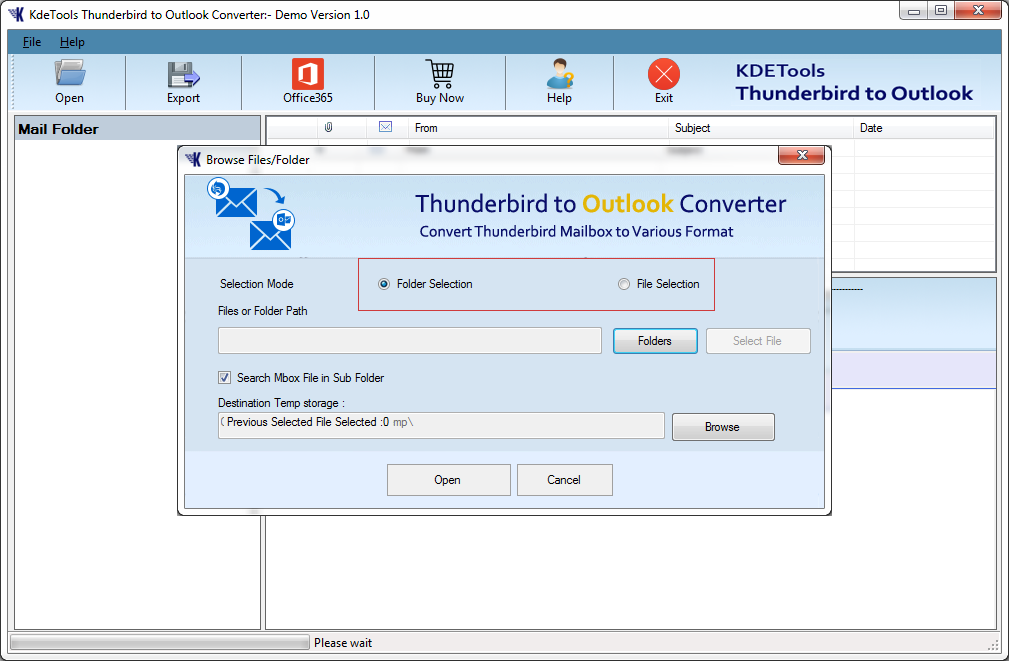
- Now, select Files or Folders having exported contact (.CSV) files from Thunderbird profile.
- After that, select the Office 365 option and add your Office 365 Login credentials to start the conversion process.
- Now, the CSV contacts can be easily imported to Office 365 as explained in Stage-2 above.
Why to choose Automated Solution to the task?
- This Third-Party tool is the safest solution to migrate or import Thunderbird Address Book to Office 365, data safety is completely enabled during the importing Contact files process.
- Batch or Multiple file conversion is allowed, it save your time and effort to convert large number of Address Book files at once.
- There is no need to install Mozilla Thunderbird on your machine.
- No file contact file size restriction.
- Available both in Windows and Mac OS version
Final Words –
So, we have completely discussed regarding the manual or automated method to import or migrate Thunderbird contacts to Office 365 account. The manual approach helps you to import contacts from Thunderbird in a one by one process, to import bulk Address Book files to Office 365 you are in definitely in need to use the automated method, so use Thunderbird Converter tool to import large number of Contact files from Thunderbird to Office 365 account online without any data loss.