

Introduction: Understanding the Need to Unlock Password-Protected Excel Sheets
Excel sheets are a staple in both personal and professional settings for managing data, performing calculations, and creating reports. However, there are times when these sheets are password-protected to safeguard sensitive information. While this is an excellent security measure, it can become a hurdle if you forget the password or need to access a sheet quickly. This guide aims to provide you with comprehensive steps to unlock password-protected Excel sheets, catering to both beginners and advanced users.
Why Password Protection is Important in Excel
Password protection in Excel serves as a crucial security feature that ensures only authorized individuals can access or modify sensitive data. This is particularly important in corporate environments where data integrity and confidentiality are paramount. Passwords help in preventing unauthorized access, accidental deletions, and data corruption, thereby maintaining the reliability and accuracy of the information stored in the Excel sheets.
Precautions Before Attempting to Unlock Password-Protected Sheets
Before you proceed with unlocking a password-protected Excel sheet, it’s essential to take certain precautions. First, ensure that you have the legal right to access the sheet. Unauthorized access to protected data can lead to legal repercussions. Secondly, always create a backup of the Excel file to prevent any data loss during the unlocking process. Lastly, be prepared for the possibility that some methods might not work, depending on the complexity of the password and the version of Excel you are using.
Method 1: Using VBA Code to Unlock Excel Sheets
One of the most popular methods to unlock a password-protected Excel sheet is by using Visual Basic for Applications (VBA) code. This method is suitable for users who are comfortable with basic programming. Here’s how you can do it:
Step-by-Step Guide:
- Open the Excel file that contains the protected sheet.
- Press Alt + F11 to open the VBA editor.
- In the VBA editor, click Insert and then select Module.
- Copy and paste the following VBA code into the module:
Sub PasswordBreaker()
    Dim i As Integer, j As Integer, k As Integer
    Dim l As Integer, m As Integer, n As Integer
    Dim i1 As Integer, i2 As Integer, i3 As Integer
    Dim i4 As Integer, i5 As Integer, i6 As Integer
    On Error Resume Next
    For i = 65 To 66: For j = 65 To 66: For k = 65 To 66
    For l = 65 To 66: For m = 65 To 66: For i1 = 65 To 66
    For i2 = 65 To 66: For i3 = 65 To 66: For i4 = 65 To 66
    For i5 = 65 To 66: For i6 = 65 To 66: For n = 32 To 126
        ActiveSheet.Unprotect Chr(i) & Chr(j) & Chr(k) & _
        Chr(l) & Chr(m) & Chr(i1) & Chr(i2) & Chr(i3) & _
        Chr(i4) & Chr(i5) & Chr(i6) & Chr(n)
        If ActiveSheet.ProtectContents = False Then
            MsgBox "Password is " & Chr(i) & Chr(j) & _
            Chr(k) & Chr(l) & Chr(m) & Chr(i1) & Chr(i2) & _
            Chr(i3) & Chr(i4) & Chr(i5) & Chr(i6) & Chr(n)
            Exit Sub
        End If
    Next: Next: Next: Next: Next: Next
    Next: Next: Next: Next: Next: Next
End Sub
- Run the code by pressing F5 or clicking the Run button.
- If successful, a message box will appear displaying the password used to unlock the sheet.
Method 2: Using Online Tools to Unlock Excel Sheets
For those who prefer not to use VBA code, several online tools can help unlock password-protected Excel sheets. These tools are user-friendly and require no technical expertise. However, they may not be as secure as other methods, so use them with caution, especially if the Excel file contains sensitive information.
Popular Online Tools:
Steps to Use Online Tools:
- Visit the website of the chosen online tool.
- Upload the password-protected Excel file.
- Follow the on-screen instructions to initiate the unlocking process.
- Download the unlocked Excel file once the process is complete.
Method 3: Using Excel Password Recovery Software
Another effective way to unlock password-protected Excel sheets is by using specialized software designed for password recovery. These programs are typically more reliable and secure compared to online tools. Some popular software options include:
Recommended Software:
- eSoftTools Excel Password Recovery
- Passcape Excel Password Recovery
- Elcomsoft Advanced Office Password Recovery
Steps to Use Password Recovery Software:
- Download and install the password recovery software of your choice.
- Launch the software and open the password-protected Excel file.
- Select the type of attack (e.g., brute force, dictionary) to use for password recovery.
- Start the recovery process and wait for the software to find the password.
- Once the password is recovered, use it to unlock the Excel sheet.
Method 4: Using Google Sheets to Unlock Excel Sheets
Google Sheets offers a simple yet effective method to unlock password-protected Excel sheets. This method is particularly useful for users who prefer not to download additional software or use online tools. Here’s how you can do it:
Step-by-Step Guide:
- Open Google Drive and upload the password-protected Excel file.
- Once uploaded, right-click on the file and select Open with > Google Sheets.
- Google Sheets will attempt to open the file. If successful, the protection will be removed.
- You can now edit the sheet or download it as an Excel file without the password protection.
Method 5: Contacting the File Owner for Password
If the above methods do not work or if you prefer a straightforward approach, consider contacting the file owner for the password. This is often the quickest and most reliable way to gain access to a password-protected Excel sheet, especially if you have a legitimate reason for needing access.
Steps to Follow:
- Identify the owner or creator of the Excel file.
- Reach out to them via email, phone, or any other communication method.
- Explain your need for accessing the file and request the password.
- Once you have the password, use it to unlock the Excel sheet.
Conclusion: Choosing the Best Method for Your Needs
Unlocking a password-protected Excel sheet can be done using various methods, each with its own pros and cons. Whether you opt for VBA code, online tools, specialized software, Google Sheets, or simply contacting the file owner, the key is to choose a method that best suits your technical comfort level and the sensitivity of the data involved. Always ensure you have the right to access the protected sheet and take necessary precautions to safeguard the data. With this guide, you are now equipped with the knowledge to unlock Excel sheets efficiently and effectively.

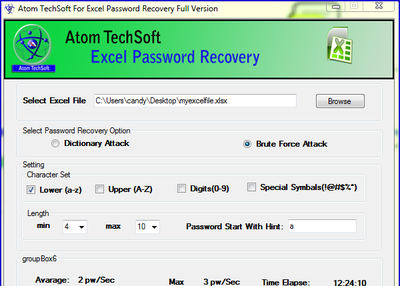
Use Atom techsoft Excel password unlocker software which is optimal route for recovery excel xlsx file password and also again read database of xlsx file & worksheet. Read More-: https://gallery.technet.microsoft.com/office/Atom-TechSoft-verified-4422ce0c
Excel Unlocker- http://www.atomtechsoft.com/excel-password-recovery.html