

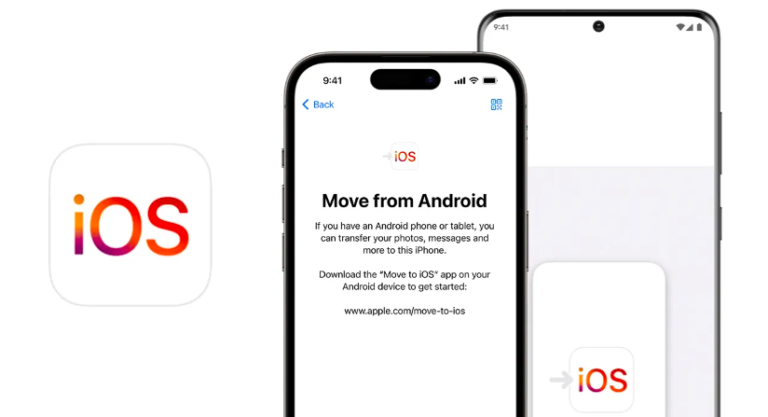
Switching from an Android device to an iPhone or iPad can be exciting, but it also raises concerns about transferring your important data like contacts, messages, photos, and documents. Fortunately, Apple provides tools and options that make this migration relatively smooth. Here's a step-by-step guide to backing up, restoring, and syncing your files from Android to iPhone or iPad.
Step 1: Prepare Your Android Device
Before you start the transfer, it's a good idea to clean up your Android phone: Update apps and software to the latest version. Delete unnecessary files or duplicates. Make sure you have a stable Wi-Fi connection and your devices are fully charged. Also, ensure you have a Google account backup enabled:
To backup manually:
Go to Settings > Google > Backup
Tap on Back up now
This ensures your contacts, calendar, and app data are synced with your Google account.
Step 2: Use Apple’s 'Move to iOS' App
Apple offers a free app called Move to iOS, designed to help Android users transfer data easily.
How to use it:
Download 'Move to iOS' from the Google Play Store.
On your new iPhone or iPad, during initial setup, select "Move Data from Android."
On your Android device, open the Move to iOS app and follow the instructions.
Enter the 6-digit code displayed on the iPhone/iPad into the Android app.
Choose what you want to transfer: Contacts, Message history, Photos, Videos, Bookmarks, Calendars, and Mail accounts.
Wait for the transfer to complete. This might take several minutes depending on the data size.
Note: Apps themselves won’t transfer, but iOS will suggest downloading the iOS versions of apps where available.
Step 3: Transfer Files Not Covered by 'Move to iOS'
Some files like music, documents, or WhatsApp chats need to be transferred manually or using third-party tools.
Photos & Videos: Use Google Photos to back up on Android. Then, install Google Photos on iPhone and sign in.
Documents & Files: Use Google Drive, Dropbox, or OneDrive. Upload from Android, then download or access via the same app on iPhone or iPad.
Music: Upload songs to YouTube Music or iCloud Drive, then play or download them on your Apple device.
For WhatsApp, use the built-in feature:
Go to WhatsApp > Settings > Chats > Move Chats to iOS.
Follow the on-screen instructions on both devices.
Step 4: Set Up iCloud and Sync Across Apple Devices
Once your data is on your iPhone or iPad, enable iCloud for syncing across devices:
Go to Settings > [Your Name] > iCloud
Toggle on services like Photos, Contacts, Calendar, Files, Notes, etc.
This ensures all your data remains synced between your iPhone and iPad automatically.
Final Tips
SIM Cards: Check if your iPhone uses a nano SIM or eSIM and ensure compatibility.
App Alternatives: Some Android apps may not be available on iOS. Look for replacements in the App Store.
Keep your Android device for a few days as a backup in case anything is missing.
Conclusion
Migrating from Android to iPhone or iPad doesn't have to be difficult. With tools like Move to iOS and cloud services like Google Drive and iCloud, you can ensure a smooth transition. Just follow the steps above to back up, restore, and sync your data — and enjoy your new Apple experience!

The reseller hosting business is one of the most profitable businesses.
Regular backups will help to gain the trust of your clients.
But, JetApps JetBackup plays the important role in this industry.
Let us see a simple comparison between JetBackup Manager and Native WHM panel.JetBackup’s WHM has many new features to save you money and time by streamlining and automating tedious server management tasks.
You can fix and sell your own hosting packages to your clients.
You can find the necessary tools or widgets easily.