


Your laptop needs to talk to every piece of hardware you connect to it. Windows makes this happen through its hardware compatibility system and driver model. Whether it is plugging in a printer or connecting a mouse anew, these capabilities are put in action behind the scenes.
The system has evolved through multiple decades to achieve higher intelligence and better operational reliability. Today, you can connect most devices without installing anything manually. Windows handles the heavy lifting for you. This seamless experience comes from seven core features that work together. These aren't just technical specs; they directly impact your daily computing experience.
Let's talk to understand in detail!
What Makes Windows Hardware Compatibility Work
Windows hardware compatibility relies on a framework that connects your operating system to physical devices. This framework ensures that components communicate properly. It makes your Windows laptop capable of recognizing, configuring, and using new hardware automatically without requiring manual setup or technical expertise.
The Foundation of Device Communication
The system establishes its hardware identification and configuration processes through standardized protocols. The PC system can detect any connected USB drive or external monitor through immediate recognition. This happens because Windows queries the device and matches it with appropriate drivers.
1. Plug and Play Technology
Remember when installing new hardware meant diving into system settings? Those days are gone thanks to Plug and Play.
This feature detects new devices the moment you connect them. Your system assigns resources automatically. No restart required in most cases. The technology handles:
- Resource allocation for memory and processing power.
- Interrupt request assignments.
- Input/output port configuration.
- Direct memory access channels.
You simply connect your device and start using it. Windows does the configuration work invisibly. This convenience has become so standard that you probably take it for granted.
How Plug and Play Saves Your Time
The automatic detection system scans hardware buses continuously. It identifies new connections within seconds. The operating system then loads the appropriate driver from its database.
2. Universal Driver Architecture
Windows uses a layered driver model that separates hardware-specific code from generic functions; assigned functions are well-defined and strongly interlinked. This architecture makes the system more stable.
The model includes several driver types:
- Kernel-mode drivers that interact directly with hardware.
- User-mode drivers that run with restricted privileges.
- Filter drivers that modify data between applications and devices.
- Bus drivers who manage communication channels.
Each layer serves a specific purpose. The separation prevents one faulty driver from crashing your entire system.
The worldwide laptop market will reach a value of over $174.87 billion by 2033. The demand for Windows hardware compatibility has grown more important than it was before.
3. Driver Signature Enforcement
Security matters when installing software that controls hardware. Driver signature enforcement protects your system from malicious code.
Verified Publishers Keep You Safe
Windows requires drivers to carry digital signatures from verified publishers. This verification confirms that:
- The driver comes from a legitimate manufacturer
- The code hasn't been altered since signing
- Microsoft has tested the driver for compatibility
Unsigned drivers trigger warning messages during installation. You can still install them, but Windows alerts you to the risk.
The enforcement becomes stricter with each Windows version. Modern systems block unsigned kernel-mode drivers entirely. This policy frustrated some users initially, but significantly improved security.
4. Windows Update Driver Distribution
Microsoft delivers driver updates through Windows Update alongside security patches. This integration streamlines the update process.
Your system checks for new drivers automatically. When manufacturers release improved versions, Windows downloads and installs them. Benefits include:
- Automatic bug fixes for device issues.
- Performance improvements for graphics cards.
- Security patches for vulnerable drivers.
- Feature additions for existing hardware.
You don't need to visit manufacturer websites hunting for updates. Windows handles distribution centrally. This convenience ensures most users stay current with their drivers.
5. Hardware Compatibility Lists
Windows maintains compatibility databases that guide installation decisions. These lists tell you which devices work with your operating system version.
The Windows Hardware Compatibility Program tests devices before certification. Manufacturers submit their products for validation. Passing devices earn a compatibility logo.
Making Smart Purchase Decisions
Check compatibility lists before buying new hardware. The lists prevent frustrating situations where expensive equipment won't work with your PC.
Search by device category or manufacturer name. The database shows:
- Compatible Windows versions.
- Required driver versions.
- Known limitations or issues.
- Alternative devices if yours isn't listed.
This information saves money and hassle. You buy hardware knowing it will work properly.
6. Device Manager Integration
Device Manager gives you control over installed hardware. This built-in tool shows every device connected to your system.
The interface organizes devices by category. You can update drivers or disable problematic hardware. Troubleshooting becomes straightforward when you spot devices with error indicators.
Key functions include:
- Viewing device properties and status.
- Rolling back driver updates that cause problems.
- Uninstalling devices completely.
- Scanning for hardware changes manually.
Taking Control of Your Hardware
Right-click any device to access options. Update drivers directly from manufacturer files. Disable devices that conflict with others. The manager puts hardware control at your fingertips.
Advanced users modify driver properties through this interface. You can adjust power management settings or change resource allocations when necessary.
7. Driver Rollback Capability
Sometimes new drivers create more problems than they solve. Windows includes rollback functionality for these situations.
The system keeps previous driver versions when installing updates. Suppose the new driver causes crashes or performance issues; you can revert. The rollback restores the older working version instantly.
This safety net encourages updates. You can try new drivers knowing you have an escape route. The feature prevents situations where updates leave devices unusable.
Conclusion
Windows hardware compatibility and driver features create a smooth computing experience. These seven elements work together, ensuring your devices connect reliably. Understanding these features helps you maintain your system effectively. You can troubleshoot issues faster and make informed hardware decisions. The next time you connect a device, and it just works, remember the sophisticated system making it possible. Windows continues evolving these features to support emerging technologies while maintaining compatibility with trusted equipment.

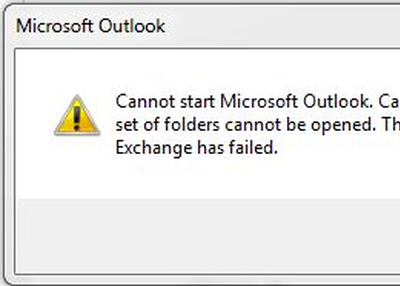
Microsoft Outlook is one of the maximum commonly used Emails by you. So it’s miles natural that you must have a number of issues with it, like common begin-up problems, freezing, sluggish response, corrupt PST or Profile or Add-in, etc.
Microsoft Outlook problems and problems
In this publish; we will advise some suggestions that may assist you in resolving these Microsoft Outlook troubles on your Windows laptop.
Outlook upload-in corrupt
Most of the time the troubles with Outlook are because of poorly written upload-ins which may be set up with software; which most of the instances we receiver’s even understand!
As step one, we need to attempt to disable the upload-ins and notice if that resolves the trouble. Add-ins can purpose Outlook, not to open. It can even freeze or reason ‘now not-responding’ problems!
Here are a few strategies, I advise, which you may use to disable the add-ins.
- Outlook 2003: Go to Tools > Options > Advanced > Add-in Manager
- Outlook 2007: Tools > Trust Center > Add-ins
- Outlook 2010/2013/2016: File > Options > Add-ins. There you’ll locate COM Add-ins pick out that option and uncheck all non-Microsoft related upload-ins you would also select the Exchange upload-ins and disable it from there as properly. Then close Outlook.
Step 1
- Sometimes Outlook simply won’t close -it will remain still going for walks in Task Manager. So we have to open the Task Manager.
- Go to Process tab and search for Exe and kill the service.
- Then, re-open Outlook and spot if the trouble is still there.
Step 2
- Download OfficeIns from Nirsoft. Close Outlook. Make certain it’s now not strolling within the Task Manager.
- Then open OfficeIns. Select the Add-in and Right Click on You’ll find an option referred to as “Change Start Mode”.
- And choose Disabled and then Select “Change Connect Mode” and choose No. Follow the same system for all non-Microsoft upload-ins.
- Once you disable all of the upload-ins, the open Outlook and check it.
Step 3
- The next approach is disabling it from Registry. This choice is for superior. Change the cost incorrectly can motive capacity harm to Computer be very careful.
- Go to Start and type in Regedit. Then let’s make a backup of the Registry.
- Click “Computer” then Go to File > Export > type the File name as Registry lower back and click onSave.
- Under Addins key, you’ll discover the listing of add-ins. To dispose of the virtually highlight the only Right Click on it and Delete.
- To disable it quickly on the Right facet Pane you’ll discover a Value referred to as “Load Behavior” double-click on it and exchange the Value facts from “three” to “0” Click OK.
- Once you do this close the Registry and open Outlook and take a look at it.
These are the three steps that you need to follow because our technicians have researched a lot to give the beneficiary in need. And you will also get assistance through our experts by calling our Outlook Technical Support Number +1 844 444 4174