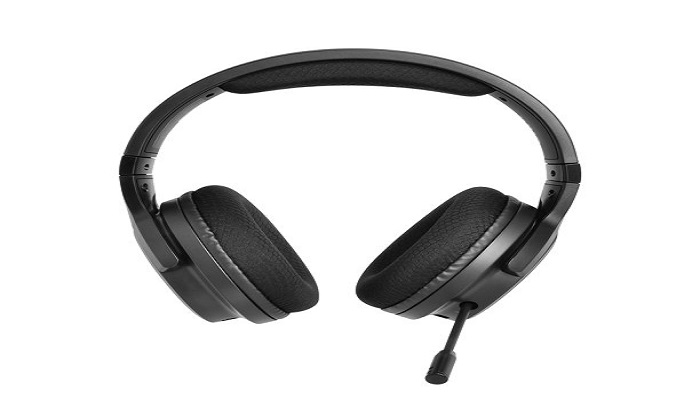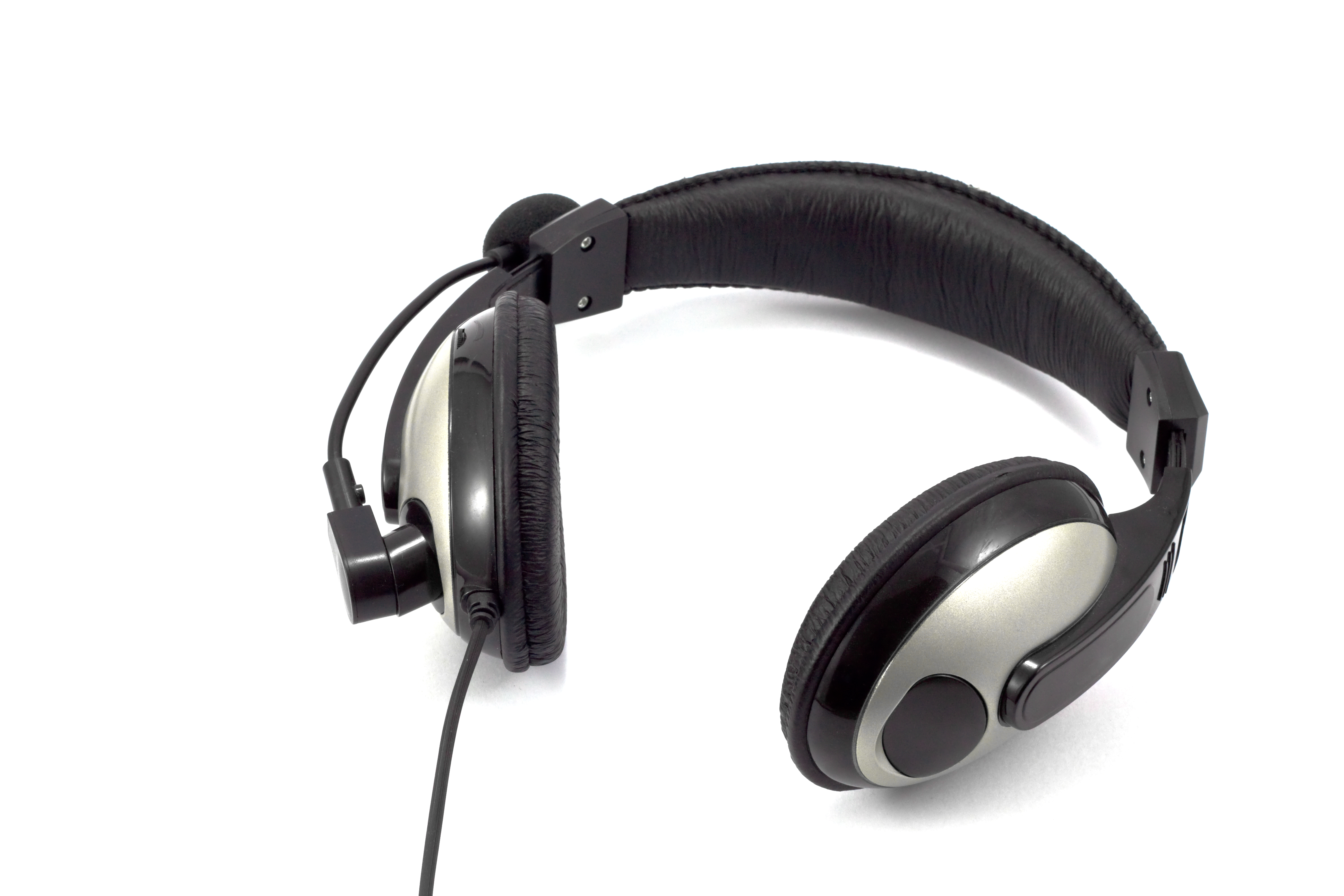
In order to change the microphone sensitivity in the Logitech H390, open the system sound settings, choose the H390 as the input device and move the microphone level slider until your voice is clear with no distortion. On Windows, it can be adjusted in Sound Settings in the Recording device properties. On Mac, it is found under the Input tab in Sound settings. Adjusting your voice properly will help you to sound clear and avoid as much background noise as possible when you are on a call.
Why Mic Sensitivity Adjustment Is Important
Microphone sensitivity determines how much sound your headset captures and transmits. If the sensitivity is set too high, your voice may become distorted and background noise becomes more noticeable. If it is set too low, your voice may sound unclear or too quiet for others to hear properly. That’s why understanding How to Adjust Mic Sensitivity on H390? is essential for maintaining professional and clear communication.
The Logitech H390, developed by Logitech, is known for its strong voice clarity and noise-canceling boom microphone. It is widely used for office meetings, online classes, call centers, and remote work. However, even with built-in noise reduction, proper microphone sensitivity adjustment is necessary to achieve consistent audio performance.
Step-by-Step: Adjusting Mic Sensitivity on Windows
- Plug the Logitech H390 into your computer.
- Click on Open Settings and choose System.
- Click Sound.
- In the line of input, select Logitech H390.
- Select Device Properties.
- Slide the Microphone Volume.
Start at about 70 percent. Talk in your natural voice and check the intelligibility. Speak a little more slowly, in case your voice is weak. Reduce in case distortion or background noise is perceived.
In case you require more detailed instructions about wired head set installation and troubleshooting, Find headsets provides internal documentation on the comparison of microphone calibration approaches to use in the office setting.
Step-by-Step: Adjusting Mic Sensitivity on macOS
- Connect the headset via USB.
- Open System Settings.
- Click Sound.
- Select the Input tab.
- Choose Logitech H390.
- Turn the slider of the Input Volume.
When talking in a natural manner, monitor the input level meter. It must not get to maximum capacity, but should increase gradually. In case it peaks very often, make it a little less sensitive.
Proper Microphone Placement
- Mic placement leads to clarity even prior to sensitivity changes.
- Put the boom microphone two fingers apart in front of your mouth.
- Hold it a little aside at the side and not necessarily front.
- Keep off lips or clothing.
Communication standards used by the international telecommunication union have suggested that positioning of the microphones greatly influences the intelligibility. Appropriate positioning lowers the noise of breathing and enhances the consistency of the voice.
Reducing Background Noise
Sensitivity parameters need to be in line with your environment. To reduce unwanted sound:
- Reduce the level of the microphone a notch.
- Close doors and windows
- Switch off adjacent fans or electronic devices.
- Enhance noise canceller in applications like Zoom or Microsoft Teams.
The comparison of the noise treatment with wired and wireless headsets can be carried out through structured comparison guides that are found on Find headsets where internal resources demonstrate the way USB headsets can handle voice clarity in various conditions inside the office.
Common Mic Sensitivity Issues
Voice Sounds Too Quiet
Slide the microphone up slowly and ensure that Logitech H390 is the default input device.
Voice Sounds Distorted
Lower the input level. Excessive gain can be a source of distortion.
Background Noise Is Too Loud
Cover the microphone and move it nearer to your mouth.
Those sources which mention workplace communication as studied by the Occupational Safety and Health Administration highlight the point that the efficient use of clear audio tools will lead to less confusion and an increased productivity. The right setting of the microphones will help to achieve this objective.
Advanced Tips for Better Voice Clarity
Turn off audio enhances that are not necessary when there is distortion.
Install audio drivers in the update system in case the mic is not detected.
Input settings are unique to check conferencing software.
Reboot your system upon significant changes.
A majority of the users obtain the best clarity without the need to install any extra software using straightforward system controls.
Find headsets offers internal tutorials and product-specific tips to buyers who are looking to optimize their headsets to the maximum and who therefore need detailed advice on how to do so.
Frequently Asked Questions
What is the ideal sensitivity level for Logitech H390?
There is no fixed number. Most users find 60 to 80 percent suitable, depending on room noise.
Does Logitech H390 support automatic gain control?
No. Sensitivity adjustments are managed through system or application settings.
Can mic sensitivity impact background noise?
Yes. Higher sensitivity captures more ambient sound.
Is Logitech H390 suitable for professional meetings?
Yes. When properly adjusted, it provides clear and stable voice communication.
Where can I find more headset setup guides?
You can explore internal headset configuration and comparison resources at Find headsets for additional assistance.
Conclusion
The procedure of tweaking mic sensitivity in the Logitech H390 is a simple, yet crucial procedure towards having clear voice talk. Users can enhance the quality of audio by ensuring the microphone is in the right position, setting the right level of input, and reducing the noise that occurs around the microphone. To have systematic information, troubleshooting, and headset comparison services, Find headsets provides elaborated in-house materials aimed at assisting customers make the right choice and configure reliable communication devices.
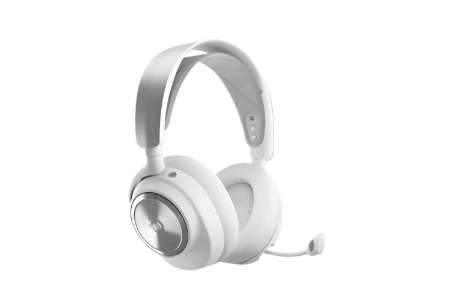
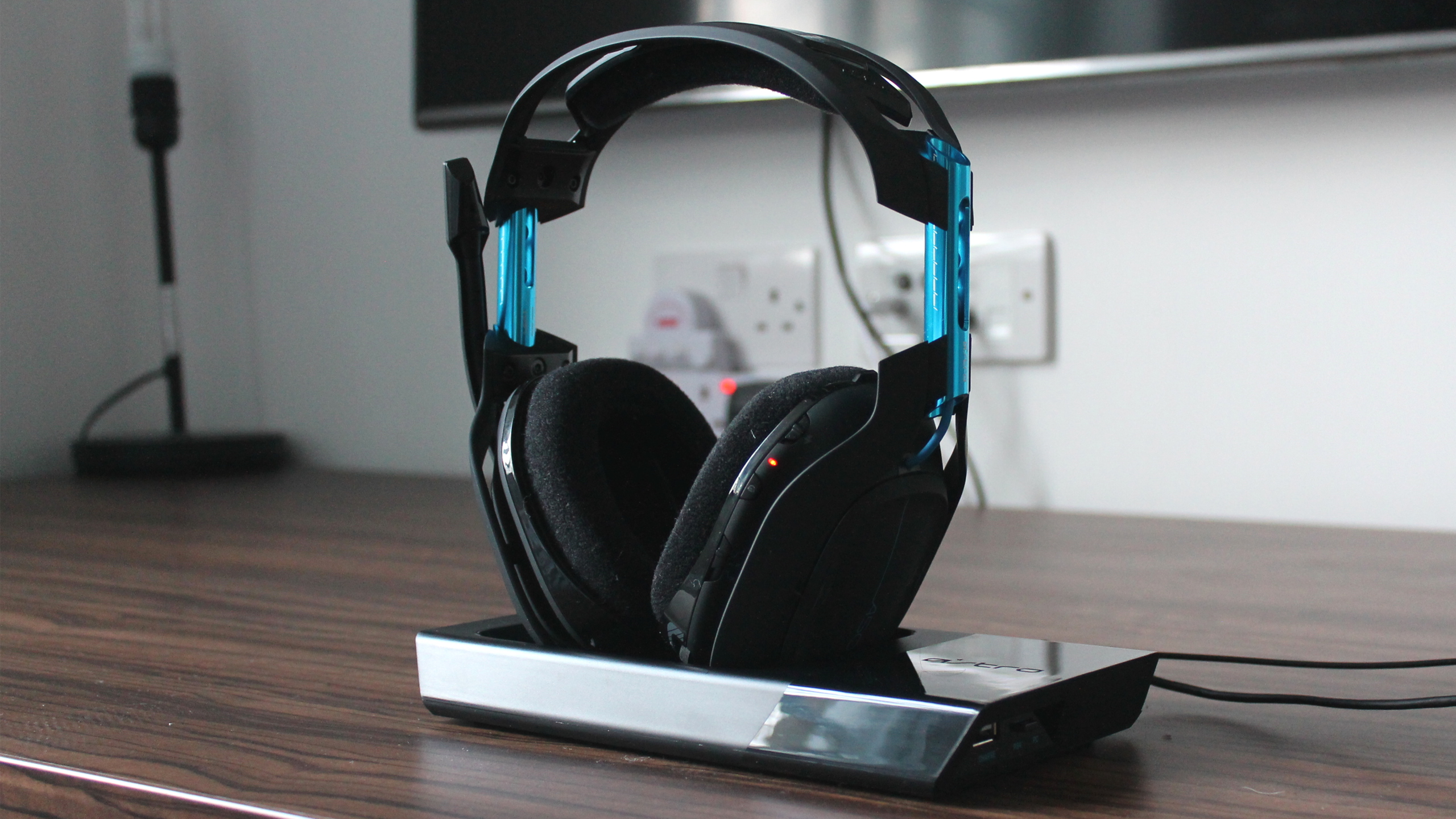
Gaming headsets play a crucial role while playing your favorite games because of crystal clear audio that helps you in picking up the sound and direction of enemy artillery, the sound of sports cars in a car-racing game, and more.
To choose the best gaming headset, you need to consider the two most important factors: price and sound quality of the headset.
HyperX Cloud Alpha is a highly recommended gaming headset for its better frequency range and overall sound quality.Steelseries Arctis Pro+ GameDACSteelseries Arctis Pro+ GameDAC is a high-end gaming headset with exceptional performance.
It also comes with a detachable microphone.Razer Blackshark V2Razer Blackshark V2 is probably the best headset made by Razer ever.
This headset is extremely comfortable and sleek.
The price of this headset is less than USD 100.